VersIC user interface
The primary VersIC User Interface is the familiar Cadence Library Manager which has the following customizations for VersIC:
- A new 'VersIC' pulldown menu
- Changes to the popup menu
- Optionally replace the default Copy and Delete functionality
There is also a new VersIC pulldown menu in the graphical editor windows.
Many of the VersIC menu items are context-sensitive - that is, they are enabled only when the functionality is available for the current object (for example, 'Checkin' on a cellview is disabled unless that cellview is checked out).
Library manager VersIC pulldown menu
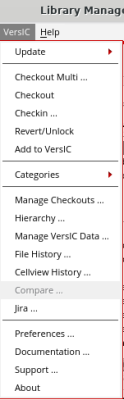
The VersIC pulldown menu in the Library Manager contains all of the VersIC commands.
When selecting a menu item from the Library Manager, the action is performed on the selected object. So if only the cell is selected, all views are operated upon; if the library is selected, all cellviews in the library are affected.
The menu is context sensitive, so if a menu item is grayed out or missing, the command is not available or is not meaningful on the current object.
Update sub menu

Update to HEAD
Updates the data in the selected local mode Cadence Library to its HEAD revision. (compare with 'Update Local Libs to HEAD')
Show available updates
Show any available updates in a form so that the user can select which objects to update. If a library is selected the form will be filtered to that library. If no library is selected, the form will show updates across all local mode libraries.

Update Local Libs to HEAD
Update ALL local mode libraries to their HEAD revisions. (compare with 'Update to HEAD')
Re-Create cache
Refresh the VersIC cache.
Checkout Multi... Menu item
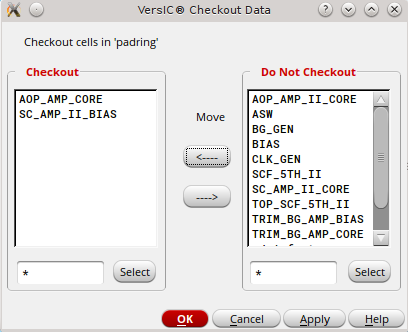
Checkout multiple objects at a time. If a library is selected then the cells in the library are displayed:
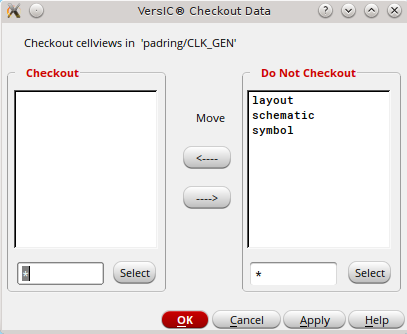
If a cell is selected, the views in the cell are displayed:
Checkout menu item
Checkout the cells (library selected) or views (cell selected) under the selected object.
Checkin menu item
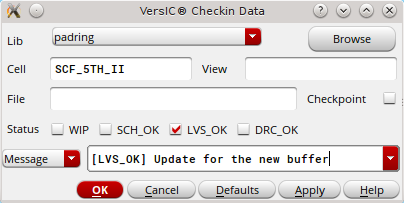
Brings up the VersIC Checkin form filtered for the selected object (library/cell/view):
Revert/Unlock Menu Item
Revert and unlock any locked or modified data in the selected object (library/cell/view)
Add to VersIC Menu Item
"Add to VersIC" will bring up a shuttle box showing the unmanaged cellviews for the selected object. The selected object maybe a library, a cell or a cellview
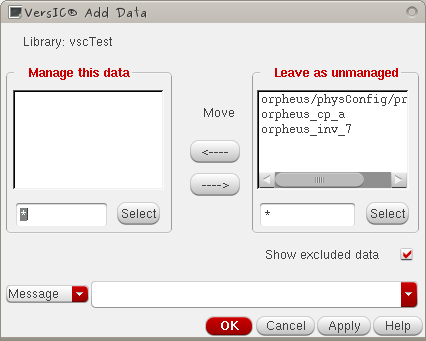
The user may then select which cellviews they would like to manage, supply a commit message (or file) and apply the form.
Note that the "Add to VersIC" supports VSC_NOCHECKIN_ON_ADD which will set the svn state to "Added" for the new cells. The cells maybe committed in separate operation later. This is useful in the case where a user makes a mistake and adds the wrong cells, the added cells maybe reverted and deleted from the working copy, before they arrive in the repository. When VSC_NOCHECKIN_ON_ADD is set the message field is not displayed on the form.
Categories sub menu
Information on how Categories are managed in VersIC can be found in VersIC categories.
Manage Checkouts menu item
The Manage Checkouts form allows you to view and change the status of checked out data. It also allows you to Add/Delete unmanaged data.
The Manage Checkouts form is covered in detail at VersIC manage checkouts.
Hierarchy menu item
The Hierarchy form performs operations on a hierarchy of managed data and is described in detail atVersIC hierarchical operations.
Manage VersIC Data Menu Item
Perform advanced operations on managed data
See details at Manage VersIC data.
A summary of the available actions are described below
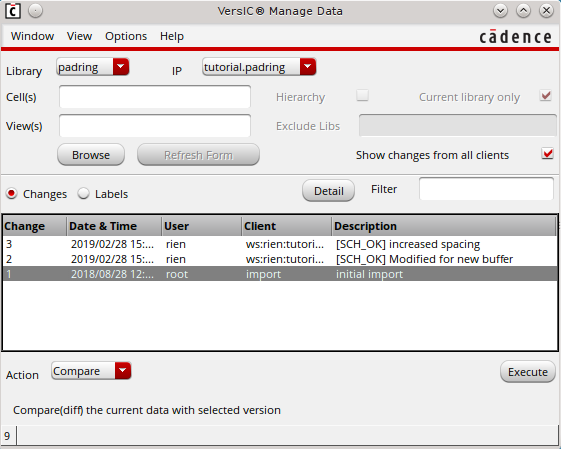
Compare
Compare between different versions of the same object or between different objects. For more information see MergeIC.
Retrieve
Previous versions of data can be retrieved to new libraries/cells/views using the 'Retrieve' action. Data can be retrieved as individual cellviews, hierarchies or libraries. A retrieve operation does not affect the current data, and the retrieved data is unmanaged.
Rollback
Data can be rolled back to an earlier version with this operation. A rollback checks out the current data and overwrites it with data from the selected version, then checks the data in to a new version.
Label
Apply a DM level label to the selected object. Note: Percipient releases should be used instead of DM level labels.
Sync
Sync the selected data to the HEAD or to the selected Change or Label.
Undelete
Undelete any data deleted by the selected change number. If multiple items were deleted by the change a second form will appear allowing the user to select which cellview(s) they want to bring back.
Cellview History ... Menu Item
Brings up the VersIC Cellview History form:
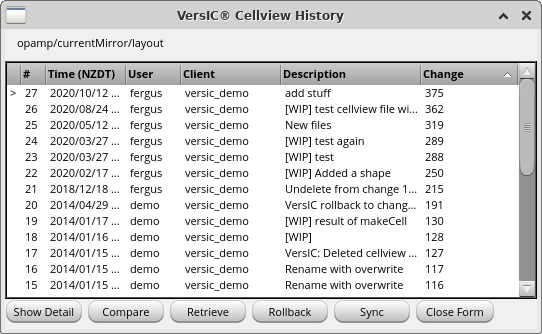
A number of functions are available from this form:
Show Detail
Show the detailed DM level log for this checkin.
Compare
Bring up the VersIC compare form populated with this revision. For more information see MergeIC.
Retrieve
Retrieve an unmanaged copy of this cellview into the workspace.
Rollback
Rollback to the selected version (make it the new managed HEAD version).
Sync
Sync the workspace to the selected version (HEAD version doesn't change).
Compare ... menu item
Bring up the VersIC compare form to compare a view to another version of the view or a different view. For more information see MergeIC.
Preferences
Information on VersIC preferences can be found at VersIC preferences.
Documentation
Open the VersIC documentation in a browser.
Support
Bring up the form to create a Support bundle. For more information see VersIC support.
About
Shows a dialog box with information about this version of VersIC.
Library manager popup menu
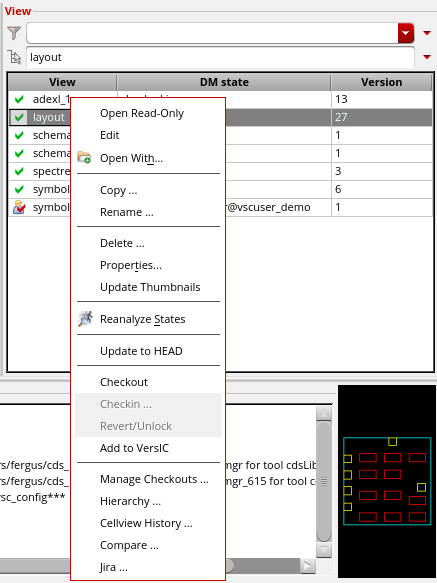
You can access many of the VersIC commands from the Library Manager popup, which is also context sensitive.
Library colors
| Attribute | Description | Default Color | Notes |
|---|---|---|---|
| VersIC | In local mode and up-to-date (e.g. an IP@HEAD) | Blue | See * below |
| VersIC:refer | In refer mode | Green |
|
| VersIC:changed | In local mode, not up-to-date | Red | See * below |
| VersIC:synced | Updated to a previous version/release (e.g. an IP not at HEAD) | Orange |
|
| VersIC:refLibs | Reference library (not in the workspace and not writeable) | Pink |
|
| n/a | Other libraries (e.g. local unmanaged libraries) | Black |
|
* The status information is cached and may not be current if there are recent changes to the repository or if another client has been used to update the workarea.
Use Show Available Updates to see what data is not up-to-date and/or to reset the color..
You can configure these colors with Edit->Display Settings in the Library Manager.
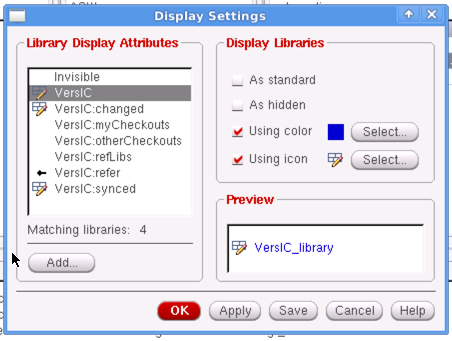
You can add Display Attributes or change the 'Display Libraries' of the existing Display Attributes.
The Display Settings are stored under your working directory in .cadence/libManager/displayPrefs; the assignment of display attributes to libraries is done in '.cadence/libManager/versicDisplayProps', which is INCLUDEd in your cds.lib file.
The default library colors are defined in $VSC_INSTALL_DIR/config/cadence/displayPrefs, which is copied to ./.cadence/libManager directory on VersIC startup if the local file doesn't already exist. To set the colors globally, you can create a custom $VSC_CONFIG_DIR/displayPrefs, then delete the existing local displayPrefs files (if any) and restart Cadence. Alternatively, run 'vscInitDisplayPrefs()' and restart the Library Manager.
Some display attributes (VersIC:myCheckouts, VersIC:otherCheckouts) are defined but are not used.
Graphical editor window
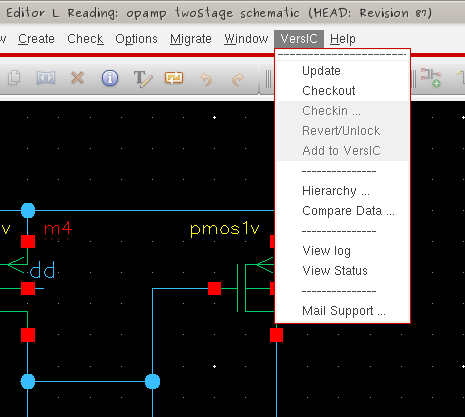
Most of the items in the menu perform the same operation as the matching menu item in the Library Manager VersIC pulldown.
One additional menu item is 'Compare Data' which brings up the MergeIC tool which can be used to generate graphical or textual comparisons between cells or versions of cells.