MergeIC
Visually diff and merge your schematic/layout design data within VersIC.
- Screenshots
- The MergeIC Demo can be found on this page of VersIC videos.
MergeIC - Visual Diff and Merge of Schematic or Layout data
Exploring differences between two objects in a version-controlled environment is a base-level requirement for software configuration management (SCM) but, unfortunately, has been a glaring omission in IC data management (DM) offerings.
MergeIC addresses this omission by providing a powerful and intuitive interface to display the differences between any two cellviews, and the means to merge changes between the cellviews. MergeIC is available as a module for VersIC or as a standalone tool. MergeIC can be used on any Cadence cellviews, whether managed by VersIC, not managed, or even managed by another DM tool.
Feature Summary
- CDF Prop Diffs (transitor sizes etc)
- XOR overlay with configurable opacity - a slider is used on the form to control the visibility of the previous version's instances/shapes
- Diff versions directly from the repository - no requirement to open the older cellview first in Cadence
- Comprehensive difference reporting
- Shape/instance merging capability - wholesale or piecemeal
- Schematic diffs based on the circuit topology, sorted into ECO's and functional changes
- Layout shape diffs organized by layer
- Configurable highlighting and zoom-to-highlight
MergeIC Console
Select the data to be compared, run the comparison, browse results and merge changes all from the MergeIC Console.
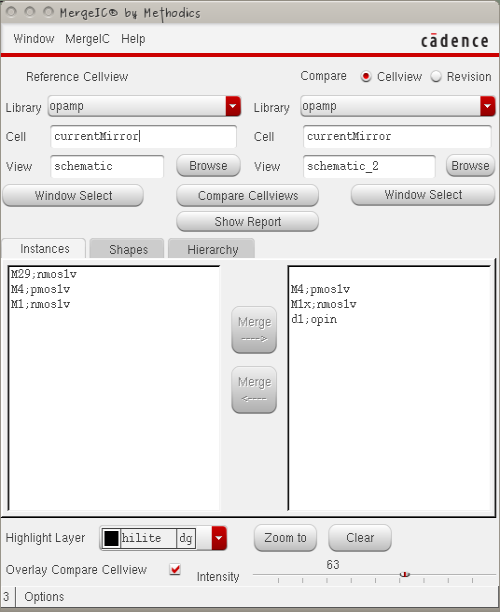
In IC6.X (virtuoso) many of the fields have a tooltip, or balloon help - hover the cursor over the field to see the tooltip.
Compare modes
Compare with Cellview
You can compare any two arbitrary Cadence cellviews, with the restriction that they should be of the same type.
Use the 'Browse' or 'Select Window' buttons to choose the cellviews to compare, or enter the Lib/Cell/View directly in the form
Compare with Revision
This mode is available only if using MergeIC with VersIC.
You can compare a cellview with a previous revision by selecting Compare->Revision and filling in the revision field immediately below:
- Leave the Revision field blank to compare the cellview with the latest checked in version
- If you know the revision number to compare with, just type that number into to the Revision field
- Use 'Get Revisions' to populate the Revision field with revisions from the cellview history, then select the required revision
Running Compare
- Use 'Compare Cellviews' to run the comparison - results will appear in the Instances and Shapes fields.
- Use 'Show Report' to display a file containing the detailed compare results.
Note that the 'Compare Cellviews' button is enabled only if the form contains a valid Reference and Compare cellview
Browsing local differences
In the Instances and Shapes tabs, objects appearing in the left hand list are in the Reference cellview, objects on the left are in the Compare cellview. Objects which appear on the same line in both lists are 'paired' objects - that is, they have been identified as the same object in both cellviews, but there are differences between them.
Selecting a difference in the 'Instances' or 'Shapes' tab will highlight that object in the relevant cellview. Paired objects will be selected and highlighted together.
To highlight multiple objects, use Shift-Click or Ctrl-click to select multiple objects in the form.
Double clicking on an object in the Instances or Shapes tabs will show details of the object and, if paired, a detailed breakdown of the differences between the paired objects.
Highlight controls
Use the Highlight Layer cyclic field to select the current highlight layer - this is useful if, for example, the layer to be highlighted has a similar color to the highlight layer.
- Zoom to: zooms the cellview window to include all the currently highlighted objects.
- Clear: clears all current highlights
Cellview overlay
For easier visualization of the differences, you can display the Compare cellview in the background of the Reference cellview window and adjust its opacity (intensity). This feature is available in Cadence IC6.X only
Merging
For paired objects, Merge modifies the existing paired object in the target cellview, otherwise the object is copied from the source cellview to the target cellview.
When comparing cellviews, Merge can be done in either direction.
When comparing to a Revision, Merge is available only from the Revision to the Reference cellview
The Merge buttons are disabled if the target cellview is not editable
Connectivity
MergeIC does not attempt to update connectivity information during a merge. If merging to a schematic you will need to run 'Check' to update the connectivity.
Options
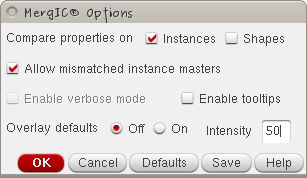
- Compare Properties on: choose whether to flag properties changes in Instances and/or Shapes
- Allow mismatched instance masters: Do not flag instances as different just because they have different masters - useful if comparing cellviews in different libraries
- Enable verbose mode: provide more information during comparison and merging
- Enable tooltips: show tooltips (balloon help) in the MergeIC console (requires Cadence IC6.X)
- Overlay defaults: default settings for the cellview overlay feature (requires Cadence IC6.X)
- Save: save the options to the default MergeIC user configuration file (~/.methodics/mergeic.conf) - this file is loaded automatically when MergeIC is started.
Performance
MergeIC is optimized for use in small-to-medium size cellviews where one cellview is derived from the other, and where there are a limited number of differences.
There's no theoretical upper limit to the size of cellviews that MergeIC can handle, but runtime is roughly proportional to the number of database objects in each cellview and is also a function of the number of differences.