Manage VersIC data
Perform advanced operations on managed data in your workarea and/or in the repository.
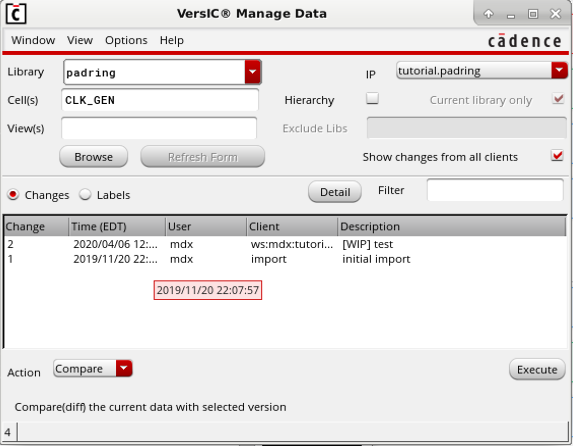
Data Selection Fields
Library
A cyclic field which is pre-populated with the list of managed libraries. Select '<ALL>' to operate on all managed libraries.
Cell(s)
The Cell(s) field is multi-purpose:
- Leave blank to operate on an entire library,
- Takes a single cell name or a comma-separated list of cell names
- To operate on the contents of a category, specify 'category:<category_name>'.
View(s)
- Leave blank to operate on an entire cell (or an entire library if Cells(s) is also blank)
- Takes a single view name or a comma-separated list of view names
If one or more views is specified and Cell(s) is empty, all views of the given type(s) will be included.
Browse
Use the Browse button to choose a lib/cell/view from the Library Browser.
IP
A cyclic field which is pre-populated with the list of IPs in the workspace. Select '<ALL>' to operate on all IPs.
Refresh Form
Once the IP, Lib, Cell(s) and View(s) fields (and the hierarchy fields, if appropriate) are completed, use the 'Refresh Form' button to update the contents of the form. The form refreshes only when explicitly requested with this button, since it can take some time to retrieve the requested data from the repository.
Hierarchy Fields
All operations in the Manage VersIC data field can be performed on a hierarchy - use these fields to control what is included in the hierarchy.
Hierarchy
Enable/Disable hierarchical operations. Not available on a library.
Current library only
(Visible when 'Hierarchy' is selected) Restrict hierarchy to be in same library as top-level cell/view.
Exclude Libs
(Valid when 'Current library only' is deselected) Don't follow hierarchy into the listed libraries.
History Fields
Changes/Labels
Select what to display in the main History List.
Detail
Display a window containing the details of the selected object.
Filter
Restrict the History List to objects matching the given SKILL regular expression. The filter is applied once the focus leaves the text field, for example by hitting the Tab key.
Working with the History List
The lists of Revisions Branches and Tags are sortable by clicking any of the column header buttons. You can change column widths by stretching the separators in the header. You can select only one object in the History List at a time.
Note that the entire form is stretchable
Actions
Choose which operation to perform on the selected data. A short explanation of the current Action is displayed at the bottom of the form.
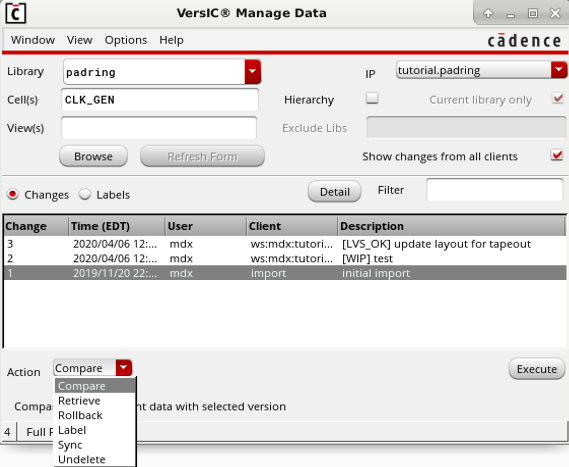
Compare
Compare brings up the VersIC Compare Results selection form showing all the cell views that have been changed between the selected checkin and the most recent checkin for the Library/Cellview chosen on the VersIC Manage Data form.
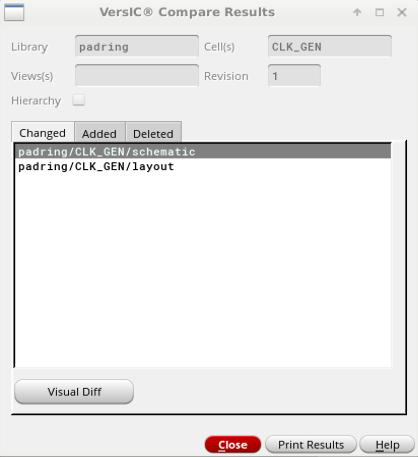
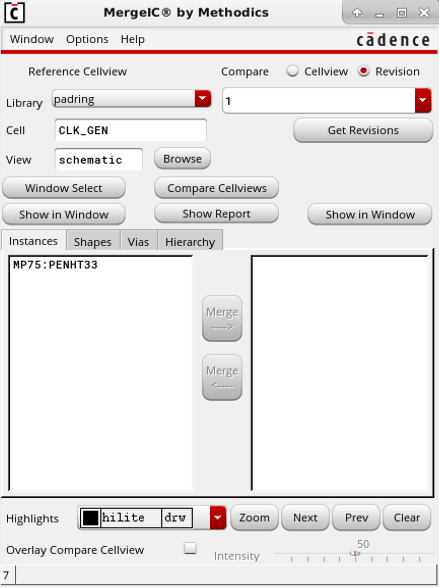
One of the changed cell views can be selected and the 'Visual Diff' button clicked to pull up the MergeIC window, which can be used to perform the detailed comparison.
Retrieve
Previous versions of data can be retrieved to new libraries/cells/views using the 'Retrieve' action. Data can be retrieved as individual cellviews, hierarchies or libraries. A retrieve operation does not affect the current data, and the retrieved data is unmanaged.
Note that the with the hierarchy switch selected, the retrieved cells will update their instance pointers to point at the new retrieved cells. This can be useful for staging rollbacks without committing anything to the repository (this can also be achieved by performing a hierarchical sync/update).
Rollback
Data can be rolled back to an earlier version with this operation. A rollback checks out the current data and overwrites it with data from the selected version, then checks the data in to a new version.
Label
Create a Perforce level label on files in the workspace.
From Workarea
Create a tag from the current state of your workarea.
From Selected
Create a tag from the object selected in the History List field. A tag can be created from a Revision, a Branch or an existing Tag.
Create Alias
Aliases allow you to assign a meaningful name to a significant revision number. Aliases are stored as a property on the workarea directory
Sync
Sync the selected version in the workspace, filtered by the selected Library/Cell/View
Undelete
Undelete any data deleted by the selected revision number. If multiple items have been deleted as part of the delete a second form will appear allowing the user to select which cellview they want to remove.
Execute
Perform the requested Action on the current data (Note that the Execute button is disabled if the form needs to be refreshed).
Options Form
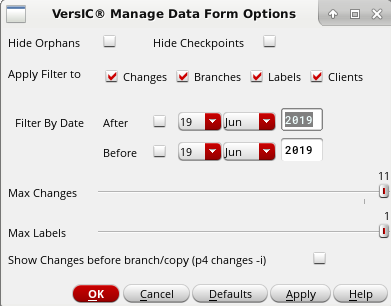
- To make your options selections persistent, use 'Save' in the VersIC Preferences formHide Orphans - do not display revisions between a rollback and the version rolled back to.
- Hide Checkpoints - do not display checkpoint checkins (hides checkins with status flag [WIP], or the first status flag in your custom list)
- Apply Filter to - apply the History filter to the selected objects
- Filter By Date - restrict the History List to events between two dates.
- Max Revisions - restrict the number of revisions to display (improves performance by reducing the size of the dataset to retrieve and display)
- Branch/Tag Detail - getting information about branches and tags takes one Subversion command per branch or tag so, by default, these details are not available unless you select a Branch/Tag in the History List.
- Show Revisions before branch/tag - Enable/Disable display of branch/copy history. Can also be enabled by default with the 'VSC_P4_SHOW_INTEGRATED=t' setting