VersIC manage checkouts
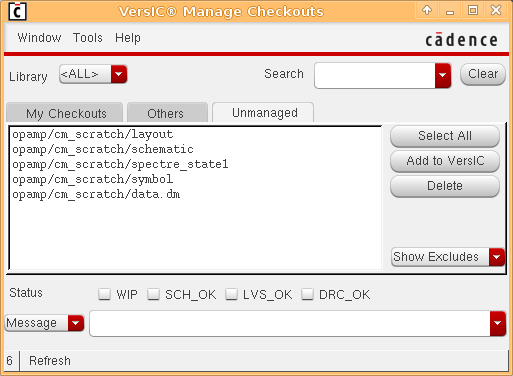
The Manage Checkouts form allows you to view and change the status of checked out data. It also allows you to Add/Delete unmanaged data.

Library
Only data in the selected library is displayed - use library '<ALL>' to see all project data.
Search
Filter the results using a search string
Clear
Reset the Search field
Status
The Status radio buttons prepend the check-in message with an identifier indicating whether the checked-in view is one of the following. DRC Clean, LVS Clean, Simulated Schematic (SCH_OK) or a Work in progress (WIP). These tags are customizable in the VersIC Configuration file (versic.conf) and can be used to track the progress of a particular block during the design cycle (see the discussion on "Data mining the design repository")
Message/File
The commit message can entered directly in the form or fetched from a file. The message and file type-in fields contain the history of values used in the current session.
The Status and Message/File fields are valid only when Checkin is enabled
Tabs
For performance reasons the tabs are usually populated only when selected. This means there may be a short delay when switching between tabs for the first time after displaying the form.
My Checkouts
Data that you have modified and/or checked out as detailed in the Status Column. You can Checkin, Checkpoint or Revert selected data.
The columns are sortable by clicking on the column header. Checkpoint commits your changes to the repository, but keeps the data checked out so that you can continue editing.
Others
Displays data that is checked out by other users.
Unmanaged
Data that is unmanaged. You can Add/Delete selected data.
By default, only 'interesting' unmanaged data is shown. Use the cylic field to show/hide other unmanaged data
Tools menu
The tools menu contains some shortcuts for useful operations:
- Show All My Checkouts - list my checkouts in all libraries
- Show All Checkouts - list all checkouts in all libraries
- Delete Retrieved Data - retrieved data is data that has been copied from old versions; the naming convention used means that we can identify retrieved data.
- Show My Lost Locks (Subversion only) - Show data which is locked by you in the repository but has no local lock.