VersIC hierarchical operations
VersIC provides a number of methods to perform Data Management operations over the Cadence Hierarchy.
VersIC Manage hierarchy form
The Hierarchy form performs operations on a hierarchy of managed data. This is useful for situations where you want to lock an entire hierarchy prior to making changes, so as not to be affected by someones else changes during your work. Another example of this could be cherry picking a hierarchy from an unmanaged library and adding this to the data-management system.
The VersIC Manage Hierarchy form is available as a right button menu item on Cells and Views from the Library Manager, or from the VersIC menu item on the Library Manager when a Cell or View is selected.
The user is prompted to confirm operations which will affect more than a certain number (default 200) of cellviews. This number is controlled by the variable VSC_HIER_WARN and can be set in versic.conf.
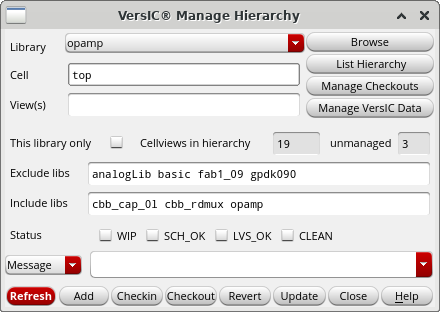
VersIC Manage Hierarchy Form Control Summary
| Control | Description |
|---|---|
| Action | Radio field to select which operation to perform on the current hierarchy. |
| Library/Cell/View(s) | Identify the hierarchy top level cell or cellview(s). |
| Browse | Select Library/Cell/View from a Library Browser. |
| Refresh Form | Because finding the data in a large hierarchy can take time, the form does not automatically update - use this button to refresh the form after changing the other fields. |
| List Hierarchy | Display the cellviews in the selected cellview's hierarchy, each view is selectable and can be reverted |
| Manage Checkouts | Display the VersIC Checkouts form for the given hierarchy (see below) |
| This Library only | Limit hierarchy to data in the same library as the top level cell/cellview. Turn off to follow hierarchy into other libraries. |
|
Cellviews in hierarchy / unmanaged |
Displays the number of managed and unmanaged cellviews in the hierarchy |
| Exclude Libs | Do not traverse into these libraries. |
| Include Libs | Follow the hierarchy into these libraries. |
| Status and Message/File fields | Provide a commit message when performing a Checkin or Checkpoint operation |
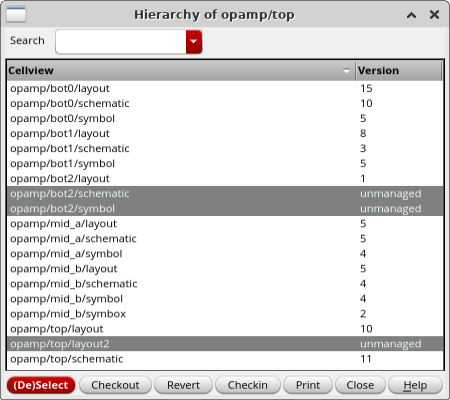
VersIC List Hierarchy Form
The VersIC List Hierarchy form is used to manage selectable subsections of a Cadence Hierarchy. Individual views can be filtered and selected in groups. Checkout, Revert, and Checkin functions are available from this form. It is accessible from the VersIC Manage Hierarchy form (see above) List Hierarchy button.
VersIC Checkouts Form
The VersIC Checkouts form is used to manage checkouts based on the Cadence Hierarchy. It is accessible from the VersIC Manage Hierarchy form (see above) Manage Checkouts button. Note this is a different form than the standard Manage Checkouts form detailed at VersIC manage checkouts.
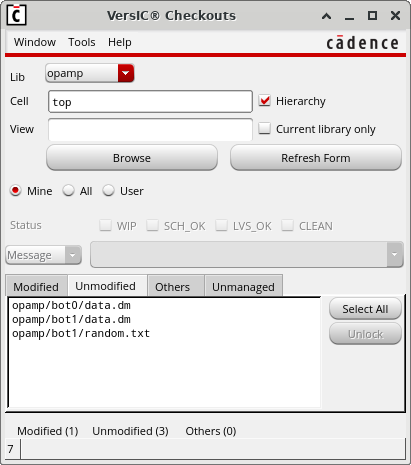
| Control | Description |
|---|---|
| Lib/Cell/View | Identify the hierarchy top level cell or cellview(s). |
| Hierarchy | Radio field to select Hierarchical operations |
| Current library only | Limit hierarchy to data in the same library as the top level cell/cellview. Turn off to follow hierarchy into other libraries. |
| Browse | Select Library/Cell/View from a Library Browser. |
| Refresh Form | Because finding the data in a large hierarchy can take time, the form does not automatically update - use this button to refresh the form after changing the other fields. |
| Mine/All/User | Radio field to filter Checkouts by the current user (Mine), all users, or a specific user |
| Status | Buttons to select status for the commit message |
| Message/From File | Selector for commit message source |
| Modified | Display of Modified checked out Views |
| Unmodified | Display of Unmodified checked out Views |
| Others | Display of checked out Views in other users workspaces |
| Unmanaged | Display of unmanaged Views |
| Select All | Select All Views in the Display |
| Checkin | Checkin the Selected Views (submit changes and release lock) |
| Checkpoint | Checkpoint the Selected Views (submit changes and retain lock) |
| Revert | Revert Selected Views to previous checkin |
VersIC Manage Data (Hierarchical Functionality)
The VersIC Manage Data Form can operate in Hierarchical or non-hierarchical mode, based on the 'Hierarchy' button. Note that because finding data in a large hierarchy can take time, the form doesn't update as controls are modified, use the 'Refresh form' button to update it.
When the Hierarchy button is selected the changes displayed in the list will be filtered to only changes that have affected the hierarchy of the Cell/View selected in the form. This list is organized by date/time, so it is possible to see the latest changes over the hierarchy using this method.
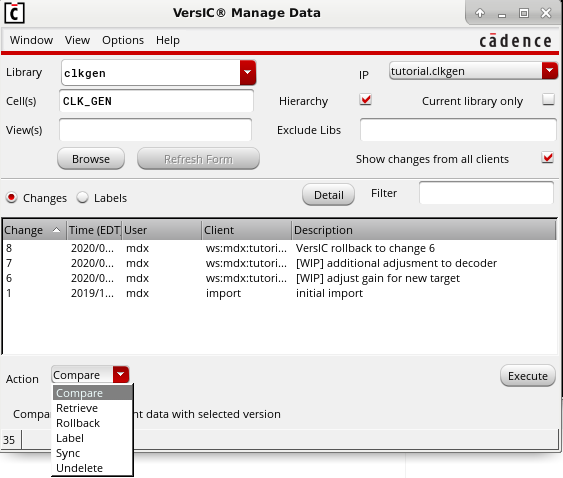
Compare (Hierarchical)
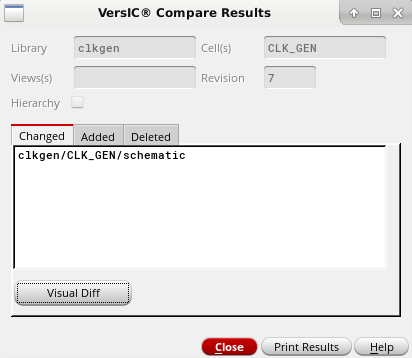
In Hierarchical mode the VersIC Compare function perform a check across all the views under the selected Cell/View hierarchy and list the results in the VersIC Compare Results form. From the form a particular view can be selected and a detailed comparison displayed.
Retrieve (Hierarchical)
In Hierarchical mode the Retrieve function will retrieve unmanaged copies of all the views under the selected Cell/View hierarchy, appended with a suffix. These can be used to manually compare between different view versions in the hierarchy.
Rollback (Hierarchical)
In Hierarchical mode the Rollback function will rollback all views under the selected Cell/View hierarchy back to the versions they had in the selected checkin. These versions will be the new head versions in the DM system.
Label (Hierarchical)
Apply DM (Perforce) level labels to the cells in the hierarchy of the selected Cell/View.
Sync (Hierarchical)
Sync to the versions of the views in the hierarchy under the selected Cell/View. The sync versions will be populated into the workspace, but won't be made the new head versions in the DM system (as they would with rollback).
Undelete (Hierarchical)
Undelete views in the hierarchy under the selected Cell/Views deleted in the selected commit.
MergeIC Hierarchical Compare
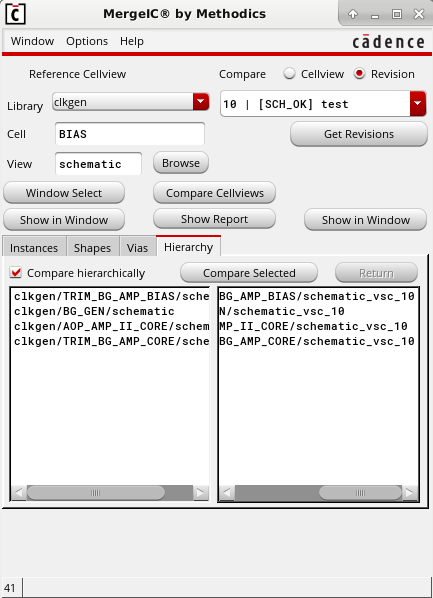
The MergeIC comparison operation can be enabled for Hierarchical operation by setting the 'MDX_MIC_HIERARCHY' variable in versic.conf, see Enabling hierarchical compare.