Manage AI Vendors
P4 Code Review supports two types of AI vendor configuration:
-
Administrator-managed AI vendors configured by administrators for use throughout the organization.
-
Personal AI vendors configured by individual users in their profile settings.
This page describes how to configure and manage personal AI vendors.
To learn how administrators configure organization-managed AI vendors, see Configure AI.
On this page:
Supported AI providers
Supported AI vendors include:
Administrator-managed and personal AI vendors
Administrator-managed AI vendors provide shared AI services that can be used by multiple users without requiring each user to configure their own credentials.
Administrator-managed AI vendors are configured using the System Information page. To learn more, see AI Configuration (System information).
Personal AI vendors allow users to configure their own AI services, models, credentials, and prompts. These are configured via the My Profile page.
Administrator-managed AI vendors and personal AI vendors are available together.
For example:
-
An administrator configures a Gemini vendor.
-
A user configures a Claude vendor.
-
A user configures an LM Studio vendor.
When using AI-powered features, the user can access all three vendors.
This allows organizations to provide approved AI services while still allowing users to configure additional AI vendors for their own workflows.
Personal AI vendors
Personal AI vendors allow you to:
-
Use your own AI credentials.
-
Configure your own AI models.
-
Customize AI prompts.
-
Connect to AI services that support your workflow.
You can add multiple AI vendors to your profile and choose from the available vendor and prompt combinations when using AI-powered features such as code analysis and AI-assisted comments.
Before you begin
Before adding an AI vendor:
-
Ensure that you have access to the AI service you want to use.
-
Obtain the API key or authentication details required by the AI provider.
-
Confirm that your administrator allows the AI vendor you want to use.
To review the terms for using your own API keys, download the API Key Usage Agreement for Perforce P4 Code Review.
Add an AI vendor
-
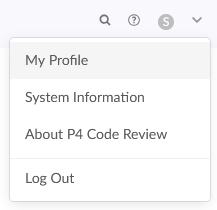
Go to My Profile page.
-
Click the AI Vendors tab.
-
Click Add Vendor.
-
Configure the following settings:
-
AI Vendor: Select the AI service provider from the dropdown. You can choose from:
-
OpenAI
-
Anthropic Claude
-
Google Gemini
-
Azure OpenAI
-
LM Studio
-
Generic AI
-
-
AI Package Value: Specify the label displayed in AI response summaries. This label helps you identify which AI vendor and model generated a response.
-
AI Model: Enter the name of the AI model to use. For example:
-
gpt-4
-
gpt-4o
-
claude-sonnet
-
claude-opus
-
gemini-2.5-flash
-
-
AI Package Type: Specify the prompt type associated with the configuration.
-
API key: Enter the authentication key provided by your AI service. Your API key is used to authenticate requests sent to the AI vendor. Your API key is stored securely and is not displayed after it has been saved.
-
Character Limits: Enter the minimum and maximum characters required for AI processing.
-
API Endpoint: Enter the API endpoint used to communicate with the AI service.
-
Prompts: (Optional) Change the prompts used by AI-powered features. The prompts configured for an AI vendor determine which actions are available in the AI Assistant menu. You can update the following:
-
Improve Comment
-
Summarize Text
-
Fix Spelling and Grammar
-
Custom Prompt
To learn more about the default text for these prompts, see Default prompts.
-
-
Enabled: Controls whether the vendor configuration is available for AI requests. Disable a vendor if you want to keep the configuration without using it.
-
-
Click Add AI Vendor.
The AI Vendors page displays the AI vendors configured for your account. These vendors can be used in various AI code review features. To learn more, see:
Test an AI vendor connection
After configuring an AI vendor, test the connection to verify that P4 Code Reviewcan communicate with the AI service.
To test the connection:
-
In the My Profile > AI Vendors, locate the AI vendor you want to test.
-
Click Test connection.
If the connection is successful, P4 Code Review confirms that it can communicate with the AI service using the configured settings.
If the connection fails:
-
Verify that the API key is valid.
-
Verify that the API endpoint is correct.
-
Verify that the AI model name is valid for the selected vendor.
-
Ensure that the AI service is available and reachable from the P4 Code Review server.
-
For locally hosted services such as LM Studio, ensure that the local AI server is running and accepting connections.
Edit an AI vendor
-
Open the AI Vendors page.
-
Locate the vendor you want to modify.
-
Click the edit icon (
 ) to edit the configuration.
 -
Save your changes.
Disable an AI vendor
Disable a vendor when you temporarily do not want it used for AI requests.
-
Open the AI Vendors page and locate the vendor you want to disable.
-
Edit the configuration.
-
Turn off the Enabled toggle.
-
Save your changes.
The vendor configuration is retained and can be re-enabled later.
Delete an AI vendor
To remove a vendor that is no longer required, click the delete icon ( ) next to the name of the AI Vendor you want to remove.
Deleting a vendor removes its associated configuration from your profile.