My Profile
The My Profile page provides access to your personal profile information and settings in P4 Code Review.
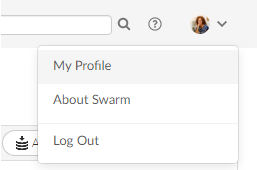
To open your profile, click your avatar in the header and select My Profile.
Your profile page displays your avatar, full name, email address, users who follow your activity, the users and projects you follow, and the projects of which you are a member or owner.
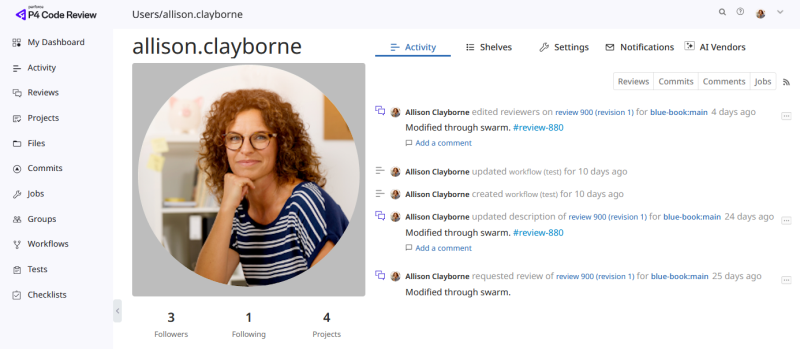
On this page, you can manage your profile information, notifications, and AI vendor settings using the following tabs:
Profile overview
Your profile displays:
-
Your avatar
-
Full name
-
Email address
-
Followers and following information
-
Projects you own or are a member of
-
An Unfollow all projects and users for username button
Private projects that you belong to are identified with an eye icon ( ).
).
Unfollow all projects and users
If you no longer want to follow any users or projects, you can remove all follows at once.
To unfollow all projects and users:
-
Click Unfollow all projects and users for username.
-
Click OK to confirm the action.
You will no longer follow any users or projects.
Activity tab
The Activity tab displays your personal activity stream. Activity streams provide a chronological view of events associated with your user account. Entries can include review activity, commits, comments, jobs, and other actions performed in P4 Code Review.
Use the Activity tab to:
-
View your recent activity
-
Track review activity
-
Monitor changelist and comment activity
-
Access links to related content
Activity streams provide a chronological view of events associated with your user account.
Click a filter to display only Reviews, Commits, Comments, or Jobs activity. To return to the complete activity stream, deselect any active filters.

Click the RSS icon ( ) to subscribe to the activity stream feed.
For more information about activity streams, see Activity.
Shelves tab
The Shelves tab displays your shelved changelists.
From this tab you can:
-
View your shelved changelists
-
Request a review for a shelved changelist
-
Open reviews that are associated with a shelved changelist
Click Request Review to start a review for a shelved changelist that is not already associated with a review.
Click View Review to open the review associated with a shelved changelist.
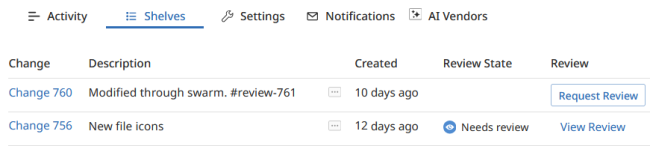
For more information about shelved changelists, including how they are used in reviews, fetching review files, deleting shelves, and reverting review content, see Shelved Changelists.
Settings tab
The Settings tab allows you to customize how reviews, diffs, and timestamps are displayed in P4 Code Review.
The default settings are configured by your P4 Code Review administrator and are used until you make your own changes.
Reviews
The Reviews settings control how diffs are displayed when you view changelists and reviews.
Depending on your administrator's configuration, you can customize options such as:
-
Displaying comments in files
-
Viewing diffs side-by-side
-
Displaying whitespace and newline characters
-
Ignoring whitespace when calculating differences
-
Wrapping long lines in diffs
-
Highlighting syntax in diffs
Time Display
The Time Display setting controls how timestamps are displayed throughout P4 Code Review.
You can choose to display times as:
-
Timeago (for example, 5 minutes ago)
-
Timestamp (using your browser's local date and time format)
Save or reset settings
Click Save to save your changes.
Click Reset to default to restore the system default settings.
Notifications tab
The Notifications tab allows you to configure the email notifications you receive from P4 Code Review.
Notification settings apply across all projects and help you control which review-related events generate email notifications.
The available notification options vary depending on your involvement in a review. For example, you can configure notifications for events that occur when you are:
-
The review author
-
A project member
-
A reviewer
-
A moderator
Depending on your role, you can choose whether to receive notifications for events such as:
-
Review requests
-
Review updates
-
Review state changes
-
Test results
-
Votes
-
Comments
-
Commits
Your P4 Code Review administrator configures the default notification settings and may require certain notifications to remain enabled or disabled.
Use the notification checkboxes to enable or disable individual notification events.
Click Save to save your changes.
Click Reset to default to restore the system default settings.
AI Vendors
The AI Vendors tab allows you to manage the AI vendors available to your user account. The vendors configured in this tab are Personal AI vendors.
Personal AI vendors are configured for your user account and can be used instead of administrator-configured AI vendors.
When you have a Personal AI vendor configured for a vendor type, it is used for your AI actions. If you do not have a Personal AI vendor configured for a vendor type, the administrator-configured AI vendor is used instead.
This allows you to use your own AI credentials, models, and prompts without affecting the AI configuration used by other users.
For example, your administrator might configure a shared OpenAI model for all users. You can configure your own AI vendor and API key in My Profile > AI Vendors, allowing you to use a different provider, model, or custom prompts for your AI requests.
You can configure up to 10 Personal AI vendors.
The AI Vendors tab displays each configured Personal AI vendor, including the selected model, character limits, maximum output tokens (for Anthropic vendors), default prompt, and any custom prompts associated with the vendor.
From this tab, you can:
-
View configured AI vendors
-
Add AI vendors
-
Configure custom prompts
-
Test vendor connections
-
Edit vendor configurations
-
Delete AI vendors
Custom Prompts
Custom prompts allow you to provide additional instructions to the AI when using AI-powered features. Custom prompts are associated with a Personal AI vendor and are applied when requests are sent to that vendor.
For example, you could create a custom prompt that instructs the AI to focus on security concerns, coding standards, or documentation quality.
Custom prompts are available only to your user account and do not affect other users.
To add a custom prompt:
-
Open the AI Vendors tab.
-
Locate the AI vendor you want to use.
-
Click Add custom prompt.
-
Enter the prompt text.
-
Click Save.
Manage AI vendors
Click Add vendor to add a new AI vendor configuration to your profile. This opens a configuration window where you can specify vendor settings such as models, API keys, prompts, character limits, maximum output tokens (for Anthropic vendors), and connection endpoints.
To learn more about the configuration settings, see Per-user AI vendors (bring your own key)
Click the edit icon to modify an existing vendor configuration.
Click the delete icon to remove a vendor from your profile.
If a setting is not specified in your Personal AI vendor configuration, such as the model, character limits, or maximum output tokens, P4 Code Review uses the value configured by the administrator for the same vendor.
Test connection
Use Test connection to verify that P4 Code Review can communicate with the configured AI service. Test connection requires an API key. If the API key field is blank, the connection test fails. For AI vendors that do not require authentication, enter a placeholder value in the API key field.