Shelved Changelists
P4 Code Review uses shelved changelists as the foundation of its code review workflow.
A shelved changelist is a pending changelist that contains one or more files stored on the P4 Server. Shelved files are not versioned. If a shelved file is updated, the updated file replaces the existing file on the changelist's shelf.
Shelved changelists are commonly used to:
-
Request code reviews
-
Store work in progress on the server
-
Share changes with other users
-
Move temporary work between workspaces
Although P4 Code Review uses shelved changelists as the basis of its code review functionality, not all shelved changelists are associated with reviews.
On this page:
Shelved changelists and reviews
P4 Code Review uses shelved changelists to create and update reviews.
A review can contain multiple shelved changelists throughout its lifetime, allowing P4 Code Review to maintain review history and review versions.
To learn more about how reviews are represented internally, see Internal representation.
Create a review from a shelved changelist
When a shelved changelist is not already associated with a review, click Request Review to create a new review.
Open an existing review
If a shelved changelist is already associated with a review, click View Review to open the review.
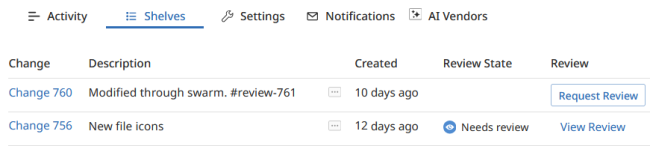
Fetch review files
Review files can be fetched into your workspace for inspection, testing, or modification.
Before fetching review files, locate the changelist number associated with the review version.
Find the review changelist
Open the review.
Locate the changelist number associated with the review version.
Use that changelist number when fetching or unshelving files.
Unshelve review files
For reviews that contain shelved content, use:
p4 unshelve -s <changelist>
Replace <changelist> with the review changelist number.
After unshelving the files, you can:
-
Review the changes locally
-
Test the files
-
Make additional changes
-
Update the review with a new review version
For committed review content, use a sync operation such as:
p4 sync @changelist
Replace <changelist> with the review changelist number.
Delete shelves
After a review has been completed, you might want to remove shelves that are no longer required.
Before deleting a shelf, verify that:
-
The review has been completed.
-
The shelved files are no longer needed.
-
The review content has been committed or preserved elsewhere.
Deleting a shelf and removing files from a review are different actions. Deleting a shelf does not automatically remove files from an existing review.
P4 Code Review does not process shelf delete operations performed by the P4 Code Review service user. The shelf delete operation succeeds, but the associated review is not updated.
Remove files from a review
P4 Code Review can be configured to remove files from a review when the files are deleted from an associated shelved changelist.
Typically:
-
Delete the file from the shelved changelist.
-
Reshelve the changelist.
-
P4 Code Review updates the review and removes the deleted file.
Review state and system configuration determine whether file removal is processed.
For configuration details, see Process shelf file delete when review is in a specified state.
Revert review content
If review content needs to be rolled back, you can restore content from an earlier review version.
When a review is reverted, P4 Code Review does not restore the original review version. Instead, it creates a new review version containing the content from the selected earlier version.
To revert review content:
-
Identify the review version to restore.
-
Locate the changelist associated with that version.
-
Unshelve the changelist files.
-
Create a new pending changelist and shelve the files.
-
Open the review.
-
Select Review actions > Add Change > Replace with pending changelist.
-
Select the pending changelist.
-
Click Select.
A changelist can only belong to one review. P4 Code Review rejects changelists that are already associated with another review.
It is good practice to update the review description or add a comment explaining why the review content was reverted.
Repair an incorrectly updated review
If a review has been updated using the wrong changelist, you can repair the review by replacing the incorrect content and re-adding any missing changelists.
For example, this can occur when a review is accidentally replaced using the wrong committed changelist.
To repair a review:
-
Replace the incorrect review content with the correct changelist.
-
Re-add any missing changelists.
-
Update the review description or add a comment explaining the correction.
-
Verify that the review contains the expected files and revisions.
If the review uses keyword-based workflows, you might also need to update the changelist keyword before reshelving files.