Azure OpenAI integration for P4 Code Review
Use Azure OpenAI with P4 Code Review to provide AI-powered features such as code analysis and AI-assisted comments.
Azure OpenAI can be configured as either:
-
An administrator-managed AI vendor available to users throughout the organization. To learn more, see Configure AI.
-
A personal AI vendor configured by an individual user. To learn more, see Manage AI Vendors.
Before you begin
Before configuring Azure OpenAI:
-
Sign in to the Azure portal.
-
Create or select an Azure OpenAI resource.
-
Create or identify an Azure OpenAI deployment.
-
Obtain the Azure OpenAI API key.
-
Record the Azure OpenAI resource endpoint URL.
-
Record the deployment name.
-
Record the API version.
-
Ensure that your Azure subscription and Azure OpenAI deployment have sufficient usage quota and access permissions.
To review the terms for using your own API keys, download the API Key Usage Agreement for Perforce P4 Code Review.
Azure OpenAI authentication
Azure OpenAI uses Azure-specific authentication and endpoint formats.
When configuring Azure OpenAI, you must provide:
-
An Azure OpenAI API key.
-
An Azure OpenAI resource endpoint.
-
An Azure OpenAI deployment.
-
An API version.
P4 Code Review sends requests using the configured Azure OpenAI endpoint and deployment. If no API version is specified, P4 Code Review uses the default API version supported by the integration.
Configure AI vendors
Configure an AI vendor by creating either an administrator-managed AI vendor or a personal AI vendor.
You configure AI vendors on the Configuration tab of the System Information page. You can add up to 10 AI vendors. One of them is the default vendor, which P4 Code Review uses for AI actions unless a user chooses a different one.
Administrator-managed AI vendor
To create an administrator-managed AI vendor:
-
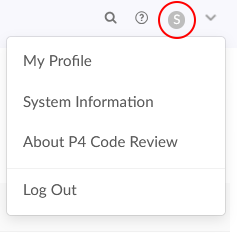
In the top right corner of P4 Code Review, click your user ID, then click System Information.
-
Click Configuration, then expand AI Configuration.
-
Turn on Enable AI, then click Save configuration.
-
In the AI Vendor section, click Add AI Vendor.
-
Select the AI vendor you want to configure.
-
Configure the vendor settings. For vendor-specific requirements and examples, see Configuration settings
-
Click Add AI Vendor
The vendor is saved immediately.
Personal AI vendor
To create a personal AI vendor:
-
In the top right corner of P4 Code Review, click your user ID, then click My Profile.
-
Click the AI Vendors tab.
-
Click Add Vendor.
-
Select the AI vendor you want to configure.
-
Configure the vendor settings. For vendor-specific requirements and examples, see Configuration settings
-
Click Add AI Vendor.
The vendor is saved immediately.
Configuration settings
-
AI Vendor: Select the vendor from the dropdown.
-
API key: The API key for the vendor.
-
API Endpoint: The endpoint URL. See the vendor page for whether it is required and what format to use. The endpoint must start with
http://orhttps:// -
AI Model: How you populate this field depends on the AI vendor:
-
For OpenAI, Anthropic AI, Gemini AI, and Generic AI, select a model from the list. The model list is loaded from the vendor after you enter a valid API key.
-
For Azure OpenAI and Custom AI, enter the model name manually.
-
-
AI Summary Header Value: (Optional) Enter the name displayed in AI-generated summaries.
-
Default Prompt: Enter the default prompt used for AI code analysis.
-
Character Limits: The minimum and maximum number of characters that can be sent for AI processing.
-
API Version: (Azure OpenAI only) Enter the Azure OpenAI API version. If blank,
2024-10-21is used. -
Prompts: (Optional) Configure the prompts used by the AI Assistant for comments feature. You can update the following:
-
Improve Comment
-
Summarize Text
-
Fix Spelling and Grammar
-
Custom Prompt
-
-
Enabled: (My Profile only) Controls whether the vendor configuration is available for AI-powered features. Disable the vendor if you want to retain the configuration without making it available for use.
For vendors that support model discovery, save the vendor and then reopen it using Edit vendor configuration. The AI Model list is populated only if P4 Code Review can successfully connect to the vendor using the saved API key and endpoint.
Manage AI vendors
Edit a vendor
Click Edit vendor configuration on the vendor card, update the settings, and then click Update AI Vendor.
Changes take effect immediately.
Set the default vendor
Click Set as default on the vendor card.
The default vendor is used for:
If no vendor is marked as the default, the first vendor in the list is used.
Delete a vendor
Click the Delete icon on the vendor card.
You cannot delete the last remaining vendor.
Important notes
-
Save configuration applies only to the general AI settings, such as:
-
Enable AI
-
Data retention
-
Request timeout
-
Personal AI vendor keys.
AI vendors are saved immediately when you click Add AI Vendor or Update AI Vendor.
-
-
The AI Model list cannot be loaded without an API key. For vendors that do not require an API key, enter a placeholder value.
-
The API endpoint must use
http://orhttps://. Endpoints that resolve to link-local addresses (169.254.x.x) are rejected. Private network and localhost addresses are supported. The endpoint is contacted from the P4 Code Review server, not from the user's browser. -
When encryption at rest is enabled, AI vendor API keys are stored encrypted.
Migrating from config.php-based AI configuration
AI is configured only in System Information or My Profile.
If your SWARM_ROOT/data/config.php file contains an ai_review block from an earlier release, its values are copied into the Configuration tab the first time you open it.
After that, changes to the ai_review block in config.php have no effect.
Remove the ai_review block from config.php once your AI configuration is saved in System Information or My Profile.