Workflow overview
Workflows can be applied to a project A Python-based REST service that provides an API for image detection using OpenAI's CLIP model or project branch to ensure that changelists and reviews follow the rules defined for that workflow.
On this page:
Workflow basics
In the navigation pane, click Workflows.
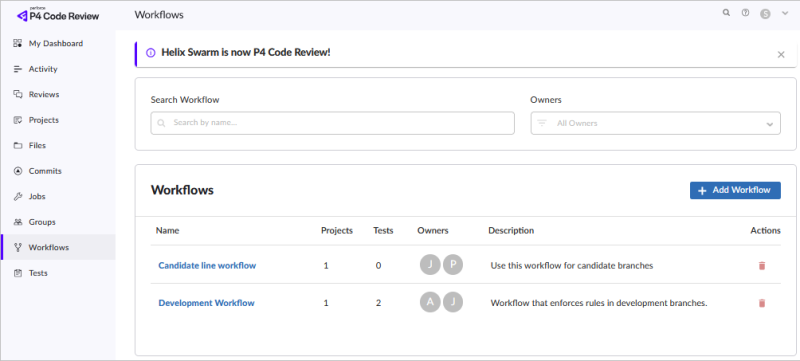
The workflow feature is enabled by default in P4 Code Review. If workflows are not functioning, your P4 Code Review administrator should verify that the workflow prerequisites have been met.
Workflows can be created by any P4 Code Review user, and they can be associated with projects or individual project branches. Once a workflow is linked to any project or branch, it cannot be deleted.
A workflow owner can share their workflow, making it visible to all P4 Code Review users. Administrators can grant specific users or groups permission to bypass all workflow rules. This capability is typically limited to project owners or administrators.
Any authorized user who can edit a project can apply a shared workflow to that project or its branches. If sharing is later disabled, the workflow remains associated with any projects or branches that were already using it.
Projects and branches
When a workflow is assigned to a project, that workflow automatically applies to all branches within the project.
If a branch is given its own workflow, the project-level workflow is ignored, and the branch uses its dedicated workflow instead. The two workflows are not merged. This allows branches to operate under different levels of restriction, such as giving development branches more flexibility, or giving release branches stricter controls. To learn more, see Example workflows.
If a global workflow rule has been set to Enforce on by an administrator, the project-level workflow is still ignored, but the global rule is merged with the branch workflow. In such cases, the most restrictive rule is applied. For detailed examples, see Merging multiple workflows
Apply a workflow to a project within the General Settings section of the Project settings page. To learn more, see Add a workflow to a project or a branch.
Modifying a workflow
Changes to workflow settings take effect immediately.
If an individual workflow is modified, all projects or branches associated with that workflow automatically begin using the updated version.
Global workflow rules
By default, a global workflow is available in P4 Code Review. There can only be one global workflow.
Global workflow rules are configured by the P4 Code Review administrator and can operate in one of two modes.
-
In Enforce off mode, the global rule is applied only to projects and branches that do not have their own workflow. If a workflow is assigned at the project or branch level, the global rule is ignored for that location. In environments where projects are not used, the global workflow rule applies to the entire server.
-
In Enforce on mode, the global rule applies across the entire server and is merged with any workflow associated with a project or branch. When rules are merged, the most restrictive setting is always used. This mode allows administrators to guarantee a minimum workflow standard for all reviews.
The users and groups of the Members or groups who can ignore ALL workflow rules section have special permission to ignore all of the P4 Code Review workflow rules, including the Global workflow rules.
To learn more, see Workflow global rules.
Tests
Tests can be associated with individual workflows or with the global workflow. Tests can be configured to run automatically when a review is created, updated, or submitted. Test can also run manually from the review.
If a test is linked to a workflow or the global workflow, it can be configured to block review approval when it fails, ensuring required checks are enforced during the review process.
You must create a test before it can be added to a workflow.
To learn more, see Add a test.
Checklists
A checklist consists of checklist items. Each item represents an aspect of your organization’s business rules or best practices to validate during code review.
For example, a checklist might include items such as Code Style, Performance, Security, and Test Coverage to ensure all required aspects are reviewed.
Checklists are only applied to the code review process when they are applied to a workflow. To ensure checklists are added to every code review, add a checklist to the Global Workflow.
To learn more about creating a checklist and checklist items, see Create a checklist.
Webhooks
Workflows and webhooks can work together to automate actions based on review activity.
Workflows define the rules and states that control how reviews progress, while webhooks notify external systems when specific events occur.
By using workflows with webhooks, organizations can trigger integrations, reporting, approvals, or other automated processes when workflow-related events take place.
To learn more, see Webhooks.
Workflow rules
Workflow rules define how P4 Code Review handles changelists and reviews at key points in the review process. Each rule controls what happens when a changelist is submitted with or without an associated review, or when a review is updated in certain states. These rules determine the level of control, automation, and enforcement applied to a project or branch.
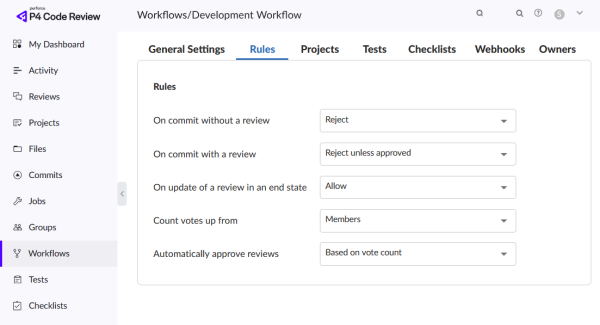
Available workflow rules
On commit without a review
This rule applies when a changelist without an associated review is submitted outside of P4 Code Review.
Options:
-
Allow: (Default) The changelist is submitted normally. No review is required.
-
Create a review: The changelist is submitted, and a review is automatically created for it.
-
Reject: The submit is rejected because no review is associated with the changelist.
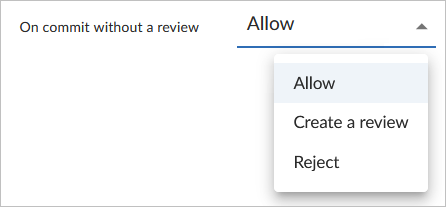
The selected rule is also applied when a changelist is submitted with #review in the description. For more information about creating a review by including a keyword in the changelist description, see Create a review.
On commit with a review
This rule applies in the following cases:
-
A review is committed.
-
A changelist that already has an associated review is submitted outside of P4 Code Review.
Options:
-
Allow: (Default) The review state is not checked. The changelist is submitted even if its associated review is not approved.
-
Reject unless approved: The changelist is submitted only if:
-
Its associated review is approved.
-
The changelist content matches the approved review’s content.
-
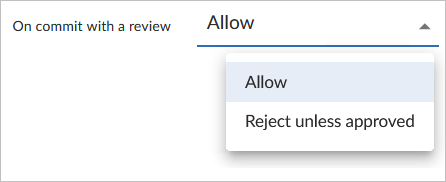
Additional behavior
This rule also applies when the changelist description contains:
-
#review-nnnnn -
#replace-nnnnn -
#append-nnnnn
(Where nnnnn is a review ID)
For more information on these keywords, see Add a changelist to a review.
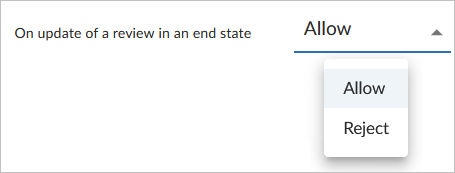
On update of a review in an end state
This rule controls whether review content can be automatically updated when a review is in a protected end state.
By default, protected end states include:
-
Archived
-
Rejected
-
Approve:Commit
The P4 Code Review administrator can redefine which states are considered end states. A review in an end state can still be manually updated from the P4 Code Review platform. This rule is triggered when a changelist is added to a review.
Options:
-
Allow: (Default) The review state is not checked; the changelist is added regardless of the review’s state.
-
Reject: If the review is in one of the end states defined in
end_state:-
The Add Change button is disabled.
-
The changelist is rejected if added outside P4 Code Review using any of:
-
#review-nnnnn -
#replace-nnnnn -
#append-nnnnn
-
-
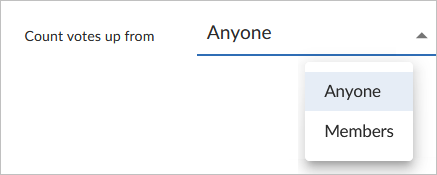
Count votes up from
By default, all up votes on a review contribute to the Minimum up votes required by the associated project or branch.
This rule allows restricting which reviewers’ votes count toward that requirement. This rule applies when a user votes on a review.
Options:
- Anyone: (Default) Up votes from all reviewers count toward the minimum.
- Members: Only up votes from project members count toward the minimum for that project or branch..
For instructions on how to set Minimum up votes for projects and branches, see Project minimum up votes and Branch minimum up votes.
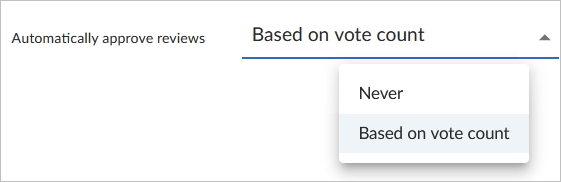
Automatically approve reviews
By default, reviews must be approved manually. This rule enables automatic approval when vote requirements are met.
This rule applies when a user votes on a review.
Options:
-
Never: (Default) Reviews are not automatically approved.
-
Based on vote count: A review is automatically approved if all of the following are true:
-
No down votes exist.
-
The review has no moderators. Moderators prevent automatic approval. For more information, see Moderators.
-
All Required reviewers have up‑voted.
-
The Minimum up votes requirement is met for each project and branch the review spans.
-
All approval‑blocking tests have passed.
-
After automatic approval, the review must still be committed manually.
For information about creating a new workflow and adding rules, see Add a workflow.