Add a test
Use tests to automatically trigger external checks, such as CI builds, and report their results to reviews when those reviews are created, updated, or submitted.
On this page:
Associate a test with a workflow to ensure it runs whenever a review using that workflow is created, updated, or submitted.
-
P4 Code Review tests can be created by any P4 Code Review user.
-
Shared P4 Code Review tests can be viewed by any P4 Code Review user.
-
Shared P4 Code Review tests can be added to a workflow by any P4 Code Review user that is authorized to edit the workflow.
Add a test
-
In the P4 Code Review navigation pane, click Tests.
-
In the top right corner of the Tests page, click + Add Test Definitions.
-
In the Add Test Definition window, populate the following fields:
-
Name: Enter a unique name for the Test. The character limit is 256.
-
URL: Enter the test request URL that will trigger your test suite. This is the endpoint P4 Code Review calls to trigger your test or CI job. Use special arguments to pass details from P4 Code Review to your test suite. For a full list, see Pass special arguments to your test suite .
-
Click Create.
-
-
You will see your Test in the Test Definition home page. Click the Test to configure it further.
-
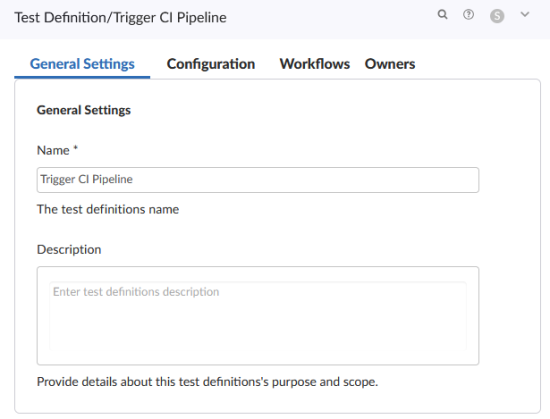
In the Test configuration page, you will see four tabs:
-
General Settings
-
Configuration
-
Workflows
-
Owners
-
-
In General Settings, configure the following fields:
-
Name: Update the name of the test. Ensure this test name remains unique.
-
Description: (Optional) Add a description for the test.
-
-
In Configuration, configure the following fields:
-
URL: Enter the test request URL that will trigger your test suite. This is the endpoint P4 Code Review calls to trigger your test or CI job. Use special arguments to pass details from P4 Code Review to your test suite. For a full list, see Pass special arguments to your test suite .
-
Standard Arguments for URL and Body: From this drop-down, choose an encoding methods for the request body:
- URL Encoded: POST parameters are parsed into
name=valuepairs. This is the default. -
JSON Encoded: Parameters are passed raw in the POST body.
-
XML Encoded: Parameters are passed in XML format in the POST body.
- URL Encoded: POST parameters are parsed into
-
Request Body: (Optional) Pass parameters to your test suite using the request body. Use special arguments to pass details from P4 Code Review to your test suite. For a full list, see Pass special arguments to your test suite .
-
Timeout (seconds): (Optional) Timeout for connecting to the test suite. If not set, P4 Code Review uses the default value of 10 seconds. This is configured using the timeout setting in the
securityblock of theconfig.php. For more information, see http_client_options. -
Iterate tests for affected projects and branches: (Optional) This toggle determines whether one test run or multiple test runs are created for a review.
-
When enabled, P4 Code Review creates a separate test run for each project-branch combination associated with the review.
-
When disabled, P4 Code Review creates a single test run, even if multiple projects and branches are involve
-
In your test definition (URL or request Body), use special arguments such as
{projects},{branches}, and{branch}values to generate test names.
For more information, see Iterate tests for affected projects and branches.
-
-
Headers: (Optional) Add HTTP headers to pass to the test suite. Headers are added in a
name=valuepair.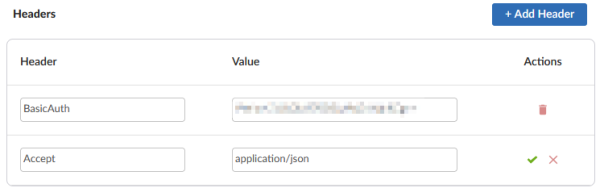
To add a header:
- Click Add Header.
- Enter the
name=valuepair in the empty Header and Value boxes. - To confirm the new header, click the Confirm
 button within the header row.
To remove a header from a test, click the Delete
 button next to the header to be removed. The header is removed immediately, no confirmation is requested.
-
-
In Workflows, you can view the workflows the Tests have been added to. If you are creating a new test, this page will be empty.
-
In Owners, add an owner to the Test. By default, you are assigned as the owner of the Test. You can add up a total of 20 individuals or groups.
To add an owner:
-
Click + Add Owner.
-
In the Add Owners, window chose to add:
-
Users - Add an individual user as a Test owner.
-
Groups- Add a user group as a Test owner. Every user within that group is then assigned as the owner of the Test and can edit or delete it.
-
-
In both cases, select the user or group from the drop down field and click Add.
-
To remove a user or group as a test owner, click the delete icon next to the user or group.
If you remove yourself as the owner, you cannot edit this test, unless you have super user rights.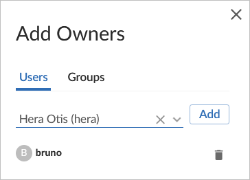
-
Shared with others: (Optional) Select to allow other P4 Code Review users to be able to use this Tests. For more information on shared tests and workflows, see Sharing workflows with others.
-
-
The Test configuration is auto-saved as you updated it. To return to the Test homepage, click Tests in the left navigation pane.
Pass special arguments to your test suite
You can include special arguments in the request URL or body to pass information about the change that triggered the test run to your test suite.
P4 Code Review replaces these arguments with the appropriate values when the test is called.
Curly braces {} are part of the argument syntax and must be included.
Change and review arguments
-
{change}- Change number. -
{status}- Status of the change:shelvedorcommitted. -
{review}- Review identifier. -
{version}- Review version. -
{reviewStatus}- Status of P4 Code Review review:-
needsReview -
needsRevision -
archived -
rejected -
approved -
approved:commit
-
-
{description}- The change description used to generate the update. This argument cannot be used in the URL, it can only be used in the request body. -
{test}- Name of the test. -
{testRunId}- The test run ID.
Project and branch arguments
-
{projects}- Project identifiers associated with the review.-
This value is
nullif the review is not part of a project. -
If more than one project is involved in the review, identifiers are returned as a comma‑separated list.
-
-
{branch}- Branch identifiers impacted by the review.-
This argument is intended for project tests and is supported by workflow tests for backward compatibility. For more information, see Automated testing for reviews.
-
For workflow tests, use
{branches} instead.
-
-
{branches}the branch identifiers of branches that are part of the review.-
Prefixed by project identifier (default separator
:) when part of a project. For example,project-id:branch-id. -
This value is
nullif the branch is not part of a project. -
If more than one branch is involved in the review, identifiers are returned as a comma‑separated list.
CI systems and branch separators
Some CI systems (for example, Jenkins) escape the default
:separator, which can cause test requests to fail.Your P4 Code Review administrator can configure an alternative separator if required. When selecting a separator, avoid characters that can break requests, such as:
-
#- This is treated as a URL anchor -
%- This is escaped in JSON bodies
For configuration details, see project_and_branch_separator .
-
Reporting test results
-
{update}- The preferred callback URL for updating test results.You can include any of the following in the JSON body of a POST request:
-
Status -
running,pass, andfail. -
Messages - Pass up to 10 messages, 800 characters maximum per message
-
url - A link to the CI system run
Example request body:
Copy{
"messages": ["My First Message", "My Second Message"],
"url": "http://jenkins_host:8080/link_to_run",
"status": "pass"
}If your test system cannot POST to P4 Code Review, you cannot use
update. You must usepassandfailinstead. -
{pass}- Callback URL indicating the test passed.-
{fail}- Callback URL indicating the test failed.
Notes on {update}, {pass}, and {fail}
{update},{pass}, and{fail}are generated automatically by P4 Code Review and include per-review authentication tokens.- When using
{pass}or{fail}, you can include aurlparameter (GET or POST) to link the review to the test results.
Non-iterated names arguments
-
{projectNames}-
Project names associated with the review.
-
Not iterated when Iterate tests for affected projects and branches is enabled.
-
Use
{projects}if iteration is required.
-
Iterate tests for affected projects and branches
To run a separate instance of the test for each project–branch combination associated with the review, enable Iterate tests for affected projects and branches.
P4 Code Review uses values generated by the {projects}, {branches}, and {branch} arguments in the request URL or request body to construct the test names displayed in the Tests drop‑down on the review page. For more information on Test results, see Test results.
How iteration works
When iteration is enabled, P4 Code Review runs the test once for each project-branch combination associated with the review.
Example
If your request has the following {projects} and {branches} arguments:
{projects} = foo,bar
{branches} = foo:dev,foo:main,bar:dev,bar:candidate
P4 Code Review creates one test run for each of the following:
-
Project foo, branch dev
-
Project foo, branch main
-
Project bar, branch dev
-
Project bar, branch candidate
When iteration is disabled
If Iterate tests for affected projects and branches is not selected, P4 Code Review runs a single test for the review, even if it is associated with multiple projects or branches.
For information about the reviews test list, see Test results.
Private projects
If iteration causes a test to be added for a private project:
-
P4 Code Review enforces the project’s permissions.
-
Users without access see the test listed as Private project in the review’s test list.
For more information, see Private projects.
Global workflow tests
Associate a test with the global workflow to ensure that the test is run whenever a review is either created, updated or submitted. This ensures that the global tests are enforced for all changes even if they are not part of a project.