Automated testing for reviews
P4 Code Review can automatically trigger your external test suite whenever a review is created, updated, or submitted. This allows CI systems, such as Jenkins, GitLab CI, TeamCity, or any HTTP‑driven test runner, to validate changelists without manual intervention.
This page explains how to integrate automated tests with P4 Code Review using test definitions and workflow rules.
Automated test integration Overview
Use the test integration to:
-
Automatically run tests when developers create or update reviews.
-
Enforce test runs across projects via the Global Workflow.
-
Report CI results (pass/fail/status messages) directly back into the review UI.
-
Replace the older project-level test & deploy features, which are deprecated.
Automated testing is driven by Test definitions, each consisting of an HTTP endpoint that P4 Code Review calls.
When the workflow triggers a test:
-
P4 Code Review sends a request to your CI system using the test URL.
-
Your CI system runs the appropriate job.
-
After completion, your CI system calls one of the callback URLs sent by P4 Code Review:
-
update callback– for partial status or messages -
pass callback– to report success -
fail callback– to report failure
-
The review page then displays the test run and its result.
Enable and Configure Automated Tests
Automated tests are configured on the Configure a project page.
- Navigate to the Project page. Click the project Settings tab to display the Project Settings page.
-
Click the General Settings tab.
-
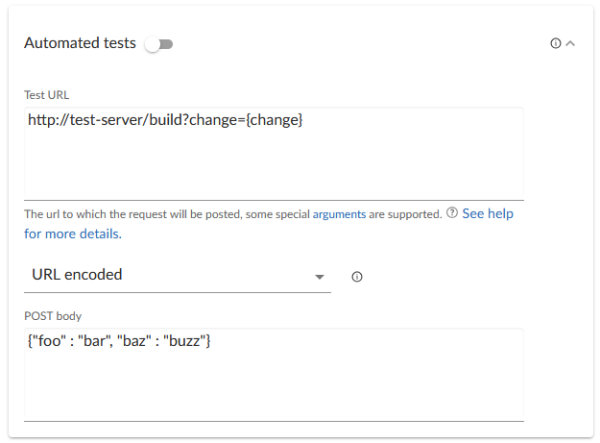
Click Automated tests to expand the section and configure the following fields:
-
Test URL: Enter the URL that P4 Code Review will call to start your CI test run. This can include special arguments that P4 Code Review replaces before sending the request. For a list of supported arguments, see Special arguments for Test URL.
-
Post Body: (Optional) Specify any parameters that your automated tests require that must be sent via HTTP POST in the POST Body field. The POST parameters can include the same special arguments used in the TEST URL.
Select the format of the POST parameters, either URL Encoded or JSON Encoded.
- URL Encoded: POST parameters are parsed into name=value pairs.
- JSON Encoded: parameters are passed raw in the POST body.
-
-
Enable the Automated tests toggle to make this test active.
Special arguments for Test URL
The Test URL and Post Body fields allow the following variables to pass to your CI system:
-
{test}– Test name -
{testRunId}–Run identifier -
{change}– Changelist number -
{status}– Shelved or submitted -
{review}– Review ID -
{version}– Review version -
{description}– Change description (POST body only) -
{project}, {projectName}– Project identifiers -
{branch}, {branchName}– Affected branches -
{update}– Callback URL for test updates
change=now instead of change={change} to always test the latest submitted version of the review.Configuring Jenkins for P4 Code Review integration
Your Jenkins host needs to be able to communicate with the P4 Code Review host, and the P4 Code Review host needs to be able to communicate with the Jenkins host. Ensure that the appropriate DNS/host configuration is in place, and that each server can reach the other via HTTP/HTTPS.
-
Install the p4-plugin for Jenkins:
For instructions on installing the p4-plugin, see Installation in the P4 for Jenkins Documentation.
-
Configure a Jenkins project:
P4 for Jenkins 1.10.11 and later: P4 Code Review must send the parameters for the build to Jenkins as a POST request. To do this, enter the parameters in the Post Body and select URL Encoded.
-
Specify the job name so that it matches the project identifier used in the trigger URL, as defined below.
For example, the computed value of
{projectName}_{branchName}.Or, edit the trigger URL to use the Jenkins job name you specify.
-
Make the build parameterized to accept these parameters (note that these are named to match up with the script that is called):
- {test}
- The name of the test
- {testRunId}
- The test run id
- {status}
- Whether the changelist to be tested is shelved or submitted
- {change}
- Changelist # to run tests against
- {review}
- The review's identifier
- {version}
- The version of the review
- {branchName}
- The branch name(s) impacted by the review, comma-separated
- {update}
- The URL to POST to update the test run. You can include any or all of the following when calling the update url to update the test run: status, messages, and a url in the body that links to the CI system for that run. They should be formatted in JSON in the body of the POST request. Status: valid status values are running, pass, and fail. Messages: you can pass a maximum 10 messages, if you provide more than 10 messages only the first 10 are saved. Each message can contain a maximum of 800 characters, any messages with more than 800 characters will be automatically truncated. {update} is the recommended way of reporting test status.
- If your build script has access to any messages related to the test execution, pass the messages to P4 Code Review using the {update} URL. P4 Code Review uses the provided message(s) to add to the test results.
- If your build script has access to the results of test execution, include a POST parameter called url when calling the update URL. P4 Code Review uses the provided url to link reviews to the test results. Valid test status values are running, pass, and fail.
- The {update} callback url accepts a JSON body where you can specify any or all of the following: messages, url, and status.
- {pass}
- The URL to wget if the build succeeds. From P4 Code Review 2019.3, {update} is preferred. For more details, see the note below.
- {fail}
- The URL to wget if the build fails. From P4 Code Review 2019.3, {update} is preferred. For more details, see the note below.
If your test system cannot POST to P4 Code Review, you cannot use update and you must use pass and fail instead.
When using {update}:
{ "messages" : ["My First Message", "My Second Message"], "url" : "http://jenkins_host:8080/link_to_run", "status": "pass" }When using {pass} and {fail}: if your build script has access to the results of test execution, include a GET or POST parameter called url when calling the pass or fail URLs. P4 Code Review uses the provided url to link reviews to the test results.
For example: ?url=https://jenkins.example.com/view/job/<jobname>/<jobid>/
P4 Code Review 2019.3 and later still supports {pass} and {fail}, however {update} is preferred because you can also include a message with the test status.
-
Select Perforce Software for the Source Code Management section.
You might see Perforce in the Source Code Management section. This represents an earlier community-provided Perforce plugin that does not include support for P4 Code Review.
-
Set up credentials and workspace behavior as needed.
For instructions on configuring credentials and workspaces, see the Credentials and Workspaces sections of the P4 for Jenkins Documentation.
- If your P4 Server is configured for P4 AS, the service user credentials used for automated testing must not use P4 AS.
- The client workspace configured in Jenkins must have a view that includes the paths defined for that branch in P4 Code Review.
-
-
Configure your P4 Code Review project to run automated tests with a URL and parameters like this:
In this example, the build system is passed the changelist number of the latest version of the review in {change}. If the test is rerun at a later date, the build system will rerun the test against the same {change} number, and this will probably not be the latest version of the codebase. If you want the review to always be tested against the latest versions of submitted code, replace change={change} with change=now. Your CI system must support change=now to use this feature.
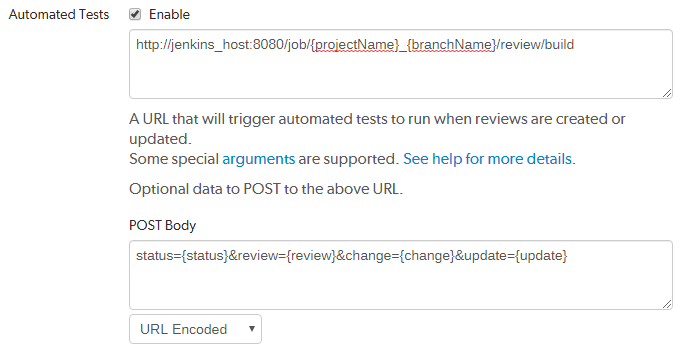
For Jenkins, the job name needs to match the job identifier in the URL. In the example above, this is the computed value of
{projectName}_{branchName}.If you prefer a different naming scheme in Jenkins, replace
{projectName}_{branchName}in the URL above with the project name actually defined in Jenkins.If security is enabled in Jenkins, the trigger URL needs to include credentials. Follow these steps:
- Create a Jenkins user that will trigger P4 Code Review builds. For example swarm.
- Log into Jenkins as the new user.
- Click on the user's username in the Jenkins toolbar.
- Scroll down to API Token.
- Click Show API Token.
-
Incorporate the value of the API Token into the P4 Code Review trigger URL.
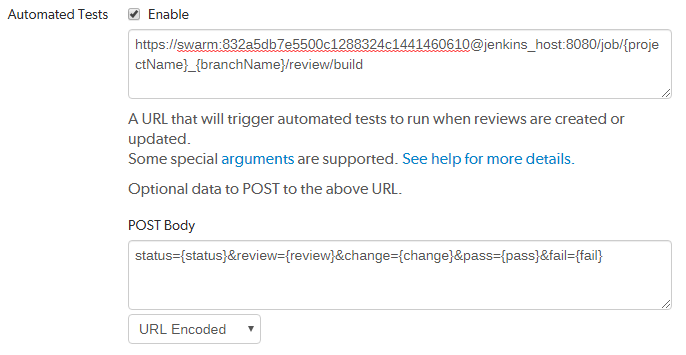
For example, if the username is swarm and the API Token value is 832a5db7e5500c1288324c1441460610, the P4 Code Review trigger URL and parameters should be: