Add a workflow
To ensure you have a workflow appropriate for your organization's needs, you can add workflows. To learn what workflows are and how they can apply to your projects, see Workflow overview as well as Example workflows.
On this page:
Add a Workflow
-
In the P4 Code Review navigation pane, click Workflows.
-
In the top right corner of the Workflows page, click + Add Workflow.
-
In the Add Workflow window, in Name, enter a unique name for the workflow and click Create.
-
You are navigated to the Workflow page, where you can configure the workflow using the following tabs.
- General Settings
- Rules
- Projects
- Tests
-
Checklists
-
Webhooks
- Owners
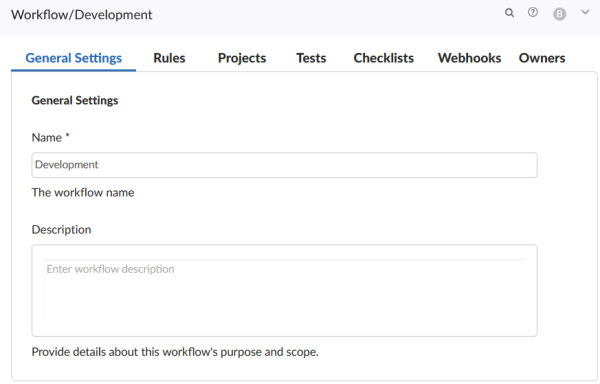
The settings are auto-saved as they are updated.
-
In General Settings, configure the following:
- Name: Enter a unique name for the workflow.
- Description: (Optional) Add a description for the workflow.
-
In Rules, configure the rules to define how P4 Code Review handles changelists and reviews during the review process. These rules determine the level of control, automation, and enforcement applied to a project or branch. For more information on how to configure each of the rules, see Workflow rules. Below is a summary of what the rules do:
-
On commit without a review : Defines what happens when a changelist is submitted without an associated review.
-
On commit with a review: Determines whether a changelist linked to a review can be submitted without approval.
-
On update of a review in an end state: Controls whether changelists can be automatically added to reviews in protected end states.
-
Count votes up from: Specifies the users who have votes count that toward approval requirements.
-
Automatically approve reviews: Determines whether reviews are approved automatically when all approval criteria are met.
For examples of what these rules can do, see Example workflows.
-
-
In Projects, view the projects and branches the workflow has been assigned to. If you are creating a new workflow, this page will be empty. For more information, see Add a workflow to a project or a branch.
-
In Tests, add a test to a workflow. A test is an automated check linked to a workflow. A test is run when a review is created, updated, or submitted. Workflow tests can integrate with external systems such as CI pipelines or test suites.
You must create a test before it can be added to a workflow. For more information on how to create a test, see Add a test.
To add a test:
-
Click + Add Test. This activates several fields to configure for the test.
-
Select a test from the Tests dropdown.
-
Choose when the test should run from the When dropdown. Chose from the following:
-
On Update: The test runs when:
-
A review is created.
-
A review is submitted and its content has changed compared to the previous version.
-
A review is updated and its content has changed since the previous version.
If review content has not changed since the last successful test pass, the test is not re-run on updates or submits.
If the test is currently running, or if it has not yet reported a pass state, it will be re-run, including during submit.
-
-
On Submit: The test runs when either:
-
A pre‑commit review is submitted.
-
A post‑commit review is created.
-
-
On Demand:
-
The test does not run automatically.
-
It can be triggered manually from the Tests dialog on the review page.
-
This option is independent of the “review content change” requirement.
-
-
-
Select approval‑blocking behavior from the Blocks dropdown. Chose from one of the following options:
-
Nothing - A test failure does not block review approval.
-
Approve - A test failure prevents the review from being approved.
-
-
-
In Checklists, add a checklist to a workflow. This is an optional feature and checklists are not required. However, if you do not add a checklist to a workflow, they will not be applied to the code review process.
To add a checklist:
-
Click on the Checklists tab.
-
Click + Add Checklist.
-
Select a checklist from the Checklist dropdown.
To learn more about checklists, see Checklists.
-
-
In Webhooks, assign a webhook to the workflow. Use webhooks to connect P4 Code Review to automation, ticketing systems, chat tools, audit pipelines, or AI-based review services. To learn more, see Webhooks.
To add a webhook:
-
In the P4 Code Review navigation pane, click Workflows.
-
Click on the workflow you want to add a webhook to.
-
Click the Webhooks tab.
-
Click + Add Webhook. This activates several fields to configure for the test.
-
Select a webhook from the Webhook dropdown.
-
-
In Owners, add an owner to the workflow. By default, you are assigned as the owner of the workflow. You can add up a total of 20 individuals or groups.
To add an owner:
-
Click + Add Owner.
-
In the Add Owners, window chose to add:
-
Users - Add an individual user as a workflow owner.
-
Groups- Add a user group as a workflow owner. Every user within that group is then assigned as the owner of the workflow and can edit or delete it.
-
-
In both cases, select the user or group from the drop down field and click Add.
-
To remove a user or group as a workflow owner, click the delete icon next to the user or group.
If you remove yourself as the owner, you cannot edit this workflow, unless you have super user rights.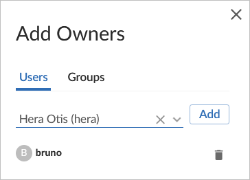
-
Shared with others: (Optional) Select to allow other P4 Code Review users to be able to use this workflow. For more information on shared workflows, see Sharing workflows with others.
-
-
The workflow configuration is auto-saved as you updated it. To return to the workflow homepage, click Workflows in the left navigation pane.
The workflow is now live and can be applied to projects and branches. Apply a workflow to a project within the General Settings section of the Project settings page. For more information, see Add a workflow to a project or a branch.
Workflow rules
Learn how to configure workflow rules, see Available workflow rules .
Sharing workflows with others
P4 Code Review workflows can be created by any P4 Code Review user.
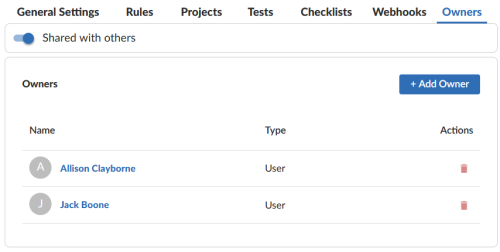
Selecting Shared with others allows other P4 Code Review users to view that workflow. Shared P4 Code Review workflows can be applied to a project or project branch by any user that is authorized to edit the project.
If Shared with others is not selected for a workflow, only the owners of the workflow can apply the workflow to a project.
The global workflow can be viewed by any P4 Code Review user. However, only a user with super or admin privileges can edit the global workflow unless that user has been assigned as an owner.