Create a checklist
Create a checklist to standardize what must be reviewed before code changes are approved. A checklist consists of configurable checklist items that can be manually reviewed or evaluated by AI. Apply checklists to workflows to enforce consistent review practices.
On this page:
Add a new Checklist definition
-
In the P4 Code Review navigation pane, click Checklists.
-
In the top right corner of the Checklists page, click + Add Checklists Definition.
-
In the Add Checklists Definition window, enter a unique name and click Create.
You are automatically taken to the checklist configuration page, where you can configure the checklist.
Configure a checklist
The checklist configuration page includes the following tabs:
-
General Settings
-
Checklist Items
-
Workflows
-
Owners
General Settings
In General Settings, configure the following fields:
-
Name: (Optional) Update the name of the checklist. Ensure the name remains unique.
-
Description: (Optional) Add a description for the checklist.
-
Block review approval if any Checklist item has status: Turn on this setting to prevent a review from being approved if any checklist item has one of the selected statuses. After enabling this setting, select the statuses that block review approval.
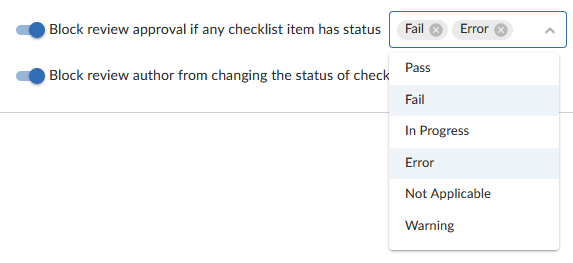
Checklist Items are added to a checklist in the next step.
To learn more about checklist Item statuses, see Checklist item status
-
Block review author from changing the status of Checklist items: Turn on this setting to prevent the user who created a review from changing checklist item status. This prevents review authors from manually updating item status and bypassing the checklist process.
Checklist items
A checklist consists of checklist items. Each item represents an aspect of your organization’s business rules or best practices to validate during code review.
You can add multiple items to a checklist. Each item includes an AI setting that determines whether it is checked manually or by AI.
To add a checklist item to a checklist:
-
In the top-right corner of the Checklist Items tab, click + Add checklist item.
-
In the Create Checklist Item window, enter the following details:
- Name: Enter the name for the checklist item.
-
Description: (Optional) Add a description for the checklist item.
-
AI-driven check: Turn on this setting to enable an AI-driven check. When enabled, you must enter an AI prompt in the field below.
Turn off this setting to keep the item as a manual check.
-
Auto-Trigger: This is only available when AI-driven check is enabled. Turn on this setting to automatically run the AI check when:
-
A review is created.
-
Files in the review are changed.
-
A new version of the review is created.
-
-
AI Prompt: Define what the AI should review. For example, "Act as a senior developer and review the changes from a security standard perspective".
-
Click Save.
The new item appears in the Checklist Items tab.
Workflows
In Workflows, you can view the workflows the checklists have been added to. If you are creating a new checklist, this tab is empty.
Owners
In Owners, add an owner to the checklist. By default, you are assigned as the checklist owner. You can add up a total of 20 individuals or groups.
To add an owner:
-
Click + Add Owner.
-
In the Add Owners, window chose to add:
-
Users - Add an individual user as a checklist owner.
-
Groups - Add a user group as a checklist owner. All users in a selected group are assigned as owners and can edit or delete the checklist.
-
-
In both cases, select the user or group from the drop down field and click Add.
-
To remove a user or group as a checklist owner, click the delete icon next to the user or group.
If you remove yourself as the owner, you cannot edit this checklist, unless you have super user rights. -
Shared with others: (Optional) Select to allow other users to use this checklist.
The checklist configuration is auto-saved as you updated it. To return to the checklist homepage, click Checklist in the left navigation pane.
Add checklists to code reviews
Checklists are applied to the code review process through workflows. To learn more, see Add a checklist to a workflow.