Review page
The review page is the primary workspace for reviewing changes. It provides access to review details, review actions, files, comments, tasks, checklists, tests, and review history. Most review activity takes place on this page.
Review summary
The review summary appears at the top of the review page and provides key information about the review.
The review summary includes:
-
Review author - The user who created the review. Select the avatar to go to the profile of the review author. To learn more, see Viewing another user's profile.
-
Review type - Indicates whether the review is pre-commit or post-commit.
-
Review ID - The unique number used to identify the review.
-
Review raised - The date and time the review was created.
-
Version - The currently selected review version and the total number of review versions. To learn more, see Review versions.
-
Project branch - The associated project branch. Select the project branch to open the associated project.
-
Last updated - The date and time of the most recent review update.
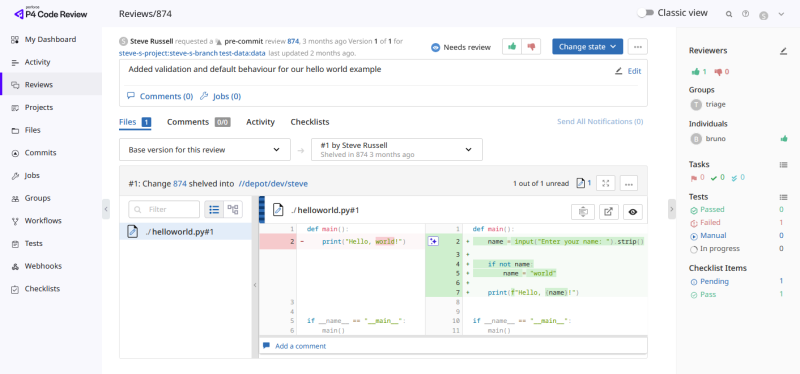
Review version selector
Use the review version selector to view earlier versions of a review.
The version selector allows you to:
-
Switch between review versions.
-
View historical review content.
-
Compare review evolution over time.
-
Identify the changelist associated with a specific review version.
To learn more about review versions, see Advanced concepts
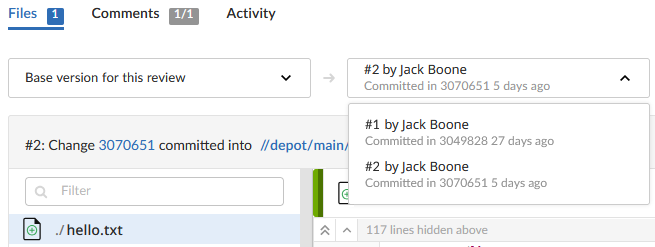
Review header
The review header (found in the top right corner of the page) provides quick access to the most important review controls and status indicators.
The review header includes:
-
Review state
-
Vote controls
-
Change State button
-
Review Actions button

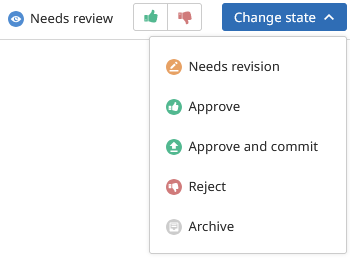
Review state
The review state indicates the current status of the review.
Possible states include:
-
Needs revision - Request changes to the files in the review.
-
Needs review - Request a review of the changes.
-
Approve - Select to approve the review.
-
Reject - Select to reject the review.
-
Archive - Select to archive the review.
-
Commit- Select to commit the review. This is only available for pre-commit reviews that have been approved.
-
Approve and commit - Select to approve and commit the review in a single step. This is only available for unapproved pre-commit reviews when the voting requirements for the review are satisfied. To learn more about voting requirements, see Required reviewers.
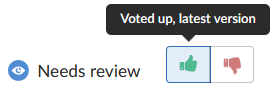
Vote controls
Vote controls allow reviewers to vote on the review.
The vote area displays:
-
Upvotes.
-
Downvotes.
-
Your current vote.
-
Whether your vote applies to the current review version.
To learn more about voting and approval requirements, see Reviewers and approvals.
When a review is updated and its files, file content, or file types change, existing votes become stale, vote counts are reset, and reviewers must vote again on the latest review version. You can only vote on the latest review version. To learn more, see Stale votes.
Change state button
The Change State button displays the review states available to you. Available options depend on:
-
Your permissions.
-
The current review state.
-
Review configuration and approval requirements.
Click to select a new state from the dropdown menu. For a list of available states, see Review state above.
To learn more, see:
Prevent state changes after commit
Administrators can prevent users from changing the state of a review after it has been approved and committed.
When this option is enabled, approved and committed reviews cannot transition to another review state, including Needs Revision, Rejected, and Archived.
Reviews created from an already-submitted changelist continue through the normal review process until they are approved. Once approved, the review state is locked and no further state changes are allowed.
Review Actions
The Review Actions button provides access to additional review functions.
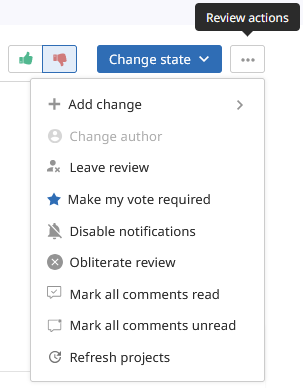
Available actions vary depending on:
-
Your permissions.
-
The review type.
-
System configuration.
The Review Actions menu can include:
Add Change
Adds a changelist to an existing review.
To learn more, see Add changelists.
Download ZIP
Downloads a ZIP archive containing the files included in the currently selected review version. The download only includes files that you have permission to access.
Change Author
Allows the review author to be reassigned when the feature has been enabled by an administrator.
Obliterate Review
Permanently removes a review and its associated metadata.
Obliterate must be used with care, the review and all of its associated metadata are permanently deleted. An obliterated review cannot be reinstated, not even by Perforce Support.
This action is typically restricted to administrators.
To learn more on what happens to a review when it is obliterated, see When you obliterate a review.
Join or leave a Review
Use Join Review and Leave Review to manage your participation in a review.
-
Join a review - Adds you to the reviewer list of the review and indicates that you are participating in the review.
-
Leave a review - Removes you from the reviewer list when you no longer need to participate in the review.
Depending on the review configuration, you might not be able to leave a review if you are a default reviewer or are participating through a reviewer group.
To learn more, see Join a review.
Mark All Comments as Read or Unread
Marks all comments in the review as read or unread.
When you mark a comment as read, the comments are rolled up into single lines to save space. The read flag is remembered independently for each user.
To learn more, see Read and unread comments.
Refresh Projects
Refreshes the review's project associations and checks whether the review files are now associated with any projects or branches that were created or updated after the review was last updated.
Use this option if project configuration has changed and you want P4 Code Review to re-evaluate the review's project membership.
Disable Notifications
Disables notifications for the current review while allowing you to remain a review participant.
When notifications are disabled, you no longer receive regular review notifications. However, you still receive notifications when you are directly mentioned in a review comment or description, helping ensure that important requests are not missed.
To learn more, see Notifications and participation
Deployment Status
Displays deployment information for the review when deployment integrations are enabled.
Deployment status indicates whether an associated deployment succeeded or failed. If deployment details are available, the status indicator can provide a link to additional deployment information.
Information panel
The Information panel provides additional review metadata and participation information.
By default, when you open the Review page for the first time, the file list panel and the information panel are hidden. Use the Show more context buttons to view the file list panel and the information panel or use the keyboard shortcuts, Shift + Alt + L to view the file list and Shift + Alt + S to view the Information panel.
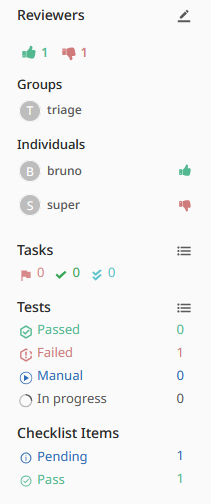
Depending on the review configuration, the Information panel can include:
-
Review participants.
-
Reviewers.
-
Required reviewers.
-
Moderators.
-
Project information.
-
Review activity.
-
Associated jobs (Tasks, Tests and Checklist Items)
Use the Information panel to quickly determine who is participating in a review and to view review-related metadata.
To learn more, see Reviewers and approvals.
Notifications
Review notifications keep participants informed of review activity.
Notifications can be generated when:
-
Review state changes.
-
Users participate in the review.
-
Users are mentioned in comments or descriptions.
-
Review activity occurs.
Review state change notifications are sent to review participants, including:
-
The review author.
-
Users who have commented on the review.
-
Users who have previously changed the review state.
-
Users or groups mentioned in review descriptions or comments.
Notifications can be delivered by email or through configured integrations depending on system configuration.
If you no longer want to receive notifications for a review, you can disable notifications while remaining a review participant. When notifications are disabled, you no longer receive regular review notifications. However, you will still receive notifications when you are directly @mentioned in a review comment or description to help ensure that important requests are not missed.
To learn more about comments and review participation, see:
Review description
The review description provides context for the review and explains the purpose of the proposed changes.
The description can include:
-
Review objectives.
-
Implementation details.
-
Reviewer instructions.
-
Links.
-
User and group mentions.
Review descriptions can also contain comments and discussion threads that remain separate from file-specific comments.
To learn more about review discussions, see Comments.
Jobs
Reviews can be associated with jobs. Job associations are displayed on the review page and can be used to:
-
Track related work items.
-
Associate fixes with reviews.
-
Update job status during review completion.
Depending on your workflow, jobs can be updated during review commit operations.
Add a job
Use the Jobs section to associate an existing job with a review.
P4 Code Review does not create jobs in P4 Server, but existing jobs can be linked to reviews. When adding a job, you can browse available jobs or search for specific jobs.
If the review is associated with a single project, the available jobs are filtered using that project's job view. Only jobs that match the project filter are displayed.
To add a job:
-
Click Jobs (n) (where n is the number of jobs that are already part of the review).
-
Click Add a job.
-
Scroll through the available jobs or enter search criteria to locate a specific job.
For more information on job search criteria, see Jobs in P4 CLI Documentation.
Remove a job
Jobs can be unlinked from a review when they are no longer relevant.
Removing a job from a review only removes the association. The job itself is not deleted from P4 Server.
To unlink a job from a review:
-
Click Jobs (n) (where n is the number of jobs that are already part of the review).
-
Click X next to the job you want to unlink.
The job is immediately unlinked from the review.
Next steps
-
Files and diffs- Learn how to inspect changed files, compare versions, and review code changes.
-
Comments, tasks, and checklists - Learn how discussions, tasks, and checklists are managed during reviews.
-
Tests - Learn how automated test results are displayed and monitored.
-
Reviewers and approvals - Learn how voting, reviewers, moderators, and approval requirements work.