Comments, tasks, and checklists
Use comments, tasks, and checklists to collaborate with reviewers, discuss changes, track follow-up work, and record review results.
Comments can be added to review descriptions, files, and diffs. Tasks can be used to track review actions that require follow-up. Checklists help reviewers validate changes and can be completed manually or by AI review.
Comments
Comments can be added to a review description or directly to files and diffs. Adding a comment automatically makes you a participant in the review.
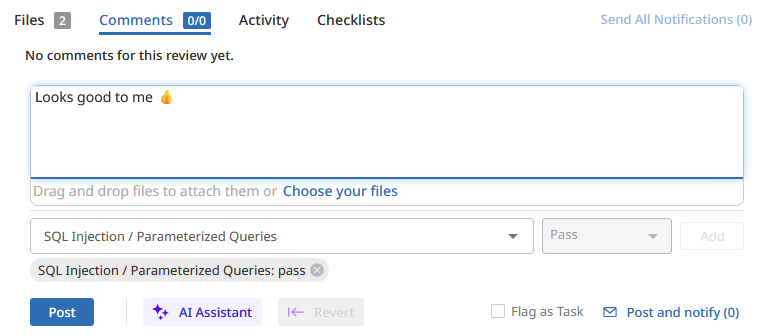
To add a comment
-
Click comment field.
-
Enter the comment text.
-
(Optional) Add an attachment to the comment.
-
(Optional) If checklists are enabled, you can update the status of a checklist item. To learn more, see Update a checklist status with a comment.
-
Select Post to post the comment.
Use comments to:
-
Discuss proposed changes.
-
Request clarification.
-
Record review feedback.
-
Track review conversations.
-
Update a checklist status.
-
Highlight issues that require further investigation.
For information about working with comments, see Comments.
Description comments
Description comments are attached to the review description rather than a specific file.
Use description comments to discuss:
-
Review objectives.
-
Implementation details.
-
Reviewer instructions.
-
General review feedback.
Description comments remain available throughout the review and are separate from file-specific comments.
To learn more about review descriptions, see Review description.
File comments
File comments are attached directly to files and diffs. File comments are useful when discussing:
-
Specific code changes.
-
Individual lines in a diff.
-
File-specific issues.
-
Suggested improvements.
To attach a file to a comment:
-
Create a new comment or edit an existing comment.
-
Select the attachment option in the comment editor.
-
Select the file you want to upload.
-
Select Post to add the comment and attachment.
The attached file is displayed with the comment and is available to review participants.
To learn more about reviewing files and diffs, see Files and diffs.
Inline diff comments
In the inline diff view, comments attached to changed or unchanged lines span the entire diff panel.
To learn more about inline diff views, see Inline diff view.
Side-by-side diff comments
In the side-by-side diff view, comments attached to changed lines appear only on the side where the comment was created.
Comments attached to unchanged lines span the entire diff panel.
To learn more about file read status, see Side-by-side diff view.
Read and unread comments
Comments can be marked as read or unread. When comments are marked as read, they are collapsed into single-line entries to reduce the amount of visible content on the page.
Read status is tracked independently for each user.
Users can:
-
Mark individual comments as read or unread.
-
Mark all comments in a review as read
-
Click Review Actions.
-
Select Mark All Comments Read.
-
-
Mark all comments in a review as unread.
-
Click Review Actions.
-
Select Mark All Comments Unread.
-
The read or unread state does not affect other reviewers.
AI-assisted comments
When AI code analysis is enabled, the AI Assistant can improve a comment by providing a summary, suggesting alternative text and fixing the spelling or grammar.
AI-generated comments should be reviewed before they are posted.
To learn more, see AI Assistant for comments.
Update a checklist status with a comment
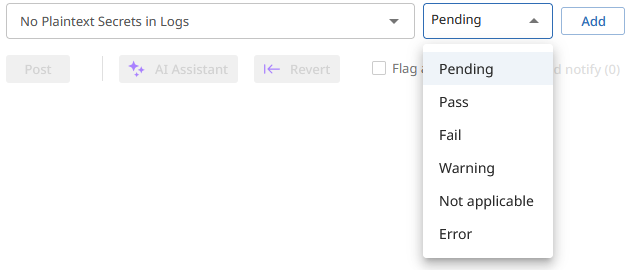
If checklists are enabled, you can update the status of a checklist item when posting a comment.
To learn more, see Checklist statuses.
To update a checklist item status using a comment:
-
Select the relevant checklist item from the drop-down list beneath the comment field.
-
Select the checklist status.
-
Click Add.
-
To update the status of another checklist item, repeat steps 1 to 3 for that item.
-
Click Post to add the comment and update the status of the selected checklist items.
Tasks
Tasks are comments that require action before review work can be considered complete.
Use tasks to:
-
Track requested changes.
-
Record outstanding work.
-
Verify that issues have been resolved.
-
Monitor review progress.
Create a task
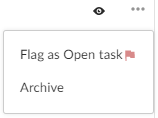
Tasks can be created from comments in a review.
To create a task:
-
Add a comment to a review description, file, or diff.
-
Mark the comment as a task.
-
Save the comment.
The task is added to the review and remains open until its status is updated.
Open tasks
An open task indicates that action is required. Open tasks remain active until they are updated by a reviewer.
Depending on review configuration, open tasks can prevent a review from being approved.
If approval blocking is enabled and a review contains open tasks, the Approve and Approve and Commit options are unavailable.
To learn more about approval requirements, see:
Addressed tasks
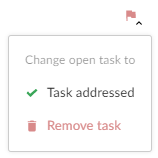
When the requested work has been completed, the task can be set to Task Addressed.
To mark a task as addressed:
-
Locate the task.
-
Open the task actions menu.
-
Select Task Addressed.
Use Task Addressed when:
-
The requested changes have been made.
-
A reviewer needs to verify the work.
-
The task should remain visible as completed work.
Reviews configured to block approval because of open tasks can be approved once tasks have been moved to Task Addressed or Not a Task.
Remove tasks
Use Remove tasks when a comment was incorrectly marked as a task or no longer requires action.
Removing a task removes it from the list of open tasks.
Verified tasks
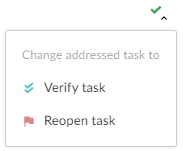
Verified tasks indicate that the completed work has been reviewed and accepted.
To verify a task:
-
Locate a task with a status of Task Addressed.
-
Review the changes.
-
Update the task status to Verified.
Use verified tasks to confirm that:
-
Requested changes were completed correctly.
-
The reviewer has validated the results.
-
No further action is required.
Verified tasks remain visible as part of the review history.
Checklists
Checklists provide a structured way to review requirements and validation criteria. Checklists contain checklist items which can be reviewed manually or evaluated using AI.
Checklists are applied to reviews through workflows. When a review is associated with a project branch that uses a workflow containing one or more checklists, those checklist items are displayed on the review page. To learn more, see Add a checklist to a workflow
Checklist results are displayed directly on the review page.
Checklist statuses
Checklist items can have the following statuses:
| Status |
Description |
|---|---|
|
Pending |
The checklist item has not yet run or has been reset. |
|
Running |
The AI model is evaluating the item. |
|
Pass |
The checklist item passed validation. |
|
Fail |
The checklist item failed validation. |
|
Warning |
The checklist item passed with warnings. |
|
Error |
An error occurred during evaluation. |
|
Not Applicable |
The checklist item does not apply to the review. |
Checklist statuses help reviewers understand the current state of the review requirements.
Manual review
Checklist items can be reviewed and updated manually.
To update a checklist item manually:
-
Locate the checklist item.
-
Select the checklist status.
-
Choose the new status.
-
Save the change.
Depending on checklist configuration, reviewers can update checklist item statuses directly from the review page.
To learn more about the review page, see Review page.
AI review
Checklist items can also be evaluated using AI. For AI-driven checklist items, the AI model evaluates:
-
The changelist description.
-
File paths.
-
Code diffs.
The evaluation uses the prompt configured for the checklist item.
To run an AI review:
-
Locate the checklist item.
-
Select Trigger AI review.
While the review is running, the checklist item displays a Running status.
When the AI review completes:
-
The checklist item status is updated.
-
A comment is added explaining the result.
To learn more about AI-assisted review of code changes, see:
Approval blocking
Checklist results can prevent a review from being approved.
By default, reviews cannot be approved if a checklist item has a status of:
-
Fail
-
Error
When approval is blocked, the Approve and Approve and Commit actions are unavailable until the blocking checklist items are resolved.
Depending on checklist configuration, additional statuses can also block review approval.
If configured by an administrator, approved and committed reviews can be locked to prevent further review state changes. When review state locking is enabled, users cannot change the state of a review after it has been approved and committed.
To learn more about approval requirements, see:
Notifications and participation
Review participants receive notifications when review activity occurs.
Participants can include:
-
The review author.
-
Users who comment on a review.
-
Users who comment on review files.
-
Users who previously changed review state.
-
Users or groups mentioned in review descriptions or comments.
Users who participate in discussions are automatically included in review activity notifications.
To learn more about review notifications, see Notifications.
Next steps
-
Review page - Learn about review actions, notifications, jobs, and deployment information.
-
Files and diffs - Learn how to inspect files, review diffs, and compare review versions.
-
Tests - Learn how automated test results are displayed and monitored.
-
Reviewers and approvals - Learn how voting, reviewers, required reviewers, and approvals work.