Files and diffs
The Files tab is the primary workspace for reviewing code changes.
Use it to:
-
Browse files in a review.
-
View file diffs.
-
Compare review versions.
-
Review stream specifications.
-
Access AI code analysis when enabled.
By default, when you open a review for the first time, the file list panel and Information panel are hidden.
To display the file list panel:
-
Select Show more context.
-
Press
Shift+Alt+L
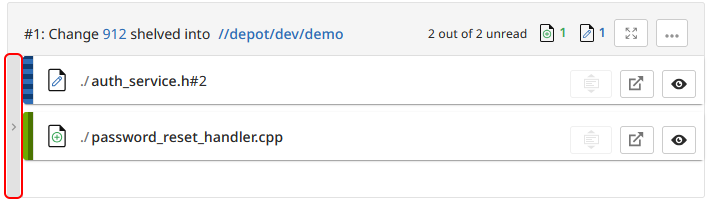
To display the Information panel:
-
Select Show more context.
-
Press
Shift+Alt+S
If a review contains a stream specification, it is displayed at the top of the file list.
Files tab
Use the Files tab to view the files included in a review and inspect changes using the diff viewer.
Large files are truncated by default. When a file exceeds the configured size limit, a truncation message is displayed.
If a file is renamed, modified, and then added to a review, only the modified content is highlighted in the diff viewer.
When AI code analysis is enabled, select AI to generate a summary of the entire diff or a selected portion of the diff.
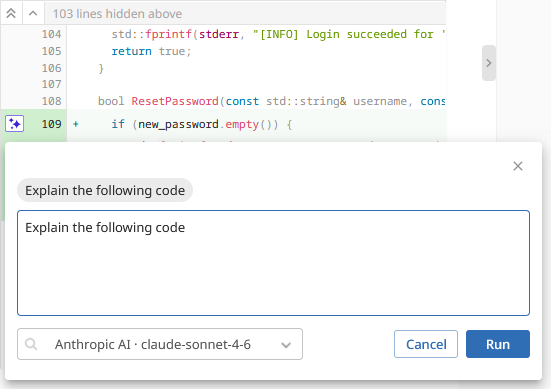
To remove a generated summary, select Discard summary. AI features are only available when enabled by a P4 Code Review administrator.
File list
The file list displays all files included in the selected review version.
Select a file to display its contents in the file stack and diff viewer.
Use the file list to:
-
Navigate between files.
-
Locate specific files.
-
Filter files by file name, file extension, or folder name.
-
Review stream specifications.
-
Track review progress.
To learn more about review versions, see Review versions.
File change types
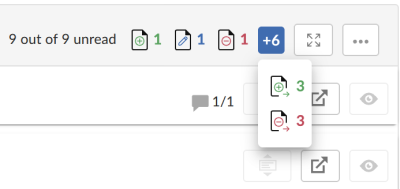
The file list displays icons that indicate the type of change made to each file:
| Icon |
File change |
|---|---|
|
|
Added |
|
|
Edited. |
|
|
Deleted |
|
|
Added and moved |
|
|
Moved and deleted |

|
Branched |

|
Integrated |


If more than three file change types exist in a review, only the first three are displayed directly. Additional file types are available from a dropdown menu.
File filter
Use the file filter to locate files in a review. You can filter files by:
-
File name.
-
File extension.
-
Folder name.
For reviews containing a large number of files, use the file filter instead of browser search (Ctrl + F).
File list resize
Resize the file list by dragging the split bar left or right.
Select the split bar to collapse or expand the file list.
P4 Code Review remembers the file list width for each review and restores it the next time the review is opened.
View the complete file list
Use the file list scroll bar to view all files included in the review.
File list header
The file list header displays information about the files currently being reviewed.
When comparing the latest version of a review against Base 1. For files: The file revision that contains the most common edits or changes among the file revisions in the source file and target file paths. 2. For checked out streams: The public 'have' version from which the checked out version is derived. See also 'have list'. or Head The most recent revision of a file within the depot. Because file revisions are numbered sequentially, this revision is the highest-numbered revision of that file., the file list header displays:
-
The current review version.
-
The changelist containing a shelved copy of the review files.
-
The common path shared by the files in the review.
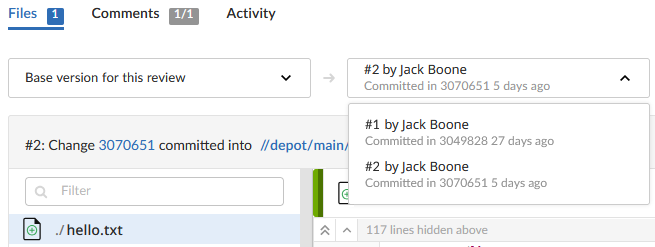
When comparing two review versions, the file list header displays:
-
The review versions being compared.
-
The changelists containing the compared files.
-
The common path shared by the files in both review versions.
To copy a displayed file path, hover over the path and select the copy icon.
To learn more about review versions and changelist associations, see Review versions.
File stack
The file stack displays the files included in the selected review version and allows you to scroll through them.
Select a file to expand its diff and select the same file again to collapse the diff.
Use the file stack to:
-
Review files in sequence.
-
Move between files.
-
Locate changed files.
-
Access file diffs.
-
Compare file versions.
The currently selected file is highlighted in the file list.
File read status
P4 Code Review tracks which files you have reviewed.
File read status helps reviewers:
-
Track review progress.
-
Identify files that still require attention.
-
Resume reviewing large reviews.
Read status is stored per user and does not affect the read status of other review participants.
To learn more about read and unread review activity, see Read and unread comments.
Stream specifications
P4 Code Review supports stream specifications using the Private editing of streams feature
If a changelist or review contains a stream specification, it is displayed first in the Files tab with the prefix:
stream://
For example:
stream://MyStreamDepotName/MyStreamSpecLocationName
A changelist or review can contain only one stream specification.
To learn more about stream specifications in reviews, see Stream specifications.
Diff views
The diff viewer displays the differences between file revisions.
P4 Code Review can display:
-
Text file diffs.
-
Image file diffs.
-
Binary file information.
-
Stream specification changes.
To learn more about file comments and review discussions, see:
Text file diffs
Text files are displayed using a color-coded diff view that highlights changes between file revisions.
When viewing a text file diff:
-
Red indicates lines that have been removed.
-
Blue indicates lines that have been modified.
-
Green indicates lines that have been added.
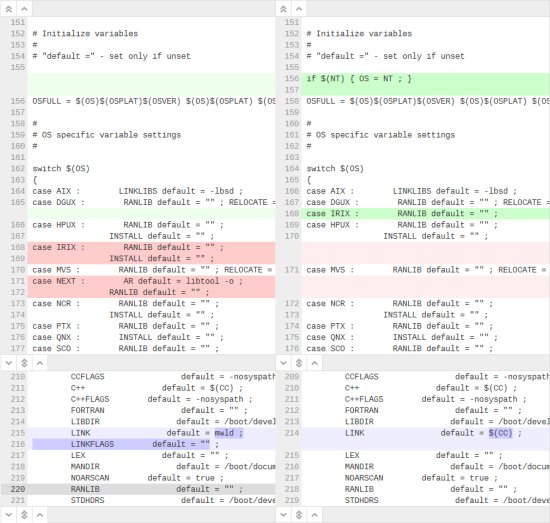
P4 Code Review supports syntax highlighting for many file types, making it easier to review source code and configuration files.
Inline diff view
The inline diff view displays all changes in a single continuous view.
When a comment is added to a changed or unchanged line, the comment spans the entire diff panel.
Side-by-side diff view
The side-by-side diff view displays the previous revision and updated revision in separate columns.
When a comment is added to a changed line, the comment appears only on the side where it was created.
When a comment is added to an unchanged line, the comment spans the entire diff panel.
Renamed files
If a file is renamed, modified, and included in a review, only the modified content is highlighted.
Large files
Files larger than 1 MB are truncated by default.
When a file is truncated, a message is displayed in the diff viewer.
Image file diffs
Supported image formats are displayed using an image comparison slider.
Use the slider to compare image revisions:
-
Drag left to reveal more of the newer image.
-
Drag right to reveal more of the earlier image.
-
Select the image to reposition the slider.
Binary files
Binary files cannot be displayed as text diffs.
For binary content, P4 Code Review displays file information and metadata instead of line-by-line differences.
Stream specification diffs
Stream specifications can be reviewed directly from the diff viewer.
The context expansion controls used by file diffs are not available for stream specifications.
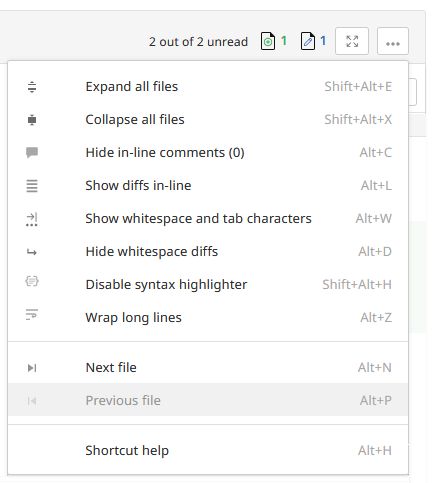
Diff actions
Use diff actions to display additional context and navigate review content.
-
Show more context - By default, P4 Code Review displays a concise diff view with limited surrounding context. Additional controls are available to expand the displayed content.
-
Show the file list panel - Displays the file list panel when it is hidden.
-
Show the Information panel - Displays the Information panel when it is hidden.
-
Show All Lines to Start of File - Displays all lines between the current location and the beginning of the file. Only available for the first change in a file.
-
Show More Lines for the Code Below - Displays 10 additional lines above the selected change.
-
Show Entire Section - Displays all lines between the changes immediately above and below the button.
-
Show More Lines for the Code Above - Displays 10 additional lines below the selected change.
-
Show All Lines to End of File - Displays all lines between the current location and the end of the file. Only available for the last change in a file.
-
Stream specifications - Context expansion controls are not available for stream specifications.
Navigate diffs
The diff viewer supports several ways to navigate review content.
-
File navigation - Use the file list and file stack to move between files. Select a file to display its diff. Select it again to collapse the diff.
-
Review files in sequence - Files in the file stack are displayed together, allowing you to scroll through the review and inspect each file in order.
-
Navigate large reviews - Use the file filter to locate specific files.
The file filter supports:
-
File names.
-
File extensions.
-
Folder names.
Browser search (Ctrl+F) is not suitable for large reviews because only loaded content is searched.
-
-
Expand and collapse file content - Files in the file stack can be expanded to display their diffs and collapsed when no longer needed.
Version comparisons
Reviews can contain multiple versions as files are updated during the review process.
The version selectors above the file list allow you to compare review versions.
To learn more about review versions and version history, see Review versions.
Review version selectors
The version comparison controls contain two dropdown selectors:
-
Left selector.
-
Right selector.
The selected versions determine the differences displayed in the diff viewer and the information displayed in the file list header.
Left selector
The left selector determines the base version for comparison.
Base 1. For files: The file revision that contains the most common edits or changes among the file revisions in the source file and target file paths. 2. For checked out streams: The public 'have' version from which the checked out version is derived. See also 'have list'. represents the file revision that existed before it was modified for the review.
Other available options include:
-
Head The most recent revision of a file within the depot. Because file revisions are numbered sequentially, this revision is the highest-numbered revision of that file. - The current revision of the file in the depot.
-
A specific review version when multiple review versions exist.
To learn more about review version comparisons, see Comparing review versions.
Right selector
The right selector determines the version being compared.
By default, the latest review version is selected.
If multiple review versions exist, a specific version can be selected.
Comparing review versions
When comparing versions of a review, P4 Code Review displays the differences between the selected review versions.
If a review consists of one or more P4 Code Review-managed changelists, P4 Code Review compares the selected review versions rather than the review author's personal changelist. To learn more about internally managed review content, see Review content.
For examples showing how review content evolves between versions, see Review process examples.
Comparing Base or Head to the latest review version
The file list header displays:
-
The current review version.
-
The changelist containing a shelved copy of the review files.
-
The common path shared by the files in the review.
Comparing two review versions
When comparing two review versions, the file list header displays:
-
The review versions being compared.
-
The changelists containing the files being compared.
-
The common path shared by the files in both review versions.
Common file path
The file list header displays the common path shared by the files included in the selected comparison.
To copy a displayed file path, hover over the path and select the copy icon.
AI code analysis
P4 Code Review can generate AI summaries directly from the diff viewer. You can analyze a specific diff block or a selected portion of code to help understand code changes and review complex diffs more efficiently. To learn more, see AI for code analysis.
Generate an AI summary
When AI code analysis is enabled, select the AI button to generate a summary of:
-
The diff block where the AI button is selected.
-
A selected portion of code.
The generated summary is displayed in the review interface.
To automatically analyze all file diffs in a review, use AI-assisted checklist reviews.
To remove a generated summary, select Discard summary. This removes just the generated content and does not affect the review or the reviewed files.
AI-assisted checklist reviews
Checklist items can be evaluated manually or by AI.
For AI-driven checklist items, the AI model evaluates:
-
The changelist description.
-
File paths.
-
Code diffs.
To run an AI review:
-
Locate the checklist item.
-
Click Trigger AI review.
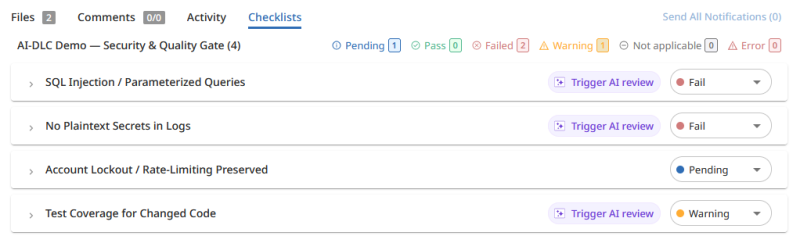
While the AI review is running, a status indicator is displayed. When the review completes:
-
The checklist item status is updated.
-
A comment is added explaining the result.
To learn more about AI-assisted checklist reviews, see AI review.
Next steps
-
Comments, tasks, and checklists - Learn how to discuss changes, manage review tasks, and track checklist results.
-
Tests - Learn how automated test results are displayed and managed.
-
Review page - Learn about review actions, notifications, jobs, and deployment information.
-
Reviewers and approvals - Learn how reviewers, voting, and approvals work.