Add changelists
After a review has been created, you can add additional changelists to update the review content. This can be useful when:
-
Additional work is required after the review has started.
-
Multiple changelists need to be reviewed together.
-
Review content needs to be replaced with a different changelist.
-
A review needs to be converted between pre-commit and post-commit models.
Use the Add Change option from the review page to add changelists to an existing review. The options available depend on the review type and the changelist being added. To learn more about the Review Actions menu, see Review Actions.
Append a pending changelist to a review
Use Append pending changelist to add the files from a pending changelist to an existing pre-commit review. The new files are added to the review while existing review files are retained.
Appending a changelist creates a new review version that contains:
-
Existing review files.
-
Updated file revisions from the appended changelist.
-
Any new files introduced by the changelist.
To learn more about review versions and how review content evolves over time, see Review versions.
A review can only contain one stream spec. If you append a changelist containing a stream spec to a review that already contains a stream spec, the new stream spec replaces the existing stream spec. To learn more about stream specifications in reviews, see Stream specifications.
If the new stream spec differs from the original stream spec, P4 Code Review might not be able to display a comparison and displays File content unchanged instead.
For worked examples showing how review content changes when changelists are appended or replaced, see Review process examples.
To append a pending changelist
-
Open the review.
-
Select Review actions > Add Change.
-
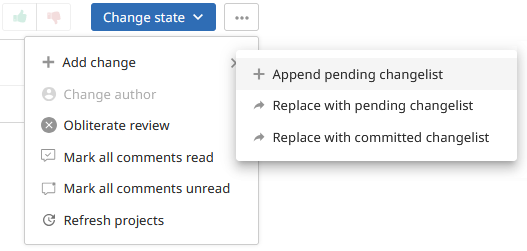
Select Append pending changelist.
-
Select a pending changelist by either:
-
Enter the pending changelist number directly in the @Change box
-
Filter by depot path and user.
-
Selecting a changelist from the list of recent changelists.
A changelist can only belong to one review. P4 Code Review rejects changelists that are already associated with another review. -
-
Click Select.
The changelist is appended to the review and a new review version is created.
Replace review with a pending changelist
Use Replace with a pending changelist to replace the current review files with the files from a pending changelist.
Unlike append, replace removes the existing review content and replaces it with only the content of the selected changelist. A new review version is created.
Unlike append, replace removes the existing review content and replaces it with only the content of the selected changelist.
If you replace a post-commit review with a pending changelist, the review becomes a pre-commit review. To learn more about review type transitions, see Review type transitions.
To replace a review with a pending changelist
-
Open the review.
-
Select Review actions > Add Change.
-
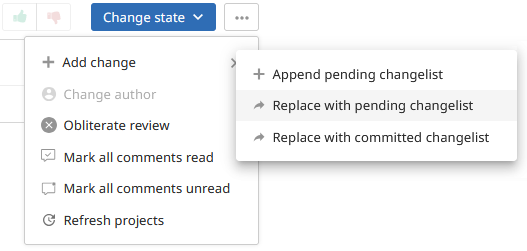
Select Replace with pending changelist.
-
Select the changelist by entering its changelist number, filtering the available changelists, or selecting it from the recent changelist list.
A changelist can only belong to one review. P4 Code Review rejects changelists that are already associated with another review. -
Click Select.
The review is updated and a new review version is created.
Replace review with a committed changelist
Use Replace with committed changelist to replace the files in a review with files from a submitted changelist.
If you replace a pre-commit review with a committed changelist, the review becomes a post-commit review. To learn more about review type transitions, see Review type transitions.
To replace a review with a committed changelist
-
Open the review.
-
Select Review actions > Add Change.
-
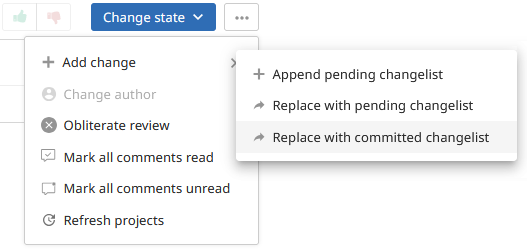
Select Replace with committed changelist.
-
Select the changelist by entering its changelist number, filtering the available changelists, or selecting it from the recent changelist list.
A changelist can only belong to one review. P4 Code Review rejects changelists that are already associated with another review. -
Click Select.
The review is updated and a new review version is created.
Branch impacts
When changelists are added to a review, the set of branches represented in the review can change. P4 Code Review automatically evaluates the updated review content and adjusts review settings as required.
If a newly added changelist introduces a branch that was not previously part of the review:
-
Default reviewers for the branch are added to the review.
-
Moderators for the branch are added to the review.
-
Branch workflow rules associated with the new branch may be applied to the review.
If a branch is removed from the review:
-
Existing reviewers remain on the review.
-
Moderators associated with the removed branch are no longer moderators for the review.
-
Branch workflow rules associated with the removed branch are removed from the review.
To learn more about how branch membership affects reviewers, moderators, and workflows, see Branch inheritance.
Reviewer impacts
Adding changelists can change who participates in a review.
When a changelist introduces files from a branch that has default reviewers configured, those reviewers are automatically added to the review.
Existing reviewers are not automatically removed when review content changes.
To learn more about default reviewers and reviewer requirements, see:
Workflow impacts
If workflow rules are enabled, adding a changelist can affect the workflow applied to a review.
When a changelist introduces content from a branch that has its own workflow:
-
The branch workflow is added to the review.
-
Multiple workflows are merged when required.
-
The most restrictive workflow rules are applied.
When branch content is removed from a review, any workflow associated with that branch is also removed from the review.
To learn more about how workflows are merged and applied to reviews, see Workflow merging.
Next steps
-
Work with shelves and review files - To learn how to fetch review files, revert review content, and repair incorrectly updated reviews.
-
Review process - To learn more about keyword-based review modification and collaborative review processes.
-
Reviewers and approvals - To learn how reviewers, required reviewers, moderators, and approvals are affected by review changes.