Users
P4 Code Review's users are based on the users configured in the P4 Server.
On this page:
Viewing your user profile
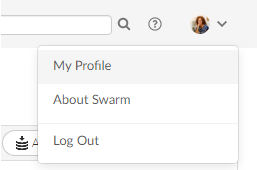
To view your own user profile, click on your avatar in the top right corner of P4 Code Review and select My Profile.
The My Profile page displays your:
-
Avatar (this is configured using gravatar.com - To learn more, see Avatar).
-
Full name.
-
Email address.
-
The users that are following you.
-
The users or projects that you are following.
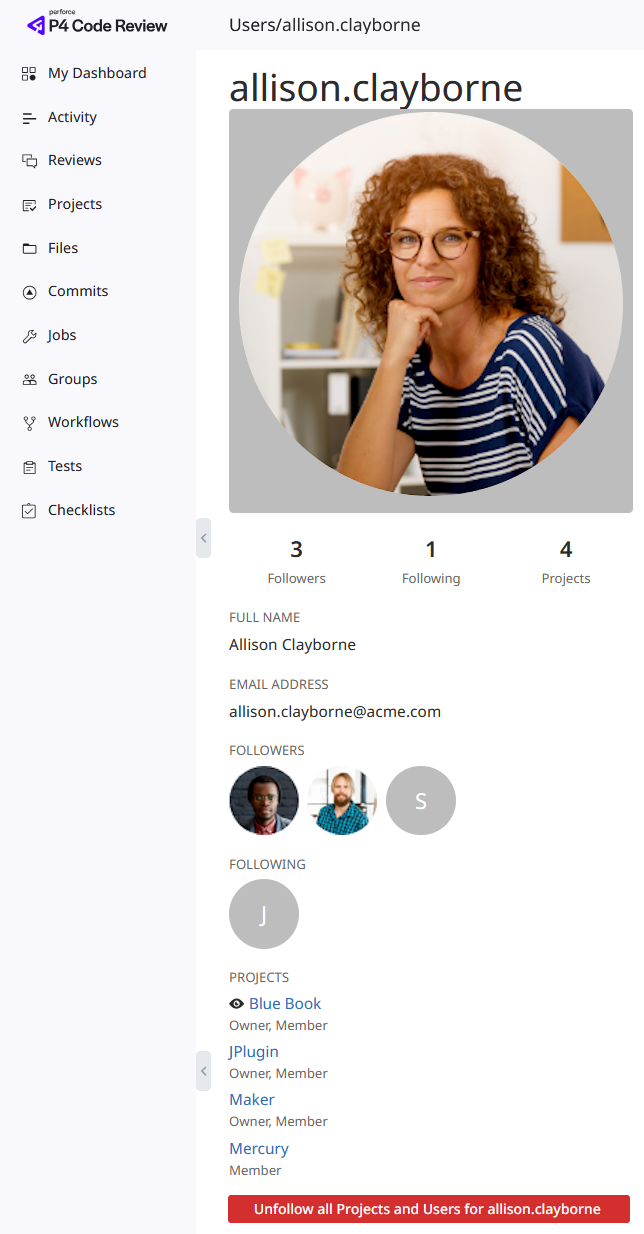
In this page, you can also configure notifications and AI vendors for your profile. To learn more, see My Profile.
Viewing another user's profile
View another user's profile by clicking their avatar anywhere in P4 Code Review, or go to their profile using a URL which includes their username.
For example, for the user allison.clayborne, enter the URL: https://myswarm.url/users/allison.clayborne
A user's profile can display:
-
User information
-
Followers and following information
-
Project memberships
-
Activity
-
Shelves
-
Other user-specific information
Administrators can view another user's Settings tab. However, only the owner of the profile can modify their settings.
Currently, P4 Code Review does not provide an overall list of users.
Follow or unfollow the user
To follow a user:
-
Open the user's profile.
-
Click Follow below the user's avatar.
To stop following a user:
-
Open the user's profile.
-
Click Unfollow below the user's avatar.
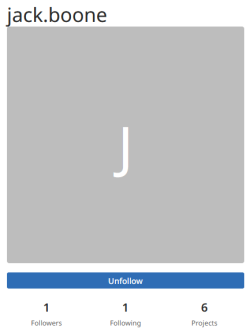
Following a user allows you to quickly access their profile and activity.
Managing user follows (admin and super users)
Admin and super users can remove all follows for another user.
This is useful if a user has been removed from the P4 Server but is still following projects or users. This action cannot be undone.
To remove all follows for a user:
-
Open the user's profile.
-
Click Unfollow all projects and users for <username>.
-
Click OK to confirm.
The user will no longer follow any projects or users.