View the timeline
The timeline represents the lifecycle of the project. It shows the state of your workspace and your changes. If you use P4 for collaboration, your changes are stacked on your current synced changelist and you can see if there are new changes in P4 that you should get to your workspace.
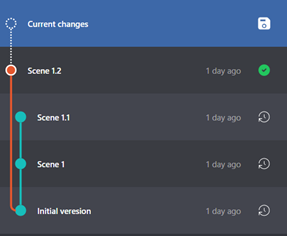
The timeline has the following elements:
- Current changes displays items in your workspace that changed since you last created a version (if any).
-
Versions you created are displayed in descending order.
-
Tracks are colorful lines in the timeline that show branching of your changes. Tracks are automatically created when you create a version. To learn more, see Tracks.
-
Pending changelists are displayed if your workspace is connected to a P4 Server. Each card shows the files checked out to that changelist and can be expanded or collapsed.
-
Changelist information is displayed at the bottom of the list if your workspace is connected to P4. The changelist number, user who submitted the changelist, and when it was submitted are displayed. If there are new changes on the server, click Get latest changes to update your files with the latest content while preserving your changes.
On this page:
Current changes
To work with current changes to the workspace, click Current changes in the timeline. The following actions are available for current changes:
| Action | Instructions | More information |
|---|---|---|
| Create a version | Click the Create Version  button. button. |
Create a version |
| Discard your current changes | Right-click Current version and click Discard Changes | Discard current changes |
Pending changelists
If your workspace is connected to a P4 Server, your pending changelists are displayed in the timeline. Each changelist appears as a card listing its checked-out files. Click a card to expand or collapse it.
The following actions are available from the pending changelist cards:
| Action | Instructions | More information |
|---|---|---|
| Check out a file | Drag the file from the file view onto a Pending Changelists card. | Check out a file from P4 Server |
| Move a file to another pending changelist | Drag the file from one Pending Changelists card to another. | -- |
| Submit a pending changelist | Click Submit Changelist on the card. | Work with pending changes to submit to the P4 Server |
Versions
The file view shows the state of the files on disk in your workspace. The version in your workspace is indicated with a green checkmark in the timeline.
The following actions are available for versions:
| Action | Instructions | More information |
|---|---|---|
| Browse the files in a version | Click the Browse Version files button next to the version. | -- |
| Restore all files and folders from a previous version | Click the Restore Version  button next to the version. button next to the version. |
Create a version |
| Submit a version to a P4 Server | Click the Submit Version button next to the version. The workspace must be connected to a P4 Server to submit a version. | Submit a version to P4 Server |
| Rename a version | Right-click the version and choose Rename Version. | Rename a version |
| View the P4 Server changelist submitted for the version | Right-click the version, click Select Changelist, and then click the changelist number. | View changes submitted to a P4 Server |
| Squash versions to remove them from the timeline and P4 One | Right-click the version to keep and click Squash to Version. There is no undo available. Ensure that you commit any changes you want to keep before squashing a version. | Squashing local versions |
| Copy version information to the clipboard | Right-click the version, click Copy to Clipboard, and then click a value to copy. | -- |