Upgrade P4 Code Review
The section describes how to upgrade a P4 Code Review package, OVA, or tarball install to a newer release.
If you are not already running P4 Code Review, none of these instructions apply to you. Instead, see the Swarm installation instructions.
P4 Code Review upgrade process:
- If you installed P4 Code Review via a package, see Upgrade a P4 Code Review package installation for details.
- If you installed P4 Code Review via an OVA, see Upgrade a P4 Code Review package installation for details.
- If you installed P4 Code Review via a source distribution archive (tar file), see Upgrade a P4 Code Review tarball installation for details.
Once you have moved to the 20.04 LTS OVA, use the package upgrade method for future P4 Code Review upgrades. For instructions on the package upgrade, see Upgrade a P4 Code Review package installation.
Upgrade a P4 Code Review package installation
- P4 Code Review runtime dependencies change between releases, you must check that your system satisfies the P4 Code Review runtime dependencies before starting the upgrade, see Runtime dependencies.
-
Review the PHP requirements before you upgrade P4 Code Review, see PHP.
- Review the P4 Server requirements before you upgrade P4 Code Review, see P4 Server requirements.
- P4 Server 2020.1 and later, permissions have changed for viewing and editing stream spec files in P4 Code Review. To view and edit stream spec files in P4 Code Review, the P4 Code Review user must have admin permissions for the entire depot //...
-
If you are upgrading from P4 Code Review 2017.2 or earlier, run the P4 Code Review index upgrade after you have validated your upgrade. This is the last step of the upgrade and ensures that the review activity history is displayed in the correct order on the Dashboard, and Reviews list pages.
-
If you are upgrading from P4 Code Review 2020.2 or earlier and have userids that contain the forward slash (/) character, add AllowEncodedSlashes NoDecode to the VirtualHost block of your /etc/apache2/sites-enabled/perforce-swarm-site.conf file. For more information about the VirtualHost block, see Apache configuration.
Before you begin your P4 Code Review upgrade
The P4 Code Review Workflow feature was introduced in P4 Code Review 2018.2 and was disabled by default, this feature is now enabled by default for P4 Code Review 2019.2 and later.
If you are not currently using the P4 Code Review workflow feature and you are using the strict and enforce triggers to control commits you have the following options:
- Use the P4 Code Review workflow feature: you must comment out your strict and enforce triggers and use the new workflow triggers.
- EXEMPT_FILE_COUNT
- EXEMPT_EXTENSIONS
-
Continue to use the strict and enforce triggers: keep your existing enforce and strict triggers and Disable the Workflow feature. Support for these triggers will be dropped in a later release.
If you disable the workflow feature in the P4 Code Review config.php file, workflows are not processed by P4 Code Review, but a small overhead is still incurred by the P4 Server each time it runs a workflow trigger script. This overhead can be eliminated by commenting out the swarm.enforce change-submit, swarm.strict change-content, and swarm.shelvesub shelve-submit workflow triggers.
Known limitations
The workflow triggers do not support the following trigger functionality available in P4 Code Review 2018.1 and earlier:
To continue to use this trigger functionality, you must keep your existing enforce and strict triggers and disable the Workflow feature as shown below.
Decide whether you want to use the workflow feature before you start your upgrade because this will determine which triggers you need to use. The trigger requirements are described in more detail in the Update your triggers stage of the P4 Code Review upgrade.
Upgrade P4 Code Review
For the P4 Code Review 2015.2 release, the packages have been renamed. The following instructions upgrade your P4 Code Review packages to the latest versions.
From P4 Code Review 2021.1, the P4 Code Review package upgrade installs logrotate to manage your P4 Code Review log rotation. If the package upgrade finds an existing custom logrotate configuration file for P4 Code Review, the upgrade will notify you and give you details on how to disable the new logrotate configuration.
For information about the logrotate configuration, see Logrotate.
The following process attempts to minimize downtime, but a short period of downtime for P4 Code Review users is unavoidable. There should be no downtime for your P4 Server. After a successful upgrade, all P4 Code Review users are logged out.
If you are using P4 Code Review in a production environment, we encourage you to test this upgrade process in a non-production environment first.
- Follow the instructions for your OS distribution:
-
As part of the PHP upgrade process your Apache 2.2 server will be stopped and disabled, if you are currently using the Apache 2.2 server for any other applications they will stop working. You will either need to upgrade these applications to work with PHP 8 and Apache 2.4 or move them to another server.
-
P4 Code Review uses the Remi repository for RHEL 8 and RHEL 9. This provides PHP 8.x installed in the standard file system structure.
If /opt/rh/httpd24/root/etc/httpd/conf.d/perforce-swarm-site.conf exists when P4 Code Review is upgraded, this file is copied to /etc/httpd/conf.d/perforce-swarm-site.conf if there is no file at the destination. It is also re-written to change references from /var/log/httpd24 to /var/log/httpd
If a site configuration file for P4 Code Review already exists in /etc/httpd, the copy and re-write is not performed.
After upgrade, httpd24-httpd is disabled.
-
To avoid seeing the Apache HTTP server Linux test page when you start the Apache server, comment out the content of the welcome.conf file located in the /etc/httpd/conf.d/ directory.
-
To avoid loading the Apache HTTP server example configuration instead of the P4 Code Review configuration when the Apache server starts, rename the autoindex.conf file located in the /etc/httpd/conf.d/ directory to z-autoindex.conf or similar. This is required because Apache runs the first conf file it finds in the /etc/httpd/conf.d/ directory (alphabetical order) and that must be the perforce-swarm-site.conf file.
- Deploy the epel-release-latest-7.noarch.rpm repository configuration package to give P4 Code Review access to EPEL packages:
- Deploy the Remi repository configuration package to give P4 Code Review access to PHP 7.x (only required the first time you upgrade to PHP 7.x):
- Install the yum-utils package to give access to the yum-config-manager command:
- Install the Default/Single version of PHP:
- Disable remi-php*:
- Enable PHP 7.4:
- Run an upgrade for PHP, this will also upgrade the P4 Code Review packages:
yum-config-manager --disable 'remi-php*'
yum-config-manager --enable remi-php74
yum update
- If you didn't run the yum update in the previous step, run the P4 Code Review package upgrade now:
- If you are upgrading from Apache 2.2, disable your Apache 2.2 HTTP server so that is does not automatically start:
- If you are upgrading from Apache 2.2, stop your Apache 2.2 HTTP server:
- If you have any special php.ini configuration options set, copy the php.ini file to the /etc/php.d/php.ini/ directory, for example:
- Copy the perforce-swarm-site.conf file to the /etc/httpd/conf.d/ directory if it is not already in there, for example:
- Replace the /log/httpd24 filepath with /log/httpd/ in the perforce-swarm-site.conf file using the sed command:
- Enable your Apache 2.4 HTTP server so that it automatically starts:
- Start the Apache 2.4 HTTP server:
- Enable your Apache 2.4 HTTP server so that it automatically starts:
- Start the Apache 2.4 HTTP server:
-
Optional, ImageMagick: when ImageMagick is enabled, P4 Code Review can display the following image formats: BMP, EPS, PSD, TGA, TIFF.
- Install ImageMagick:
- Restart the web server to so that ImageMagick is picked up.
yum install ImageMagick
systemctl restart httpd
- If you are upgrading from P4 Code Review 2020.1, restart your Redis server:
- Check that SELinux is working correctly for your system. For instructions on configuring SELinux on CentOS, see SELinux configuration.
-
As part of the PHP upgrade process your Apache 2.2 server will be stopped and disabled, if you are currently using the Apache 2.2 server for any other applications they will stop working. You will either need to upgrade these applications to work with PHP 8 and Apache 2.4 or move them to another server.
-
P4 Code Review uses the Remi repository for RHEL 8 and RHEL 9. This provides PHP 8.x installed in the standard file system structure.
If /opt/rh/httpd24/root/etc/httpd/conf.d/perforce-swarm-site.conf exists when P4 Code Review is upgraded, this file is copied to /etc/httpd/conf.d/perforce-swarm-site.conf if there is no file at the destination. It is also re-written to change references from /var/log/httpd24 to /var/log/httpd
If a site configuration file for P4 Code Review already exists in /etc/httpd, the copy and re-write is not performed.
After upgrade, httpd24-httpd is disabled.
-
To avoid seeing the Apache HTTP server Linux test page when you start the Apache server, comment out the content of the welcome.conf file located in the /etc/httpd/conf.d/ directory.
-
To avoid loading the Apache HTTP server example configuration instead of the P4 Code Review configuration when the Apache server starts, rename the autoindex.conf file located in the /etc/httpd/conf.d/ directory to z-autoindex.conf or similar. This is required because Apache runs the first conf file it finds in the /etc/httpd/conf.d/ directory (alphabetical order) and that must be the perforce-swarm-site.conf file.
- Deploy the epel-release-latest-8.noarch.rpm repository configuration package to give P4 Code Review access to EPEL packages:
- Deploy the Remi repository configuration package to give P4 Code Review access to PHP 7.x (only required the first time you upgrade to PHP 7.x):
- Install the yum-utils package to give access to the yum-config-manager command:
- Install the Default/Single version of PHP:
- Enable the module stream for PHP 7.4:
- Install PHP 7.4:
- Run an upgrade for PHP, this will also upgrade the P4 Code Review packages:
dnf module reset php
dnf module install php:remi-7.4
dnf update
- If you didn't run the dnf update in the previous step, run the P4 Code Review package upgrade now:
- If you are upgrading from Apache 2.2, disable your Apache 2.2 HTTP server so that is does not automatically start:
- If you are upgrading from Apache 2.2, stop your Apache 2.2 HTTP server:
- If you have any special php.ini configuration options set, copy the php.ini file to the /etc/php.d/php.ini/ directory, for example:
- Copy the perforce-swarm-site.conf file to the /etc/httpd/conf.d/ directory if it is not already in there, for example:
- Replace the /log/httpd24 filepath with /log/httpd/ in the perforce-swarm-site.conf file using the sed command:
- Enable your Apache 2.4 HTTP server so that it automatically starts:
- Start the Apache 2.4 HTTP server:
- Enable your Apache 2.4 HTTP server so that it automatically starts:
- Start the Apache 2.4 HTTP server:
-
Optional, ImageMagick: when ImageMagick is enabled, P4 Code Review can display the following image formats: BMP, EPS, PSD, TGA, TIFF.
- Install ImageMagick:
- Restart the web server to so that ImageMagick is picked up.
yum install ImageMagick
systemctl restart httpd
- If you are upgrading from P4 Code Review 2020.1, restart your Redis server:
- Check that SELinux is working correctly for your system. For instructions on configuring SELinux on CentOS, see SELinux configuration.
-
As part of the PHP upgrade process your Apache 2.2 server will be stopped and disabled, if you are currently using the Apache 2.2 server for any other applications they will stop working. You will either need to upgrade these applications to work with PHP 8 and Apache 2.4 or move them to another server.
-
P4 Code Review uses the Remi repository for RHEL 8 and RHEL 9. This provides PHP 8.x installed in the standard file system structure.
If /opt/rh/httpd24/root/etc/httpd/conf.d/perforce-swarm-site.conf exists when P4 Code Review is upgraded, this file is copied to /etc/httpd/conf.d/perforce-swarm-site.conf if there is no file at the destination. It is also re-written to change references from /var/log/httpd24 to /var/log/httpd
If a site configuration file for P4 Code Review already exists in /etc/httpd, the copy and re-write is not performed.
After upgrade, httpd24-httpd is disabled.
-
To avoid seeing the Apache HTTP server Linux test page when you start the Apache server, comment out the content of the welcome.conf file located in the /etc/httpd/conf.d/ directory.
-
To avoid loading the Apache HTTP server example configuration instead of the P4 Code Review configuration when the Apache server starts, rename the autoindex.conf file located in the /etc/httpd/conf.d/ directory to z-autoindex.conf or similar. This is required because Apache runs the first conf file it finds in the /etc/httpd/conf.d/ directory (alphabetical order) and that must be the perforce-swarm-site.conf file.
- Deploy the epel-release-latest-7.noarch.rpm repository configuration package to give P4 Code Review access to EPEL packages:
- Deploy the Remi repository configuration package to give P4 Code Review access to PHP 7.x (only required the first time you upgrade to PHP 7.x):
- Install the yum-utils package to give access to the yum-config-manager command:
- Enable the optional channel for some dependencies:
- Install the Default/Single version of PHP:
- Disable remi-php*:
- Enable PHP 7.4:
- Run an upgrade for PHP, this will also upgrade the P4 Code Review packages:
yum-config-manager --disable 'remi-php*'
yum-config-manager --enable remi-php74
yum update
- If you didn't run the yum update in the previous step, run the P4 Code Review package upgrade now:
- If you are upgrading from Apache 2.2, disable your Apache 2.2 HTTP server so that is does not automatically start:
- If you are upgrading from Apache 2.2, stop your Apache 2.2 HTTP server:
- If you have any special php.ini configuration options set, copy the php.ini file to the /etc/php.d/ directory:
- Copy the perforce-swarm-site.conf file to the /etc/httpd/conf.d/ directory if it is not already in there, for example:
- Replace the /log/httpd24 filepath with /log/httpd/ in the perforce-swarm-site.conf file using the sed command:
- Enable your Apache 2.4 HTTP server so that it automatically starts:
- Start the Apache 2.4 HTTP server:
- Enable your Apache 2.4 HTTP server so that it automatically starts:
- Start the Apache 2.4 HTTP server:
-
Optional, ImageMagick: when ImageMagick is enabled, P4 Code Review can display the following image formats: BMP, EPS, PSD, TGA, TIFF.
- Install ImageMagick:
- Restart the web server to so that ImageMagick is picked up.
yum install ImageMagick
systemctl restart httpd
- If you are upgrading from P4 Code Review 2020.1, restart your Redis server:
- Check that SELinux is working correctly for your system. For instructions on configuring SELinux on RHEL, see SELinux configuration.
-
As part of the PHP upgrade process your Apache 2.2 server will be stopped and disabled, if you are currently using the Apache 2.2 server for any other applications they will stop working. You will either need to upgrade these applications to work with PHP 8 and Apache 2.4 or move them to another server.
-
P4 Code Review uses the Remi repository for RHEL 8 and RHEL 9. This provides PHP 8.x installed in the standard file system structure.
If /opt/rh/httpd24/root/etc/httpd/conf.d/perforce-swarm-site.conf exists when P4 Code Review is upgraded, this file is copied to /etc/httpd/conf.d/perforce-swarm-site.conf if there is no file at the destination. It is also re-written to change references from /var/log/httpd24 to /var/log/httpd
If a site configuration file for P4 Code Review already exists in /etc/httpd, the copy and re-write is not performed.
After upgrade, httpd24-httpd is disabled.
-
To avoid seeing the Apache HTTP server Linux test page when you start the Apache server, comment out the content of the welcome.conf file located in the /etc/httpd/conf.d/ directory.
-
To avoid loading the Apache HTTP server example configuration instead of the P4 Code Review configuration when the Apache server starts, rename the autoindex.conf file located in the /etc/httpd/conf.d/ directory to z-autoindex.conf or similar. This is required because Apache runs the first conf file it finds in the /etc/httpd/conf.d/ directory (alphabetical order) and that must be the perforce-swarm-site.conf file.
- Deploy the epel-release-latest-8.noarch.rpm repository configuration package to give P4 Code Review access to EPEL packages:
- Deploy the Remi repository configuration package to give P4 Code Review access to PHP 7.x (only required the first time you upgrade to PHP 7.x):
- Install the yum-utils package to give access to the yum-config-manager command:
- Enable the optional channel for some dependencies:
- Install the Default/Single version of PHP:
- Enable the module stream for PHP 7.4:
- Install PHP 7.4:
- Run an upgrade for PHP, this will also upgrade the P4 Code Review packages:
dnf module reset php
dnf module install php:remi-7.4
dnf update
- If you didn't run the dnf update in the previous step, run the P4 Code Review package upgrade now:
- If you are upgrading from Apache 2.2, disable your Apache 2.2 HTTP server so that is does not automatically start:
- If you are upgrading from Apache 2.2, stop your Apache 2.2 HTTP server:
- If you have any special php.ini configuration options set, copy the php.ini file to the /etc/php.d/ directory:
- Copy the perforce-swarm-site.conf file to the /etc/httpd/conf.d/ directory if it is not already in there, for example:
- Replace the /log/httpd24 filepath with /log/httpd/ in the perforce-swarm-site.conf file using the sed command:
- Enable your Apache 2.4 HTTP server so that it automatically starts:
- Start the Apache 2.4 HTTP server:
- Enable your Apache 2.4 HTTP server so that it automatically starts:
- Start the Apache 2.4 HTTP server:
-
Optional, ImageMagick: when ImageMagick is enabled, P4 Code Review can display the following image formats: BMP, EPS, PSD, TGA, TIFF.
- Install ImageMagick:
- Restart the web server to so that ImageMagick is picked up.
yum install ImageMagick
systemctl restart httpd
- If you are upgrading from P4 Code Review 2020.1, restart your Redis server:
- Check that SELinux is working correctly for your system. For instructions on configuring SELinux on RHEL, see SELinux configuration.
- P4 Code Review generally has several major updates each year, and may occasionally have a patch update between major updates. To determine whether a P4 Code Review update is available, follow the instructions for your OS distribution:
 Ubuntu:
sudo apt-get update
sudo apt-get install helix-swarm helix-swarm-triggers helix-swarm-optional
CentOS
Follow the instructions for your CentOS distribution version:
CentOS 7.9 (run these commands as root):
The following notes are applicable for CentOS/RHEL7 and RHEL 8 only:
The full PHP and Apache upgrade process described below is only required the first time you upgrade to PHP 7.x. For future P4 Code Review upgrades just run step e to upgrade P4 Code Review, step m if you want to install ImageMagick, and step o to check that SELinux is working correctly.
The upgrade process will deploy epel-release-latest-7.noarch.rpm to give P4 Code Review access to the EPEL repository, deploy remi-release-7.rpm to give P4 Code Review access to PHP 7.x and Apache 2.4, upgrade P4 Code Review, stop and disable the Apache 2.2 server, copy and edit some P4 Code Review files so they work with Apache 2.4, and finally start and enable the Apache 2.4 server.
yum install https://dl.fedoraproject.org/pub/epel/epel-release-latest-7.noarch.rpm
yum install https://rpms.remirepo.net/enterprise/remi-release-7.rpm
yum install yum-utils
yum install helix-swarm helix-swarm-triggers helix-swarm-optional
If you are upgrading from P4 Code Review 2019.3 to P4 Code Review 2021.1 or later, remove the P4 Code Review PHP 7.1 files:
yum remove $(yum list installed | grep php71 | awk '{print $1}')
systemctl disable httpd
systemctl stop httpd
cp /etc/opt/rh/rh-php72/php.d/php.ini /etc/php.d/php.ini
cp /opt/rh/httpd24/root/etc/httpd/conf.d/perforce-swarm-site.conf /etc/httpd/conf.d/perforce-swarm-site.conf
sed -i "s#/log/httpd24/#/log/httpd/#g" /etc/httpd/conf.d/perforce-swarm-site.conf
systemctl enable httpd
systemctl start httpd
systemctl enable httpd
systemctl start httpd
systemctl restart redis-server-swarm
CentOS 8.3 (run these commands as root):
The full PHP and Apache upgrade process described below is only required the first time you upgrade to PHP 7.x. For future P4 Code Review upgrades just run step e to upgrade P4 Code Review, step m if you want to install ImageMagick, and step o to check that SELinux is working correctly.
The upgrade process will deploy epel-release-latest-8.noarch.rpm to give P4 Code Review access to the EPEL repository, deploy remi-release-8.rpm to give P4 Code Review access to PHP 7.x and Apache 2.4, upgrade P4 Code Review, stop and disable the Apache 2.2 server, copy and edit some P4 Code Review files so they work with Apache 2.4, and finally start and enable the Apache 2.4 server.
dnf install https://dl.fedoraproject.org/pub/epel/epel-release-latest-8.noarch.rpm
dnf install https://rpms.remirepo.net/enterprise/remi-release-8.rpm
yum install yum-utils
yum install helix-swarm helix-swarm-triggers helix-swarm-optional
If you are upgrading from P4 Code Review 2019.3 to P4 Code Review 2021.1 or later, remove the P4 Code Review PHP 7.1 files:
yum remove $(yum list installed | grep php71 | awk '{print $1}')
systemctl disable httpd
systemctl stop httpd
cp /etc/opt/rh/rh-php72/php.d/php.ini /etc/php.d/php.ini
cp /opt/rh/httpd24/root/etc/httpd/conf.d/perforce-swarm-site.conf /etc/httpd/conf.d/perforce-swarm-site.conf
sed -i "s#/log/httpd24/#/log/httpd/#g" /etc/httpd/conf.d/perforce-swarm-site.conf
systemctl enable httpd
systemctl start httpd
systemctl enable httpd
systemctl start httpd
systemctl restart redis-server-swarm
RHEL
Follow the instructions for your RHEL distribution version:
RHEL 7.9 (run these commands as root):
The full upgrade process described below is only required the first time you upgrade to PHP 7.x. For future P4 Code Review upgrades just run step f to upgrade P4 Code Review, step n if you want to install ImageMagick, and step p to check that SELinux is working correctly.
The upgrade process will deploy epel-release-latest-7.noarch.rpm to give P4 Code Review access to the EPEL repository, deploy remi-release-7.rpm to give P4 Code Review access to PHP 7.x and Apache 2.4, upgrade P4 Code Review, stop and disable the Apache 2.2 server, copy and edit some P4 Code Review files so they work with Apache 2.4, and finally start and enable the Apache 2.4 server.
yum install https://dl.fedoraproject.org/pub/epel/epel-release-latest-7.noarch.rpm
yum install https://rpms.remirepo.net/enterprise/remi-release-7.rpm
If you don't enable the Remi repository you will see an error similar to the one shown below when you do the next steps:
Error: Package: helix-swarm-2020.2-1845646.el6.x86_64 (perforce)
        Requires: rh-php74
yum install yum-utils
subscription-manager repos --enable=rhel-7-server-optional-rpms
yum install helix-swarm helix-swarm-triggers helix-swarm-optional
If you are upgrading from P4 Code Review 2019.3 to P4 Code Review 2021.1 or later, remove the P4 Code Review PHP 7.1 files:
yum remove $(yum list installed | grep php71 | awk '{print $1}')
systemctl disable httpd
systemctl stop httpd
cp /etc/opt/rh/rh-php72/php.d/php.ini /etc/php.d/php.ini
cp /opt/rh/httpd24/root/etc/httpd/conf.d/perforce-swarm-site.conf /etc/httpd/conf.d/perforce-swarm-site.conf
sed -i "s#/log/httpd24/#/log/httpd/#g" /etc/httpd/conf.d/perforce-swarm-site.conf
systemctl enable httpd
systemctl start httpd
systemctl enable httpd
systemctl start httpd
systemctl restart redis-server-swarm
RHEL 8.2 (run these commands as root):
The full upgrade process described below is only required the first time you upgrade to PHP 7.x. For future P4 Code Review upgrades just run step f to upgrade P4 Code Review, step n if you want to install ImageMagick, and step p to check that SELinux is working correctly.
The upgrade process will deploy epel-release-latest-8.noarch.rpm to give P4 Code Review access to the EPEL repository, deploy remi-release-8.rpm to give P4 Code Review access to PHP 7.x and Apache 2.4, upgrade P4 Code Review, stop and disable the Apache 2.2 server, copy and edit some P4 Code Review files so they work with Apache 2.4, and finally start and enable the Apache 2.4 server.
dnf install https://dl.fedoraproject.org/pub/epel/epel-release-latest-8.noarch.rpm
dnf install https://rpms.remirepo.net/enterprise/remi-release-8.rpm
If you don't enable the Remi repository you will see an error similar to the one shown below when you do the next steps:
Error: Package: helix-swarm-2021.1-1845646.el6.x86_64 (perforce)
        Requires: rh-php74
dnf install yum-utils
subscription-manager repos --enable=rhel-8-server-optional-rpms
yum install helix-swarm helix-swarm-triggers helix-swarm-optional
If you are upgrading from P4 Code Review 2019.3 to P4 Code Review 2021.1 or later, remove the P4 Code Review PHP 7.1 files:
yum remove $(yum list installed | grep php71 | awk '{print $1}')
systemctl disable httpd
systemctl stop httpd
cp /etc/opt/rh/rh-php72/php.d/php.ini /etc/php.d/php.ini
cp /opt/rh/httpd24/root/etc/httpd/conf.d/perforce-swarm-site.conf /etc/httpd/conf.d/perforce-swarm-site.conf
sed -i "s#/log/httpd24/#/log/httpd/#g" /etc/httpd/conf.d/perforce-swarm-site.conf
systemctl enable httpd
systemctl start httpd
systemctl enable httpd
systemctl start httpd
systemctl restart redis-server-swarm
Ubuntu:
sudo apt-get update
sudo apt-get -s upgrade | grep swarm
CentOS/RHEL (run this command as root):
yum list updates | grep swarm
P4 Code Review uses a Redis server to manage its caches. This is installed and configured on the P4 Code Review machine during the upgrade. If you prefer to use your own Redis server, see Use your own Redis server.
Update your triggers
Do not install the P4 Code Review extension on your P4 Server if you intend on using P4 Code Review triggers.
-
Copy the new P4 Code Review trigger script to your P4 Server machine. The trigger script is
SWARM_ROOT/p4-bin/scripts/swarm-trigger.pl, and requires installation of Perl 5.08+ (use the latest available) on the P4 Server machine. If P4 Code Review is using SSL, then the triggers also require theIO::Socket::SSLPerl module.Do not overwrite any existing trigger script at this time. Give the script a new name, for example:
swarm-trigger-new.pl. -
Configure the P4 Code Review trigger script by creating, in the same directory on the P4 Server machine,
swarm-trigger.conf. It should contain:If you already have a
swarm-trigger.conffile, no additional configuration is required.# SWARM_HOST (required) # Hostname of your Swarm instance, with leading "http://" or "https://". SWARM_HOST="http://my-swarm-host" # SWARM_TOKEN (required) # The token used when talking to Swarm to offer some security. To obtain the # value, log in to Swarm as a super user and select 'About Swarm' to see the # token value. SWARM_TOKEN="MY-UUID-STYLE-TOKEN" # ADMIN_USER (optional) Do not use if the Workflow feature is enabled (default) # For enforcing reviewed changes, optionally specify the normal Perforce user # with admin privileges (to read keys); if not set, will use whatever Perforce # user is set in environment. ADMIN_USER= # ADMIN_TICKET_FILE (optional) Do not use if the Workflow feature is enabled (default) # For enforcing reviewed changes, optionally specify the location of the # p4tickets file if different from the default ($HOME/.p4tickets). # Ensure this user is a member of a group with an 'unlimited' or very long # timeout; then, manually login as this user from the Perforce server machine to # set the ticket. ADMIN_TICKET_FILE= # VERIFY_SSL (optional) # If HTTPS is being used on the Swarm web server, then this controls whether # the SSL certificate is validated or not. By default this is set to 1, which # means any SSL certificates must be valid. If the web server is using a self # signed certificate, then this must be set to 0. # set the ticket. VERIFY_SSL=1
Fill in the required SWARM_HOST and SWARM_TOKEN variables with the configuration from any previous P4 Code Review trigger script, typically
swarm-trigger.pl.The ADMIN_USER and ADMIN_TICKET variables were used by the 'enforce triggers' in P4 Code Review 2019.1 and earlier. They can be removed unless you are explicitly disabling workflow and using the deprecated 'enforce triggers'.
P4 Code Review 2015.4 and earlier: P4 Code Review trigger script files were available as shell scripts in these earlier P4 Code Review versions, typically
swarm-trigger.sh.P4 Code Review must now use a Perl trigger script file, typically
swarm-trigger.pl. -
On Linux: ensure that the script is executable:
sudo chmod +x swarm-trigger-new.pl
-
Rename the new trigger script:
On Linux:
mv swarm-trigger-new.pl swarm-trigger.pl
On Windows:
ren swarm-trigger-new.pl swarm-trigger.pl
-
Update the triggers in your P4 Server.
-
The swarm.shelvedel shelve-delete trigger line was added to P4 Code Review in version 2018.1 and updated in version 2020.1.
- Upgrading from P4 Code Review 2017.4 and earlier: add the
swarm.shelvedel shelve-deletetrigger line to the P4 Server trigger table if it is not already present.- If you are using windows, see Update the P4 Server triggers table.
- If you are using Linux, see Update the P4 Server triggers table.
- Upgrading from P4 Code Review 2018.x and 2019.x: replace the existing
swarm.shelvedel shelve-deletetrigger line in the P4 Server trigger table with the one supplied in the P4 Code Review version you are upgrading to.
- Upgrading from P4 Code Review 2017.4 and earlier: add the
-
Workflow feature:
The Workflow feature is enabled by default in P4 Code Review 2019.2 and later. The trigger lines required when workflow is enabled are different to those required when workflow is disabled:
- Workflow feature enabled (default):
- Comment out the swarm.enforce.1, swarm.enforce.2, swarm.strict.1, and swarm.strict.2 trigger lines in the P4 Server trigger table if they are present.
- Add the
swarm.enforce change-submit,swarm.strict change-content, andswarm.shelvesub shelve-submittrigger lines to the P4 Server trigger table if they are not already present. - If you are using windows, see Update the P4 Server triggers table.
- If you are using Linux, see Update the P4 Server triggers table.
- Workflow feature disabled:
Comment out the
swarm.enforce change-submit,swarm.strict change-content, andswarm.shelvesub shelve-submittrigger lines in the P4 Server trigger table if they are present.- If you are using windows, see Update the P4 Server triggers table.
- If you are using Linux, see Update the P4 Server triggers table.
- Workflow feature enabled (default):
-
Run the P4 Code Review trigger script to capture (using Ctrl+C on Windows and Linux) the trigger lines that should be included in the Perforce trigger table:
On Linux:
./swarm-trigger.pl -o
On Windows:
path/to/perl swarm-trigger.pl -o
- As a Perforce user with super privileges, update the Perforce trigger table by running
p4 triggerscommand and replacing anyswarm.*lines with the previously captured trigger line output (using Ctrl+V on Windows and Linux).
If you previously customized the P4 Code Review trigger lines, perhaps to apply various Trigger options, be sure to repeat those customizations within the updated trigger lines.
-
Validate your upgrade
When P4 Code Review starts, it verifies the Redis cache. During this time, you cannot log in to P4 Code Review. The time taken to verify the Redis cache depends on the number of P4 Code Review users, groups, and projects. To reduce the amount of time it takes for P4 Code Review to start up, persist the memory cache by disabling background saves and enabling append saves in the redis-server.conf file. To learn more, see Redis server configuration file.
Check that your upgraded P4 Code Review instance is working correctly by doing the following:
- Create a new changelist that:
- Contains at least one modified file
- Contains the #review keyword in the changelist description
- Right click on the new changelist in P4V and click Shelve Files...
- Check that a new review is created for the changelist.
- If a review is created, the P4 Server extension is working. If you are using P4 Code Review triggers instead of the P4 Server extension and the review is created, the triggers are working.
- If a review is not created, see Troubleshooting: Review not created.
Do not select Request New Review... because this method uses the API and will not fully test the P4 Server extension.
This is also true if you are using P4 Code Review triggers instead of the P4 Server extension.
If a new P4 Code Review review is not created when you validate your upgrade, you may be missing some P4 Code Review triggers on the P4 Server. Periodically new triggers are added to P4 Code Review and these need to be installed when you upgrade, see the Update your triggers section above. For more information about P4 Code Review trigger configuration on your P4 Server, see Installing triggers.
If you are upgrading from P4 Code Review 2017.2 or earlier you should run the index upgrade, this ensures that the review activity history is displayed in the correct order on the Dashboard, and Reviews list pages.
If you are upgrading from P4 Code Review version 2017.3 or later, the index upgrade step is not required.
The index upgrade process can be configured to suit your P4 Code Review system specifications. See Upgrade index for details.
Run the upgrade as an Admin user by visiting the following URL:
http://SWARM-HOST/upgrade
After the P4 Code Review upgrade, on the first visit to some P4 Code Review pages, users might see a message to perform a browser hard refresh. This happens because we are updating the UI and content of some P4 Code Review pages, so the user's page cache is no longer valid and requires a hard refresh to load the upgraded page. For example, for Chrome on Windows/Linux [CTRL]+[F5].
All done!
Upgrade a P4 Code Review tarball installation
- P4 Code Review runtime dependencies change between releases, you must check that your system satisfies the P4 Code Review runtime dependencies before starting the upgrade, see Runtime dependencies.
- P4PHP should be upgraded to the version included in the new P4 Code Review release.
- If you have already configured PHP to use the P4 Code Review-provided P4 API for PHP (as recommended), this happens automatically.
- If you have manually installed P4 API for PHP in some other fashion, configure P4 Code Review to use the version of P4 API for PHP included in the new P4 Code Review tarball before you perform any of the upgrade steps below. See PHP configuration for details.
P4 Code Review package and tarball installations: two versions of P4 API for PHP are supplied for PHP 8 version supported by P4 Code Review. They are located in the p4-bin/bin.linux26x86_64 directory.
- perforce-php8x.so compatible with systems using SSL 1.0.2
- perforce-php8x-ssl1.1.1.so compatible with systems using SSL 1.1.1
- perforce-php8x-ssl3.so compatible with systems using SSL 3.0.0 (by default, Ubuntu 22.04 and 24.04 uses SSL 3.0.0)
where x is the version of PHP 8.
If the perforce.ini file is not pointing at the correct version of P4 API for PHP and you connect to an SSL enabled P4 Server:
- The P4 Code Review web-page will not load and you might see a Connection Reset error.
- There might be an undefined symbol: SSLeay message in the Apache error log
-
Review the PHP requirements before you upgrade P4 Code Review, see PHP.
- Review the P4 Server requirements before you upgrade P4 Code Review, see P4 Server requirements.
- P4 Server 2020.1 and later, permissions have changed for viewing and editing stream spec files in P4 Code Review. To view and edit stream spec files in P4 Code Review, the P4 Code Review user must have admin permissions for the entire depot //...
OVA upgrade process:
- Recommended: use the package upgrade process, see Upgrade a P4 Code Review package installation for details.
- Not recommended: use the tarball upgrade instructions in this section.
-
If you are upgrading from P4 Code Review 2017.2 or earlier, run the P4 Code Review index upgrade after you have validated your upgrade. This is the last step of the upgrade and ensures that the review activity history is displayed in the correct order on the Dashboard, and Reviews list pages.
-
If you are upgrading from P4 Code Review 2020.2 or earlier and have userids that contain the forward slash (/) character, add AllowEncodedSlashes NoDecode to the VirtualHost block of your /etc/apache2/sites-enabled/perforce-swarm-site.conf file. For more information about the VirtualHost block, see Apache configuration.
Before you begin your P4 Code Review upgrade
The P4 Code Review Workflow feature was introduced in P4 Code Review 2018.2 and was disabled by default, this feature is now enabled by default for P4 Code Review 2019.2 and later.
If you are not currently using the P4 Code Review workflow feature and you are using the strict and enforce triggers to control commits you have the following options:
- Use the P4 Code Review workflow feature: you must comment out your strict and enforce triggers and use the new workflow triggers.
- EXEMPT_FILE_COUNT
- EXEMPT_EXTENSIONS
-
Continue to use the strict and enforce triggers: keep your existing enforce and strict triggers and Disable the Workflow feature. Support for these triggers will be dropped in a later release.
If you disable the workflow feature in the P4 Code Review config.php file, workflows are not processed by P4 Code Review, but a small overhead is still incurred by the P4 Server each time it runs a workflow trigger script. This overhead can be eliminated by commenting out the swarm.enforce change-submit, swarm.strict change-content, and swarm.shelvesub shelve-submit workflow triggers.
Known limitations
The workflow triggers do not support the following trigger functionality available in P4 Code Review 2018.1 and earlier:
To continue to use this trigger functionality, you must keep your existing enforce and strict triggers and disable the Workflow feature as shown below.
Decide whether you want to use the workflow feature before you start your upgrade because this will determine which triggers you need to use. The trigger requirements are described in more detail in the Update your triggers stage of the P4 Code Review upgrade.
Upgrade P4 Code Review
The following process attempts to minimize downtime, but a short period of downtime for P4 Code Review users is unavoidable. There should be no downtime for your P4 Server. After a successful upgrade, all P4 Code Review users are logged out.
If you are using P4 Code Review in a production environment, we encourage you to test this upgrade process in a non-production environment first.
CentOS/RHEL: PHP 7.x and Apache 2.4 installation
CentOS and RHEL do not have PHP 7.x and Apache 2.4 by default so you must upgrade your system before you can upgrade P4 Code Review. This process is only required the first time you upgrade to PHP 7.x.
Carry out the following steps:
-
As part of the PHP upgrade process your Apache 2.2 server will be stopped and disabled, if you are currently using the Apache 2.2 server for any other applications they will stop working. You will either need to upgrade these applications to work with PHP 8 and Apache 2.4 or move them to another server.
-
CentOS/RHEL 7: Use the Remi repository configuration package (remi-release-7.rpm) to give P4 Code Review access to PHP 7/PHP 8 and to LibreOffice which is part of the optional package install. Use the epel-release-latest-7.noarch.rpm repository configuration package to give P4 Code Review access to EPEL packages.
-
RHEL 8: Use the Remi repository configuration package (remi-release-8.rpm) to give P4 Code Review access to PHP 8 and to LibreOffice which is part of the optional package install. Use the epel-release-latest-8.noarch.rpm repository configuration package to give P4 Code Review access to EPEL packages.
-
P4 Code Review uses the Remi repository for RHEL 8 and RHEL 9. This provides PHP 8.x installed in the standard file system structure.
If /opt/rh/httpd24/root/etc/httpd/conf.d/perforce-swarm-site.conf exists when P4 Code Review is upgraded, this file is copied to /etc/httpd/conf.d/perforce-swarm-site.conf if there is no file at the destination. It is also re-written to change references from /var/log/httpd24 to /var/log/httpd
If a site configuration file for P4 Code Review already exists in /etc/httpd, the copy and re-write is not performed.
After upgrade, httpd24-httpd is disabled.
-
To avoid seeing the Apache HTTP server Linux test page when you start the Apache server, comment out the content of the welcome.conf file located in the /etc/httpd/conf.d/ directory.
-
To avoid loading the Apache HTTP server example configuration instead of the P4 Code Review configuration when the Apache server starts, rename the autoindex.conf file located in the /etc/httpd/conf.d/ directory to z-autoindex.conf or similar. This is required because Apache runs the first conf file it finds in the /etc/httpd/conf.d/ directory (alphabetical order) and that must be the perforce-swarm-site.conf file.
This section describes how to install PHP 7.x and Apache 2.4 on your system using a repository .
- This process is only required the first time you upgrade to PHP 7.x. Install PHP 7.x and migrate the P4 Code Review Apache configuration to use Apache 2.4, follow the instructions for your OS distribution:
- Deploy the epel-release-latest-7.noarch.rpm repository configuration package to give P4 Code Review access to EPEL packages:
- Deploy the Remi repository configuration package to give P4 Code Review access to PHP 7.x (only required the first time you upgrade to PHP 7.x):
- Install the yum-utils package to give access to the yum-config-manager command:
- Install the Default/Single version of PHP:
- Disable remi-php*:
- Enable PHP 7.4:
- Run an upgrade for PHP, this will also upgrade the P4 Code Review packages:
yum-config-manager --disable 'remi-php*'
yum-config-manager --enable remi-php74
yum update
- If you are upgrading from Apache 2.2, disable your Apache 2.2 HTTP server so that is does not automatically start:
- If you are upgrading from Apache 2.2, stop your Apache 2.2 HTTP server:
- If you are upgrading from PHP 7.2, copy the 30-perforce.ini file to /etc/php.d/ directory, this step also changes the ini filename to perforce.ini:
- If you are upgrading from PHP 7.2, replace the PHP 7.2 references with PHP 7.4 in the perforce.ini file using the sed command:
- If you have any special php.ini configuration options set, copy the php.ini file to the /etc/php.d/ directory, for example:
- Copy the perforce-swarm-site.conf file to the /etc/httpd/conf.d/ directory if it is not already in there, for example:
- Replace the /log/httpd24 filepath with /log/httpd/ in the perforce-swarm-site.conf file using the sed command:
- Enable your Apache 2.4 HTTP server so that it automatically starts:
- Start the Apache 2.4 HTTP server:
- Enable your Apache 2.4 HTTP server so that it automatically starts:
- Start the Apache 2.4 HTTP server:
- Check that SELinux is working correctly for your system. For instructions on configuring SELinux on CentOS, see SELinux configuration.
- Deploy the epel-release-latest-8.noarch.rpm repository configuration package to give P4 Code Review access to EPEL packages:
- Deploy the Remi repository configuration package to give P4 Code Review access to PHP 7.x (only required the first time you upgrade to PHP 7.x):
- Install the yum-utils package to give access to the yum-config-manager command:
- Install the Default/Single version of PHP:
- Enable the module stream for PHP 7.4:
- Install PHP 7.4:
- Run an upgrade for PHP, this will also upgrade the P4 Code Review packages:
dnf module reset php
dnf module install php:remi-7.4
dnf update
- If you are upgrading from Apache 2.2, disable your Apache 2.2 HTTP server so that is does not automatically start:
- If you are upgrading from Apache 2.2, stop your Apache 2.2 HTTP server:
- If you are upgrading from PHP 7.2, copy the 30-perforce.ini file to /etc/php.d/ directory, this step also changes the ini filename to perforce.ini:
- If you are upgrading from PHP 7.2, replace the PHP 7.2 references with PHP 7.4 in the perforce.ini file using the sed command:
- If you have any special php.ini configuration options set, copy the php.ini file to the /etc/php.d/ directory, for example:
- Copy the perforce-swarm-site.conf file to the /etc/httpd/conf.d/ directory if it is not already in there, for example:
- Replace the /log/httpd24 filepath with /log/httpd/ in the perforce-swarm-site.conf file using the sed command:
- Enable your Apache 2.4 HTTP server so that it automatically starts:
- Start the Apache 2.4 HTTP server:
- Enable your Apache 2.4 HTTP server so that it automatically starts:
- Start the Apache 2.4 HTTP server:
- Check that SELinux is working correctly for your system. For instructions on configuring SELinux on CentOS, see SELinux configuration.
- Deploy the epel-release-latest-7.noarch.rpm repository configuration package to give P4 Code Review access to EPEL packages:
- Deploy the Remi repository configuration package to give P4 Code Review access to PHP 7.x (only required the first time you upgrade to PHP 7.x):
- Install the yum-utils package to give access to the yum-config-manager command:
-
Enable the optional channel for some dependencies:
- Install the Default/Single version of PHP:
- Disable remi-php*:
- Enable PHP 7.4:
- Run an upgrade for PHP:
yum-config-manager --disable 'remi-php*'
yum-config-manager --enable remi-php74
yum update
- If you are upgrading from Apache 2.2, disable your Apache 2.2 HTTP server so that is does not automatically start:
- If you are upgrading from Apache 2.2, stop your Apache 2.2 HTTP server:
- If you are upgrading from PHP 7.2, copy the 30-perforce.ini file to /etc/php.d/perforce.ini/ directory, this step also changes the ini filename to perforce.ini:
- If you are upgrading from PHP 7.2, replace the PHP 7.2 references with PHP 7.4 in the perforce.ini file using the sed command:
- If you have any special php.ini configuration options set, copy the php.ini file to the /etc/php.d/ directory, for example:
- Copy the perforce-swarm-site.conf file to the /etc/httpd/conf.d/ directory if it is not already in there, for example:
- Replace the /log/httpd24 filepath with /log/httpd/ in the perforce-swarm-site.conf file using the sed command:
- Enable your Apache 2.4 HTTP server so that it automatically starts:
- Start the Apache 2.4 HTTP server:
- Enable your Apache 2.4 HTTP server so that it automatically starts:
- Start the Apache 2.4 HTTP server:
- Check that SELinux is working correctly for your system. For instructions on configuring SELinux on RHEL 7, see SELinux configuration.
- Deploy the epel-release-latest-8.noarch.rpm repository configuration package to give P4 Code Review access to EPEL packages:
- Deploy the Remi repository configuration package to give P4 Code Review access to PHP 7.x (only required the first time you upgrade to PHP 7.x):
- Install the yum-utils package to give access to the yum-config-manager command:
-
Enable the optional channel for some dependencies:
- Install the Default/Single version of PHP:
- Enable the module stream for PHP 7.4:
- Install PHP 7.4:
- Run an upgrade for PHP:
dnf module reset php
dnf module install php:remi-7.4
dnf update
- If you are upgrading from Apache 2.2, disable your Apache 2.2 HTTP server so that is does not automatically start:
- If you are upgrading from Apache 2.2, stop your Apache 2.2 HTTP server:
- If you are upgrading from PHP 7.2, copy the 30-perforce.ini file to /etc/php.d/perforce.ini/ directory, this step also changes the ini filename to perforce.ini:
- If you are upgrading from PHP 7.2, replace the PHP 7.2 references with PHP 7.4 in the perforce.ini file using the sed command:
- If you have any special php.ini configuration options set, copy the php.ini file to the /etc/php.d/ directory, for example:
- Copy the perforce-swarm-site.conf file to the /etc/httpd/conf.d/ directory if it is not already in there, for example:
- Replace the /log/httpd24 filepath with /log/httpd/ in the perforce-swarm-site.conf file using the sed command:
- Enable your Apache 2.4 HTTP server so that it automatically starts:
- Start the Apache 2.4 HTTP server:
- Enable your Apache 2.4 HTTP server so that it automatically starts:
- Start the Apache 2.4 HTTP server:
- Check that SELinux is working correctly for your system. For instructions on configuring SELinux on RHEL 7, see SELinux configuration.
- PHP 7.x and Apache 2.4 are now installed, configure the P4 Code Review Redis service on the P4 Code Review machine, see Configure Redis on the P4 Code Review machine.
CentOS 7.9 (run these commands as root):
yum install https://dl.fedoraproject.org/pub/epel/epel-release-latest-7.noarch.rpm
yum install https://rpms.remirepo.net/enterprise/remi-release-7.rpm
yum install yum-utils
If you are upgrading from P4 Code Review 2019.3 to P4 Code Review 2021.1 or later, remove the P4 Code Review PHP 7.1 files:
$ yum remove $(yum list installed | grep php71 | awk '{print $1}')
$ systemctl disable httpd
$ systemctl stop httpd
$ cp /etc/opt/rh/rh-php72/php.d/30-perforce.ini /etc/php.d/perforce.ini
$ sed -i "s/72/74/g" /etc/php.d/perforce.ini
$ cp /etc/opt/rh/rh-php72/php.d/php.ini /etc/php.d/php.ini
cp /opt/rh/httpd24/root/etc/httpd/conf.d/perforce-swarm-site.conf /etc/httpd/conf.d/perforce-swarm-site.conf
sed -i "s#/log/httpd24/#/log/httpd/#g" /etc/httpd/conf.d/perforce-swarm-site.conf
systemctl enable httpd
systemctl start httpd
$ systemctl enable httpd
$ systemctl start httpd
CentOS 8.3 (run these commands as root):
dnf install https://dl.fedoraproject.org/pub/epel/epel-release-latest-8.noarch.rpm
dnf install https://rpms.remirepo.net/enterprise/remi-release-8.rpm
yum install yum-utils
If you are upgrading from P4 Code Review 2019.3 to P4 Code Review 2021.1 or later, remove the P4 Code Review PHP 7.1 files:
$ yum remove $(yum list installed | grep php71 | awk '{print $1}')
$ systemctl disable httpd
$ systemctl stop httpd
$ cp /etc/opt/rh/rh-php72/php.d/30-perforce.ini /etc/php.d/perforce.ini
$ sed -i "s/72/74/g" /etc/php.d/perforce.ini
$ cp /etc/opt/rh/rh-php72/php.d/php.ini /etc/php.d/php.ini
cp /opt/rh/httpd24/root/etc/httpd/conf.d/perforce-swarm-site.conf /etc/httpd/conf.d/perforce-swarm-site.conf
sed -i "s#/log/httpd24/#/log/httpd/#g" /etc/httpd/conf.d/perforce-swarm-site.conf
systemctl enable httpd
systemctl start httpd
$ systemctl enable httpd
$ systemctl start httpd
RHEL 7.9 (run these commands as root):
yum install https://dl.fedoraproject.org/pub/epel/epel-release-latest-7.noarch.rpm
yum install https://rpms.remirepo.net/enterprise/remi-release-7.rpm
yum install yum-utils
subscription-manager repos --enable=rhel-7-server-optional-rpms
If you are upgrading from P4 Code Review 2019.3 to P4 Code Review 2021.1 or later, remove the P4 Code Review PHP 7.1 files:
$ yum remove $(yum list installed | grep php71 | awk '{print $1}')
$ systemctl disable httpd
$ systemctl stop httpd
$ cp /etc/opt/rh/rh-php72/php.d/30-perforce.ini /etc/php.d/perforce.ini
$ sed -i "s/72/74/g" /etc/php.d/perforce.ini
$ cp /etc/opt/rh/rh-php72/php.d/php.ini /etc/php.d/php.ini
cp /opt/rh/httpd24/root/etc/httpd/conf.d/perforce-swarm-site.conf /etc/httpd/conf.d/perforce-swarm-site.conf
sed -i "s#/log/httpd24/#/log/httpd/#g" /etc/httpd/conf.d/perforce-swarm-site.conf
systemctl enable httpd
systemctl start httpd
$ systemctl enable httpd
$ systemctl start httpd
RHEL 8.2 (run these commands as root):
dnf install https://dl.fedoraproject.org/pub/epel/epel-release-latest-8.noarch.rpm
dnf install https://rpms.remirepo.net/enterprise/remi-release-8.rpm
dnf install yum-utils
subscription-manager repos --enable=rhel-8-server-optional-rpms
If you are upgrading from P4 Code Review 2019.3 to P4 Code Review 2021.1 or later, remove the P4 Code Review PHP 7.1 files:
$ yum remove $(yum list installed | grep php71 | awk '{print $1}')
$ systemctl disable httpd
$ systemctl stop httpd
$ cp /etc/opt/rh/rh-php72/php.d/30-perforce.ini /etc/php.d/perforce.ini
$ sed -i "s/72/74/g" /etc/php.d/perforce.ini
$ cp /etc/opt/rh/rh-php72/php.d/php.ini /etc/php.d/php.ini
cp /opt/rh/httpd24/root/etc/httpd/conf.d/perforce-swarm-site.conf /etc/httpd/conf.d/perforce-swarm-site.conf
sed -i "s#/log/httpd24/#/log/httpd/#g" /etc/httpd/conf.d/perforce-swarm-site.conf
systemctl enable httpd
systemctl start httpd
$ systemctl enable httpd
$ systemctl start httpd
Configure Redis on the P4 Code Review machine
Follow the instructions for the P4 Code Review version you are upgrading from:
Upgrade from P4 Code Review 2019.1 and earlier:
P4 Code Review requires Redis to manage its caches and by default P4 Code Review uses its own Redis server on the P4 Code Review machine. P4 Code Review caches data from the P4 Server to improve the performance of common searches in P4 Code Review and to reduce the load on the P4 Server. Redis is included in the P4 Code Review Tarball installation.
This section describes how to configure the P4 Code Review Redis service on the P4 Code Review machine. Do not change the default values of the following configuration files if you are using the P4 Code Review Redis server.
If required, you can use your own Redis server instead of the P4 Code Review Redis server. For instructions on how to configure P4 Code Review to use your own Redis server, see Use your own Redis server.
P4 Code Review has two Redis binaries in SWARM_ROOT/p4-bin/bin.linux26x86_64/:
- redis-server-swarm
- redis-cli-swarm
- Configure the Redis cache database, enter the following details in the redis-server.conf file in /opt/perforce/etc/:
- bind 127.0.0.1 - Redis server IP address (loopback interface)
- port 7379 - Redis server port number
- supervised auto - detects the use of upstart or systemd automatically to signal that the process is ready to use the supervisors
- save "" - background saves disabled, recommended.
- dir /opt/perforce/swarm/redis - the directory the Redis cache database is stored in.
- The Redis cache database must be running before P4 Code Review starts so we recommend setting it up as a service so that it starts automatically at boot time.
- run the Redis service as the Perforce user
- use the configuration file in /opt/perforce/etc/redis-server.conf
- assume the database server is installed in /opt/perforce/swarm/p4-bin/bin.linux26x86_64/
- Create the
SWARM_ROOT/data/config.phpfile if it does not already exist. The redis block of theSWARM_ROOT/data/config.phpfile contains the password, namespace, host and port details of the P4 Code Review Redis server: - password: Redis server password. Defaults to null and should be left at default if using the P4 Code Review Redis server.
- namespace: the prefix used for key values in the Redis cache. Defaults to Swarm and should be left at default if using the P4 Code Review Redis server.
- host: Redis server hostname. Defaults to localhost and should be left at default if using the P4 Code Review Redis server.
- port: Redis server port number. Defaults to 7379. P4 Code Review uses port 7379 as its default to avoid clashing with other Redis servers that might be on your network. It should be left at default if using the P4 Code Review Redis server. The default port for a non-P4 Code Review Redis server is 6379.
- items_batch_size: Maximum number of key/value pairs allowed in an mset call to Redis. Sets exceeding this will be batched according to this maximum for efficiency. Defaults to 100000.
- check_integrity: In some circumstances, such as when changes are made in the P4 Server when P4 Code Review is down or if errors occur during updates, the Redis cache can get out of sync with the P4 Server. P4 Code Review can run a regular integrity check to make sure that the Redis caches and P4 Server are in sync. If an integrity check finds an out of sync cache file, P4 Code Review automatically updates the data in that cache.
- population_lock_timeout: specifies the timeout, in seconds, for initial cache population. If you have a large P4 Code Review system, increase this time if the initial cache population times out. Defaults to 300 seconds.
bind 127.0.0.1
port 7379
supervised auto
save ""
dir /opt/perforce/swarm/redis
Default values:
The redis-server.conf file contains detailed information about the Redis configuration for P4 Code Review. For example, on P4 Code Review systems with a large number of users, groups, and projects, start-up time can be improved by persisting the memory cache. You can persist the memory cache by disabling background saves and enabling append saves. To learn more, see the comments in the redis-server.conf file.
Description of the default settings:
To fine-tune your Redis server settings, make your changes in the Laminas Redis adapter. For information about the Laminas Redis adapter, see the Laminas Redis Adapter documentation.
The following example script will:
To configure Redis as a service, add a script with the following content in /etc/systemd/system
redis-server-swarm.service
[Unit]
Description=Redis Server for Swarm
After=network.target

[Service]
ExecStart=/opt/perforce/swarm/p4-bin/bin.linux26x86_64/redis-server-swarm /opt/perforce/etc/redis-server.conf
ExecStop=/opt/perforce/swarm/p4-bin/bin.linux26x86_64/redis-cli-swarm shutdown
Restart=always
RestartSec=10
StandardOutput=syslog
StandardError=syslog
SyslogIndentifier=redis
User=perforce
	Group=perforce

[Install]
WantedBy=multi-user.target
<?php
    // this block should be a peer of 'p4'
    'redis' => array(
        'options' => array(
            'password' => null, // Defaults to null
            'namespace' => 'Swarm',
            'server' => array(
                'host' => 'localhost', // Defaults to 'localhost' or enter your Redis server hostname
                'port' => '7379', // Defaults to '7379' or enter your Redis server port
            ),
        ),
        'items_batch_size' => 100000,
        'check_integrity' => '03:00', // Defaults to '03:00' Use one of the following two formats:
                                      // 1) The time of day that the integrity check starts each day. Set in 24 hour format with leading zeros and a : separator
                                      // 2) The number of seconds between each integrity check. Set as a positive integer. Specify '0' to disable the integrity check.
        'population_lock_timeout' => 300, // Timeout for initial cache population. Defaults to 300 seconds.
    ),
Configurables:
If you have multiple P4 Code Review instances running against a single Redis server, each P4 Code Review server must use a different Redis namespace. This enables the cache data for the individual P4 Code Review instances to be identified. The namespace is limited to ≤ 128 characters.
If one or more of your P4 Code Review instances is connected to multiple P4 Servers, the Redis namespace includes the server label and the character limit is reduced to ≤ 127 characters, see Multiple P4 Server instances.
The default value of 100000 was chosen to strike a balance between efficiency and project data complexity. This value should not normally need to be changed, contact support before making a change to this value.
The check_integrity configurable specifies when the Redis cache integrity check is run. Set as a specific time of day (24 hour format with leading zeros) or a number of seconds (positive integer) between checks. Disable the integrity check with '0'. Defaults to '03:00'.
Upgrade from P4 Code Review 2019.2 and later:
P4 Code Review requires Redis to manage its caches and by default P4 Code Review uses its own Redis server on the P4 Code Review machine. P4 Code Review caches data from the P4 Server to improve the performance of common searches in P4 Code Review and to reduce the load on the P4 Server. Redis is included in the P4 Code Review Tarball installation.
If you are using your own Redis server instead of the P4 Code Review Redis server, upgrade your Redis server to the version supplied with your P4 Code Review upgrade.
P4 Code Review has two Redis binaries in SWARM_ROOT/p4-bin/bin.linux26x86_64/:
- redis-server-swarm
- redis-cli-swarm
If the Redis binaries supplied with your new version of P4 Code Review have been updated, your Redis server is automatically upgraded to the new Redis server version. Your original Redis configuration files will not be changed. Do not change the default values of the Redis configuration files if you are using the P4 Code Review Redis server.
Restart the Redis server:
If the Redis binaries have been updated and you are running Redis as a service (recommended), you must restart the Redis server to use the new Redis server version.
- Run the following command to restart the Redis server:
- You are now running the updated Redis server version.
systemctl restart redis-server-swarm
On P4 Code Review systems with a large number of users, groups, and projects, start-up time can be improved by persisting the memory cache. You can persist the memory cache by disabling background saves and enabling append saves, see the redis-server.conf file comments for detailed information.
Now that the P4 Code Review Redis service is configured for the P4 Code Review machine, start your P4 Code Review upgrade, see Upgrade P4 Code Review.
Upgrade P4 Code Review
The steps in this section describe how to upgrade P4 Code Review using the provided archive file. SWARM_ROOT refers to the current P4 Code Review installation.
For OVA installations, SWARM_ROOT is /opt/perforce/swarm.
-
Download the new TAR file from https://www.perforce.com/downloads/helix-swarm.
-
Expand the new
swarm.tgz:$ tar -zxf swarm.tgzThe contents of
swarm.tgzare expanded into a top-level folder namedswarm-version, whereversioncorresponds to the version downloaded. This directory is identified asSWARM_NEWbelow. -
Move
SWARM_NEWto be a peer ofSWARM_ROOT:$ mv SWARM_NEW SWARM_ROOT/../ -
Copy the
SWARM_ROOT/data/config.phpfile fromSWARM_ROOTtoSWARM_NEW:$ cp -p SWARM_ROOT/data/config.php SWARM_NEW/data/ -
Create the queue token directory:
$ mkdir SWARM_NEW/data/queue -
Copy the existing trigger token(s):
$ sudo cp -pR SWARM_ROOT/data/queue/tokens SWARM_NEW/data/queue/ -
Assign correct ownership to the new P4 Code Review's data directory:
$ sudo chown -R www-data SWARM_NEW/dataThe
www-datauser above is an example of what the web server user name might be, and can vary based on distribution or customization. For example, the user is typicallyapachefor Red Hat/Fedora/CentOS,www-datafor Debian/Ubuntu,wwwrunfor SuSE,_wwwfor Mac OSX.
Update your triggers
Do not install the P4 Code Review extension on your P4 Server if you intend on using P4 Code Review triggers.
-
Copy the new P4 Code Review trigger script to your P4 Server machine. The trigger script is
SWARM_ROOT/p4-bin/scripts/swarm-trigger.pl, and requires installation of Perl 5.08+ (use the latest available) on the P4 Server machine. If P4 Code Review is using SSL, then the triggers also require theIO::Socket::SSLPerl module.Do not overwrite any existing trigger script at this time. Give the script a new name, for example:
swarm-trigger-new.pl. -
Configure the P4 Code Review trigger script by creating, in the same directory on the P4 Server machine,
swarm-trigger.conf. It should contain:If you already have a
swarm-trigger.conffile, no additional configuration is required.# SWARM_HOST (required) # Hostname of your Swarm instance, with leading "http://" or "https://". SWARM_HOST="http://my-swarm-host" # SWARM_TOKEN (required) # The token used when talking to Swarm to offer some security. To obtain the # value, log in to Swarm as a super user and select 'About Swarm' to see the # token value. SWARM_TOKEN="MY-UUID-STYLE-TOKEN" # ADMIN_USER (optional) Do not use if the Workflow feature is enabled (default) # For enforcing reviewed changes, optionally specify the normal Perforce user # with admin privileges (to read keys); if not set, will use whatever Perforce # user is set in environment. ADMIN_USER= # ADMIN_TICKET_FILE (optional) Do not use if the Workflow feature is enabled (default) # For enforcing reviewed changes, optionally specify the location of the # p4tickets file if different from the default ($HOME/.p4tickets). # Ensure this user is a member of a group with an 'unlimited' or very long # timeout; then, manually login as this user from the Perforce server machine to # set the ticket. ADMIN_TICKET_FILE= # VERIFY_SSL (optional) # If HTTPS is being used on the Swarm web server, then this controls whether # the SSL certificate is validated or not. By default this is set to 1, which # means any SSL certificates must be valid. If the web server is using a self # signed certificate, then this must be set to 0. # set the ticket. VERIFY_SSL=1
Fill in the required SWARM_HOST and SWARM_TOKEN variables with the configuration from any previous P4 Code Review trigger script, typically
swarm-trigger.pl.The ADMIN_USER and ADMIN_TICKET variables were used by the 'enforce triggers' in P4 Code Review 2019.1 and earlier. They can be removed unless you are explicitly disabling workflow and using the deprecated 'enforce triggers'.
P4 Code Review 2015.4 and earlier: P4 Code Review trigger script files were available as shell scripts in these earlier P4 Code Review versions, typically
swarm-trigger.sh.P4 Code Review must now use a Perl trigger script file, typically
swarm-trigger.pl. -
On Linux: ensure that the script is executable:
sudo chmod +x swarm-trigger-new.pl
-
Rename the new trigger script:
On Linux:
mv swarm-trigger-new.pl swarm-trigger.pl
On Windows:
ren swarm-trigger-new.pl swarm-trigger.pl
-
Update the triggers in your P4 Server.
-
The swarm.shelvedel shelve-delete trigger line was added to P4 Code Review in version 2018.1 and updated in version 2020.1.
- Upgrading from P4 Code Review 2017.4 and earlier: add the
swarm.shelvedel shelve-deletetrigger line to the P4 Server trigger table if it is not already present.- If you are using windows, see Update the P4 Server triggers table.
- If you are using Linux, see Update the P4 Server triggers table.
- Upgrading from P4 Code Review 2018.x and 2019.x: replace the existing
swarm.shelvedel shelve-deletetrigger line in the P4 Server trigger table with the one supplied in the P4 Code Review version you are upgrading to.
- Upgrading from P4 Code Review 2017.4 and earlier: add the
-
Workflow feature:
The Workflow feature is enabled by default in P4 Code Review 2019.2 and later. The trigger lines required when workflow is enabled are different to those required when workflow is disabled:
- Workflow feature enabled (default):
- Comment out the swarm.enforce.1, swarm.enforce.2, swarm.strict.1, and swarm.strict.2 trigger lines in the P4 Server trigger table if they are present.
- Add the
swarm.enforce change-submit,swarm.strict change-content, andswarm.shelvesub shelve-submittrigger lines to the P4 Server trigger table if they are not already present. - If you are using windows, see Update the P4 Server triggers table.
- If you are using Linux, see Update the P4 Server triggers table.
- Workflow feature disabled:
Comment out the
swarm.enforce change-submit,swarm.strict change-content, andswarm.shelvesub shelve-submittrigger lines in the P4 Server trigger table if they are present.- If you are using windows, see Update the P4 Server triggers table.
- If you are using Linux, see Update the P4 Server triggers table.
- Workflow feature enabled (default):
-
Run the P4 Code Review trigger script to capture (using Ctrl+C on Windows and Linux) the trigger lines that should be included in the Perforce trigger table:
On Linux:
./swarm-trigger.pl -o
On Windows:
path/to/perl swarm-trigger.pl -o
- As a Perforce user with super privileges, update the Perforce trigger table by running
p4 triggerscommand and replacing anyswarm.*lines with the previously captured trigger line output (using Ctrl+V on Windows and Linux).
If you previously customized the P4 Code Review trigger lines, perhaps to apply various Trigger options, be sure to repeat those customizations within the updated trigger lines.
-
Replace your old P4 Code Review instance with your new P4 Code Review instance
Replace your old P4 Code Review with the new P4 Code Review. Downtime occurs in this step.
$ sudo apache2ctl stop; mv SWARM_ROOT SWARM.old; mv SWARM_NEW SWARM_ROOT; sudo apache2ctl start
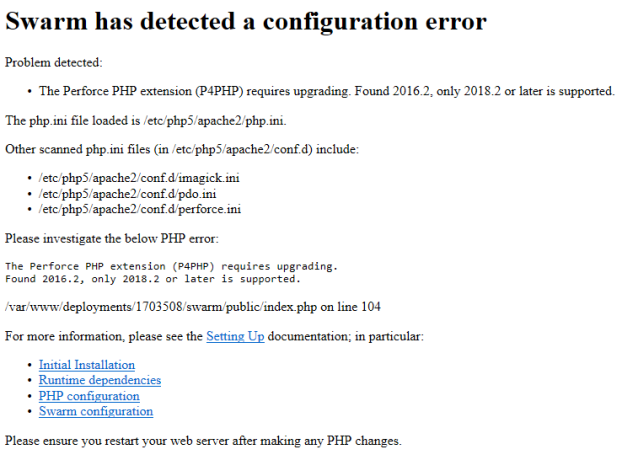
If you see the following error message when you start P4 Code Review, P4 Code Review is using the wrong version of P4 API for PHP. The latest version of P4 API for PHP is included in the P4 Code Review tarball but you must configure P4 Code Review to use that version of P4 API for PHP. For instructions about how to configure P4 Code Review to use the new version of P4 API for PHP, see PHP configuration.
Delete the P4 Code Review config cache
Delete the P4 Code Review config cache to force P4 Code Review to use any new and updated modules in the upgrade. To delete the P4 Code Review config cache, make the following curl request as an admin user:
curl -u "username:password" -X DELETE "https://myswarm.url/api/v11/cache/config/"
For more information on deleting the config cache, see P4 Code Review config cache file delete.
Validate your upgrade
When P4 Code Review starts, it verifies the Redis cache. During this time, you cannot log in to P4 Code Review. The time taken to verify the Redis cache depends on the number of P4 Code Review users, groups, and projects. To reduce the amount of time it takes for P4 Code Review to start up, persist the memory cache by disabling background saves and enabling append saves in the redis-server.conf file. To learn more, see Redis server configuration file.
Check that your new P4 Code Review instance is working correctly by doing the following:
- Create a new changelist that:
- Contains at least one modified file
- Contains the #review keyword in the changelist description
- Right click on the new changelist in P4V and click Shelve Files...
- Check that a new review is created for the changelist.
- If a review is created, the P4 Server extension is working. If you are using P4 Code Review triggers instead of the P4 Server extension and the review is created, the triggers are working.
- If a review is not created, see Troubleshooting: Review not created.
Do not select Request New Review... because this method uses the API and will not fully test the P4 Server extension.
This is also true if you are using P4 Code Review triggers instead of the P4 Server extension.
If a new P4 Code Review review is not created when you validate your upgrade, you may be missing some P4 Code Review triggers on the P4 Server. Periodically new triggers are added to P4 Code Review and these need to be installed when you upgrade, see the Update your triggers section above. For more information about P4 Code Review trigger configuration on your P4 Server, see Installing triggers.
If you are upgrading from P4 Code Review 2017.2 or earlier you should run the index upgrade, this ensures that the review activity history is displayed in the correct order on the Dashboard, and Reviews list pages.
If you are upgrading from P4 Code Review version 2017.3 or later, the index upgrade step is not required.
The index upgrade process can be configured to suit your P4 Code Review system specifications. See Upgrade index for details.
Run the upgrade as an Admin user by visiting the following URL:
http://SWARM-HOST/upgrade
After the P4 Code Review upgrade, on the first visit to some P4 Code Review pages, users might see a message to perform a browser hard refresh. This happens because we are updating the UI and content of some P4 Code Review pages, so the user's page cache is no longer valid and requires a hard refresh to load the upgraded page. For example, for Chrome on Windows/Linux [CTRL]+[F5].
All done!