Validate your P4 Code Review installation
When P4 Code Review starts for the first time it verifies the Redis cache. During this verification you cannot log in to P4 Code Review. The time required to verify the Redis cache depends on the number of users, groups, and projects present in P4 Code Review.
With P4 Code Review is fully installed, check the P4 Code Review installation is working correctly. To check the installation, follow these steps:
- Create a new changelist that:
- Contains at least one modified file
- Contains the #review keyword in the changelist description
- Right click on the new changelist in P4V and click Shelve Files...
- Check that a new review is created for the changelist.
- If a review is created, the P4 Server extension is working. If you are using P4 Code Review triggers instead of the P4 Server extension and the review is created, the triggers are working.
- If a review is not created, see Troubleshooting: Review not created.
Do not select Request New Review... because this method uses the API and will not fully test the P4 Server extension.
This is also true if you are using P4 Code Review triggers instead of the P4 Server extension.
P4 Code Review is now installed and ready to use. For more information on the next steps, see Quickstart.
Troubleshooting: Azure Application Gateway issues with P4 Code Review and P4V
When running P4 Code Review behind an Azure Application Gateway (such as when using a load balancer with P4V), you may encounter authentication issues due to missing client IP information.
To resolve this, you need to configure the Azure Application Gateway to include an X-Forwarded-For header. Specifically, add a rewrite rule to insert or preserve the X-Forwarded-For header so that P4 Code Review can correctly identify the original client IP address. This can only be done by the Azure administrator managing your environment. It is not performed by P4 Remote Administration.
For more information, see Configuring Azure Application Gateway for accessing Kibana.
Troubleshooting: Review not created
If you are using the P4 Server extension
If a new review is not created when you validate your installation, your P4 Server extension is probably not working correctly on the P4 Server.
Option 1: Check the P4 Server extension is working
To check that the P4 Server extension is working, run the following command on your P4 Server:
p4 extension --run swarm ping
Example success message:
OK
Example failure message:
BAD (Cannot reach https://swarm-example.com/)
For information about extension on your P4 Server, see the P4 Server Administration Documentation.
Option 2: Check installed versions
To check your P4 Code Review version and your P4 Server extension version, run the following command on your P4 Server:
p4 extension --run swarm version
Example response:
Swarm Version: SWARM/2022.1/2226999 (2022/03/20)
Extension Version: 2022.1.20221215
If you are using P4 Code Review triggers
If a new review is not created when you validate your installation, your P4 Code Review triggers are probably not installed correctly on the P4 Server. For instructions on how to install the P4 Code Review triggers on your P4 Server, see Installing triggers.
Troubleshooting: Partially created reviews
During the request review process, the P4 Code Review extension (or trigger) puts the request into a task queue. A worker thread processes the tasks in order, adding further tasks as required to the queue for subsequent steps.
However, if a worker fails to properly create a review, it can often result in the review page displaying “Revision of 1” instead of the correct display of “Revision 1 of 1“.
There are several reasons as to why the review is only partially created:
Queue workers backlog
If the workers in the task queue are not running or are not processing tasks quickly enough, tasks can become backlogged. This may lead to delays in system operations that depend on these tasks being completed. Tasks such as creating a review.
To check the current status, open the System Information page:
-
In the top-right corner of the page, click the down arrow.
-
Select System Information.
-
Click the Queue Info tab.
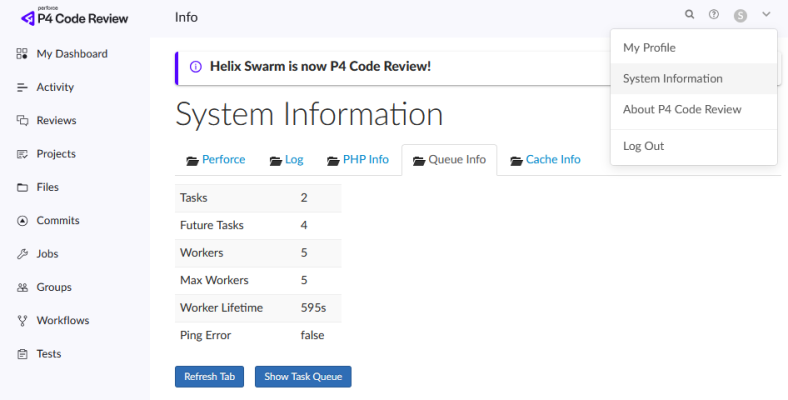
In this page, review the Queue Info details:
-
Workers: Ideally, there should be at least three active workers to handle tasks efficiently.
-
Tasks: If the number of tasks is greater than 0, refresh the page and verify that the task count is decreasing over time.
Important Notes:
-
There should typically be at least four Future Tasks in the queue. These include scheduled jobs such as the 3 AM verification task and any batched comments.
-
It is normal for the queue to contain future tasks. The queue will rarely be completely empty.
If non-future tasks are backlogging, i.e. the number of other tasks keeps increasing or does not decrease after multiple refreshes, this indicates that workers could either be stuck or not running at all.
To fix this issue, either:
-
Start the temporary worker to pick current tasks until the other workers start working normally.
-
Increase the number of workers in the
config.phpfile.
If neither of these fixes work, check the logs to see if anything worker related has been reported.
Apache PHP memory exhaustion
A review may also partially be created if PHP runs out of memory.
To check for memory exhaustion, inspect the Apache logs for errors similar to the following:
Fatal error: Allowed memory size of xxxxxxxxx bytes exhausted (tried to allocate yyyyyyyyy bytes).
For standard installations of P4 Code Review, these logs are usually called:
-
swarm.access_log -
swarm.error_log
By default, these logs are stored one of the following locations:
-
/var/log/apache2 -
/var/log/httpd24
If these fatal errors for memory exhaustion are the in logs, increase the memory limit in the php.ini file. Find the setting called memory_limit and increase value. For more information on how to do this, see this Perforce support article.
Exclusively locked files
P4 Code Review will stop creating a review if it cannot shelve files that are exclusively locked (+l type) by another user when filetype.bypasslock is not set to 1.
This means if you check out a file with an exclusive lock type in P4 Code Review, you must ensure the filetype.bypasslock configurable is set to 1. For more information, see Handling Exclusive Locks.
If this configurable is not set to 1, P4 Code Review’s shelving actions will fail for reviews that include +l filetypes when those files are already opened for edit by another user. This will cause P4 Code Review to stop processing the review.
To check if this is the cause of the partial review, review the logs for an error message similar to the following:
One or more files are exclusively open. Ensure you have Perforce Server version 2014.2/1073410+ with the filetype.bypasslock configurable enabled.
This log file is located in:
/opt/perforce/swarm/data/log
Troubleshooting: Review cannot be updated using triggers
It is unlikely reviews cannot be updated using triggers, but it can happen if your P4 Code Review server is configured for SSL.
Cause of this issue
The swarm-trigger.pl script uses the Perl HTTP::Tiny module for HTTP requests when the module is available. In certain environments, HTTP::Tiny may encounter issues related to SSL/TLS certificate validation, which can result in a HTTP 599 error.
The HTTP::Tiny module requires two other Perl modules to work properly with HTTPS. These modules are:
-
IO::Socket::SSL(version 1.42 or higher) -
Net::SSLeay(version 1.49 or higher)
If these modules are missing or out of date, you may encounter a HTTP 599 error.
To verify if this is the cause of the issue, review the operating system log of your P4 Server for any error messages logged by swarm-trigger.pl. Depending on which operating system you are using, find the system logs in the following locations:
-
For Windows operating systems, find the system logs using Event Viewer.
-
For Linux operating systems, find the system logs in the following locations:
- For Ubuntu or Debian operating systems, look in /var/log/syslog.
- For Red Hat operating systems, look in /var/log/messages.
The error message logged by swarm-trigger.pl starts with the following text: Error: (599/Internal Exception) (probably invalid SSL certificate) ......
Workaround for issue
If you see the 599 error, there are two available fixes:
-
Fix 1: Edit the P4 Code Review trigger script file on the P4 Server so that it uses Curl instead of HTTP::Tiny.
-
Fix 2: Install the required Perl modules. This fixes
HTTP::Tinyso it can work as intended.
Fix 1: Modify the trigger script to use Curl:
There are two lines in the swarm-trigger.pl script that enable the use of HTTP::Tiny. Modify these two lines so the script reverts to using Curl:
- In the
swarm-trigger.pl, find the following line: - Add ! to $HAVE_TINY. The new line should look like the following:
- Save the trigger script file.
if ($HAVE_TINY) {
if (!$HAVE_TINY) {
Fix 2: Install the required Perl modules:
-
Run the following script to check if the required modules are installed or are using an outdated version
Copyuse HTTP::Tiny;
my $response = HTTP::Tiny->new->get('<instance_URL>');
print $response->{content} if length $response->{content};
die "Failed!\n" unless $response->{success};Replace
<instance_URL>with the URL to your P4 Code Review instance. -
If these modules are missing or outdated, you will see the following output.
CopyIO::Socket::SSL 1.42 must be installed for https support
Net::SSLeay 1.49 must be installed for https support -
To install these two modules on your P4 Server, use the appropriate method for your OS and Perl installation, for example using Perl's CPAN module on the command line.