Reviews list
The Reviews page provides a central location for finding, tracking, and monitoring code reviews across projects. Use the reviews list to locate reviews that require attention, monitor review activity, and filter reviews based on project, participant, state, tests, comments, and votes.
The reviews list displays open and closed reviews that are available to you and provides filtering and search tools to help you locate specific reviews.
Projects and Groups have their own review lists that display reviews created by their members. Project review pages display reviews associated with the selected project. Group review pages display reviews created by members of the selected group.
On this page:
Dashboard
The Reviews page lists open and closed reviews for all projects in the P4 Server.
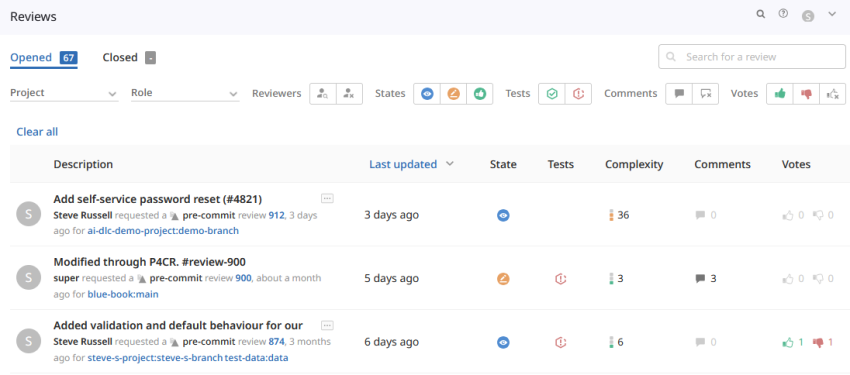
The reviews list is divided into two tabs:
-
Opened - This displays reviews that are active, awaiting review, awaiting revisions, or awaiting commit.
-
Closed - This displays reviews that have been approved and committed, rejected, or archived.
Each tab displays the number of reviews it contains. The counts are calculated dynamically and may update as additional review information becomes available.
Use the dashboard to:
-
Monitor active reviews.
-
Track completed reviews.
-
Review project activity.
-
Identify reviews that need attention.
Review list columns
The Reviews page displays a table containing summary information about each review.

This table contains the following columns:
Avatar
Displays the avatar of the review author.
Select the avatar to open the author's profile.
Description
The description area contains:
-
The first line of the review description.
-
The review author.
-
The review type.
-
The review number and version.
-
The review creation date and time.
-
Associated project branches.
Long descriptions are truncated in the review list. Expand the description to view additional content.
To learn more about review types and review versions, see:
Created and Last activity
The review list can display either:
-
Created - When the review was created.
-
Last activity - When the review was last updated.
Use the Result order option to switch between creation date and activity date sorting.
The Result order option is a global setting controlled by the P4 Code Review administrator. If the Result order option is not available, sorting has been configured by your P4 Code Review administrator. To learn more, see Reviews filter.
State
Displays the current state of the review.
Examples include:
-
Needs Review
-
Needs Revision
-
Approved
-
Rejected
-
Archived
To learn more about review states and approval requirements, see:
Tests
Displays the current test status for the review.
Depending on project configuration, the review can indicate:
-
Tests in progress

-
Tests passed

-
Tests failed

To learn more about review tests and test status, see Test results.
Complexity
The complexity indicator provides an estimate of the size of the review and the amount of code changed.
By default, complexity is calculated using the number of changed lines:
-
Green indicates 30 or fewer changes.
-
Amber indicates more than 30 changes and fewer than 300 changes.
-
Red indicates 300 or more changes.
Hover over the complexity indicator to view additional complexity information.
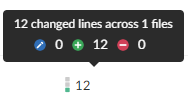
Review complexity is configurable by an administrator - to learn more, see Complexity can be configured.
Comments
Displays the number of active comments associated with the review. The comments icon is highlighted when comments exist on the review.
To learn more about comments and review participation, see:
Votes
Displays the number of upvotes and downvotes associated with the review.
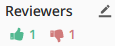
Vote indicators show:
-
Reviews you have voted on.
-
Reviews other users have voted on.
Review filters
Use filters to narrow the reviews displayed in the review list.
Branch
This filter is available ONLY on project review pages. To learn more, see Reviews page.
Use branch filters to display reviews associated with:
-
A single branch.
-
Multiple branches (select multiple branches in the dropdown filter).
-
A specific branch identified using branch search.
Project
Use project filters to display reviews for:
-
Your projects - Displays all of the projects you are participating in, as a member, owner, moderator, or follower.
-
Selected projects - Click on the projects you want to filter by.
-
A specific project identified using project search.
Role
Filter reviews based on your relationship to the review.
This filter is only available if you are logged into P4 Code Review.
Available options include:
-
All reviews.
-
Reviews I've authored.
-
Reviews I'm participating in.
-
Reviews I'm an individual reviewer of.
-
Reviews I've authored or I'm participating in.
-
Reviews authored by a specific user.
Use the Authored by: search field to choose user accounts defined in the P4 Server. Once specified, only reviews authored by the selected user are displayed.
Reviewers
This filter is available on the Opened tab of the Reviews page.
Options include:
-
Has reviewers
 - Click to display reviews that have one or more reviewers.
 -
No reviewers
 - Click to display reviews that have no reviewers.
Reviews with no reviewers are often useful for identifying reviews that have not yet received attention.
To learn more about reviewers and review participation, see Reviewers.
States
Use state filters to display reviews in specific review states.
Opened tab options:
-
Needs Review
-
Needs Revision
-
Approved
Closed tab options:
-
Approved
-
Rejected
-
Archived
To learn more about review states and state transitions, see:
Tests
This filter is only available when automated tests are enabled for the project the review is associated with
When testing is enabled, filter reviews by:
-
Tests passed.
-
Tests failed.

Comments
Filter reviews based on your participation in review discussions:
-
I have commented on.
-
I have not commented on.
Filters for commenting only apply to reviews which you are a participant of. Commenting on or voting on a review will automatically add you as a participant. If you leave the review after commenting on it, then this review will not be included in the list.
To learn more about review comments, tasks, and checklists, see Comments.
Votes
Filter reviews based on your voting activity:
-
I have voted up.
-
I have voted down.
-
I have not voted on.
Filters for voting only apply to reviews which you are a participant of. Commenting on or voting on a review will automatically add you as a participant. If you leave the review after voting on it, then this review will not be included in the list.
To learn more about voting and approval requirements, see:
Clear all
Select Clear all to remove all active filters.
Search
Use the search field to locate specific reviews.

Search supports:
-
Partial matches on review descriptions.
-
Exact matches on review IDs.
-
Exact matches on user IDs.
-
Exact matches on project IDs.
The search fields on the Opened and Closed tabs operate independently.
Saved views
The reviews list automatically updates the browser URL as filters are applied.
Because filter selections are stored in the URL, you can:
-
Bookmark filtered review views.
-
Share filtered review views with other users.
-
Return to frequently used filter combinations.
Some filters, such as comment and vote filters, are evaluated using the permissions and review participation of the user opening the URL. As a result, another user may see different review results when using the same shared URL.
Next steps
-
Review page - Learn about review summaries, review actions, notifications, jobs, and deployment information.
-
Files and diffs - Learn how to inspect changed files and compare review versions.
-
Comments, tasks, and checklists - Learn how to participate in review discussions and track review requirements.
-
Tests - Learn how automated test results are displayed within reviews.