Integrating with Jira
Perforce ALM supports integration with Atlassian Jira. You can attach Jira issues to Perforce ALM items to indicate that the items are related. You can also create new Jira issues from Perforce ALM and automatically attach them to Perforce ALM items. See Attaching Jira issues to Perforce ALM items and Creating Jira issues from Perforce ALM.
In most cases, teams use the Perforce ALM Jira integration when they work with other teams who track issues in Jira. For example, the QA team may use Perforce ALM for test case management and the development team may use Jira for bug tracking. When a test fails, a tester can create a new Jira issue from the Perforce ALM manual test run. A developer can then view the issue in Jira and fix it. Teams may also attach Jira tasks to Perforce ALM requirements to show that the items are related across the applications.
Attaching a Jira issue to a Perforce ALM item creates an association between them. All information is stored in Jira. The issue type, ID, summary, and status are displayed in the related Perforce ALM item. You can easily open a Jira issue from a Perforce ALM item to view it.
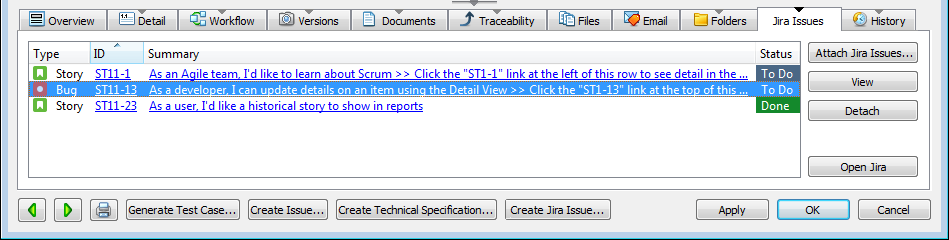
Perform the following tasks to configure and use the integration.
On this page:
Administrators
Before users can work with Jira issues, an administrative user or another user with high-level security permissions must perform the following tasks to configure the integration.
1. Enable the Configure Jira Integration security command for your security group. This command is in the Administration category in the Edit Security Group dialog box.
2. Configure a connection to a Jira instance. You may need to contact the Jira instance administrator for connection information. You can connect to one Jira instance per Perforce ALM project.
3. Configure the Jira projects, issue types, and fields available when users create Jira issues from Perforce ALM.
4. Test the integration to make sure it works correctly. Attach Jira issues to Perforce ALM items and create Jira issues from Perforce ALM.
5. Configure the appropriate Jira integration command and field security permissions for security groups in the Perforce ALM project.
Users
Before you can work with Jira issues in Perforce ALM, you may need to enter your Jira login information. See Setting Jira integration user options.
You can perform the following actions:
- Attach Jira issues to Perforce ALM items
- Create new Jira issues and automatically attach them to Perforce ALM items
- View Jira issues attached to Perforce ALM items
- Detach Jira issues from Perforce ALM items
You can view information about attached Jira issues in Perforce ALM detail, list, and matrix reports, and information exported to Microsoft Word. You can also add filter and search restrictions based on attached Jira issues.
Other Jira integration options
Perforce ALM for Jira app
If your team uses the Jira integration, when working in Jira, you can view Perforce ALM items that issues are attached to and add new Perforce ALM items that are automatically attached to the issue they were added from. To do this, the administrator must install and configure the Perforce ALM for Jira app in Jira. Users can view information about Perforce ALM items in Jira issues and easily open the items in Perforce ALM Web to see more details. See