Viewing Jira issues attached to Perforce ALM items
You can open Jira issues attached to Perforce ALM items to view the details.
1. Click the Jira Issues tab when you are working with an item.
2. Select a issue and click View. You can also click the ID or summary to view it.
The issue opens in Jira. You may be prompted to log in before the issue opens.
Viewing Jira issues in list windows
You can quickly see which Perforce ALM items have attached Jira issues in
1. Add a column to the list window. See Changing list window columns and fonts.
2. Right-click the column, choose Jira Fields, and then choose Jira Issues.
You can also add the Has Jira Issues column, which displays Yes or No to indicate if a ALM item has attached issues.
3. Click the attached issue information in the Jira Issues column in the
A list of attached issues opens. The ID, summary, and status are displayed.
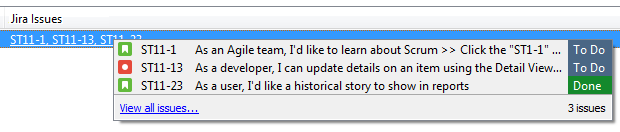
4. Click an issue to open it in Jira.
5. Click View all issues to open the ALM item selected in the
The item opens with the Jira Issues tab selected. See Working with Jira issues in Perforce ALM for information.