A placeholder user is a type of test user that is created only for planning purposes. A placeholderuser cannot log in to P4 Plan or update any items, but can be assigned tasks in the Planning view. They do not use a license.For example, you may want to use placeholder users when you are:
- Considering hiring new people and want to do a scenario plan to understand how that will affect the velocity.
- Preparing a new project and want to see who you should bring on board.
- Doing longer term planning for assignments without affecting other team members' To Do Lists.
If you are a main manager or administrator, you can manage placeholder users in a project:
- Create new placeholder users to the project. See Adding placeholder users.
- Make changes to existing placeholder users. See Editing placeholder users.
- Permanently remove placeholder users from the project. See Deleting placeholder users.
- Convert a placeholder user to a regular user, enabling them to log in to P4 Plan. See Converting placeholder users to normal users.
- Add and remove placeholder users from a project. You can do this in the Manage placeholder users dialog or by using the same process as adding or removing standard users. See Adding and removing users and groups in projects.
Allocating tasks to placeholder users
Placeholder users can be allocated tasks in the same way tasks are allocated to any other user. See Assigning users to tasks for more information.
The following example shows a placeholder user in the Portfolio Allocations view:
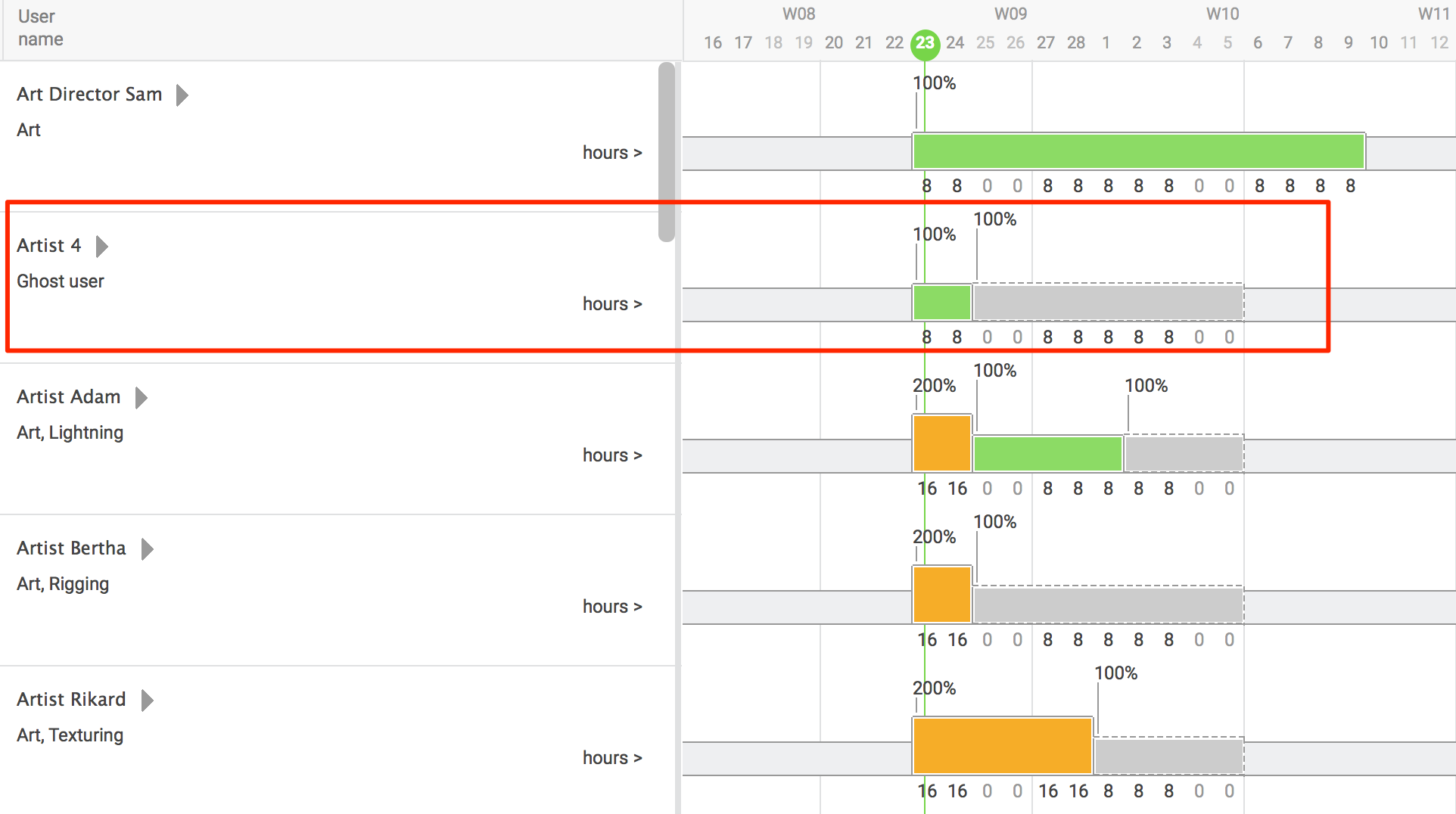
By default, only main managers can assign tasks to placeholder users, but it is possible to enable this feature for all project members. As a main manager, you can do the following:
1. Select More in the Product Backlog or Planning view and choose Customise project.
The Customise project dialog opens.
2. Select the More tab.
3. Tick the Allow project members to assign and allocate to placeholder users check box
4. Select OK.