You can assign users to tasks. When you assign users to tasks, these tasks will immediately be visible to the assigned user and to the whole project team.
To assign one or more users to a task, you can use the following methods:
- Double-click the Assigned to field in the item list.
- Open the item details section and use the Assigned to drop-down menu.
Both methods open a list of all available users, where you can select the ones you want to assign to the selected task. You can filter the list of users by using the search field below the list.
You can view and manage all users assigned to a task by going to the Item details section and clicking the More link next to the Assigned to field. This opens the Add or remove people on selected item popup.
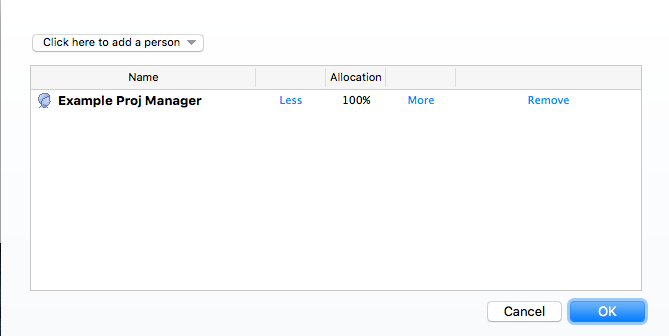
Here you can assign users to the item by selecting them from the Click here to add a person drop-down list. You can also change the allocation of a user on a task by clicking the More and Less buttons, or by directly specifying allocation in the edit field.