Add tags to bundles
Tags help identify and group assets for better searching and browsing. You can add tags to a bundle to help categorize it. Depending on the P4 DAM configuration, tags might be added automatically when adding bundles to a collection.
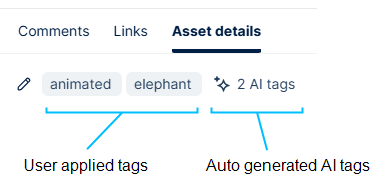
To learn how to add tags to bundles, watch this video or review the instructions following the video.
-
Open the bundle.
-
In the bundle pane, select the bundle.
-
Click Asset details.
If the right pane is hidden, select the Show right pane button
 at the bottom of the pane.
 -
Click + Add tags or click the Manage tags added by users button
 .
.A Search box opens with a list of all the user-applied tags on your P4 DAM system.
-
Enter a tag name. As you enter the tag, only matching tags are shown in the list. Either select the tag from the list if it already exists, or press Enter to add it as a new tag. A tag can only be applied to a bundle once.
Repeat for all the tags to add to the bundle.
-
To remove a tag, click the X on it.
-
When you have finished, click the Collapse button
 next to the Search box to close it.
The tags are saved to the bundle.
You can also remove tags from bundles. See Remove tags from bundles.
To add tags to an individual asset, see Add tags to assets.