Add tags to assets
Tags help identify and group assets for better searching and browsing. You can add tags to an asset to help categorize it. Depending on the P4 DAM configuration, tags might be automatically added when adding assets to a collection.
To add tags to all assets in a folder, including subfolders, see Add tags to assets in folders. To add tags to all assets in a collection, including folders and subfolders, see Add tags to assets in collections.
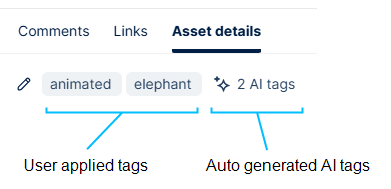
Add tags to an open asset
-
In a project, open the asset to add tags to and select Asset details.
The Asset details tab opens.
If the right pane is hidden, select the Show right pane button
 at the bottom of the pane.Only company administrators can add and remove tags from assets opened from a search result or when browsing assets.
-
Do one of the following:
-
If the asset has no user generated tags, select Add tags.
-
If the asset has existing user generated tags, select Manage tags added by users
 next to the tags.
A Search box opens with a list of all the user generated tags on your P4 DAM system.
-
-
From the Search box, enter the tag name. As you enter the tag, only matching tags are shown in the list. Either select the tag from the list if it already exists or press Enter to add it as a new tag. A tag can only be applied to an asset once.
Repeat for all tags to add.
-
To remove a tag, select the X on it. See Remove tags from assets for information.
-
When you finish, select Collapse
 to the right of the Search box to close it.
The tag changes are saved.
Add tags to selected assets
-
In a project, select the selector in the upper left corner of the asset you want to manage tags on. You can select multiple assets.
To select multiple assets using keyboard shortcuts, see Select multiple assets with shortcuts in the following section.
Only company administrators can add and remove tags from assets opened from a search result or when browsing assets. -
Below the assets, select the vertical ellipsis button
 and select Manage tags.
-
In the Manage tags dialog, in the Search box, select Expand
 .
A Search box opens with a list of all of the user-generated tags on your P4 DAM system.
-
From the Search box, enter the tag name. As you enter the tag, only matching tags are shown in the list. Select the tag from the list of existing tags or press Enter to add it as a new tag. A tag can only be applied to an asset once.
Repeat for all tags to add.
-
To remove a tag, select the X on it. See Remove tags from assets for information.
-
When you have finished, select Collapse
to the right of the Search box to close it. -
To see how your selected assets are affected by your changes, below the Search box, check the n affected assets (where n is the number of assets that are affected by your changes).
-
Added tags: Tags to be added are displayed on a light green background.
-
Removed tags: Tags to be removed are displayed on a light red background.
-
Existing tags are displayed on a gray background.
-
-
When you have finished, select Save changes.
The tag changes are saved.
The assets will remain selected. You can perform another action on them or select X to remove the selection.
Select multiple assets with shortcuts
You can select multiple assets, folders, and bundles by using keyboard and mouse shortcuts.
| Action | Windows and Linux | macOS |
|---|---|---|
| Select individual items or clear the selection. | Press Ctrl and select the items. | Press Cmd and select the items. |
| Select all items between two selected items. | Press Shift and select the items. | Press Shift and select the items. |
| Select a group of adjacent items. | Drag the items. | Drag the items. |
| Select all items shown on the page. | Press Ctrl+A. | Press Cmd+A. |
| Clear the selection of all items. | Press Esc. | Press Esc. |
For a complete list of shortcuts, see Keyboard and mouse shortcuts.