Start and update reviews
Use P4 Code Review to create reviews, update review content, and collaborate with reviewers throughout the review lifecycle.
Start a review
You can start a review from:
-
P4 Code Review
-
P4 (command-line client)
-
P4V (integrated client)
Start a review from P4 Code Review
Use P4 Code Review to create a review directly from a pending or submitted changelist.
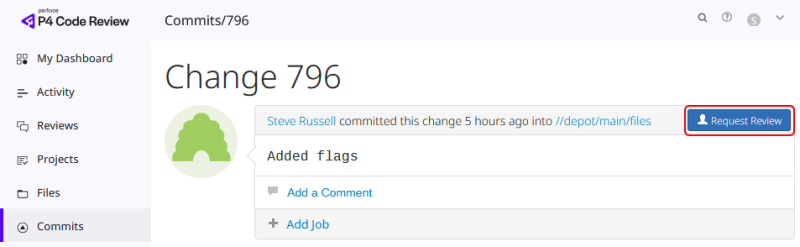
For example, if your change is 54321, visit the URL: https://my-swarm-url.com/changes/54321
To start a review:
-
Open the shelved or submitted changelist.
-
Click Request Review.
-
P4 Code Review creates the review and opens the review page.
Reviews created from shelved changelists use the pre-commit review model.
Reviews created from submitted changelists use the post-commit review model.
Start a review from P4
Use P4 in the command line to start a review. Add a review keyword (#review) to a changelist description before shelving or submitting the changelist.
To start a review:
-
Add
#reviewto the changelist description. -
Optionally add reviewers using:
-
@useridfor individual reviewers. -
@@groupidfor reviewer groups. -
@*useridfor a required individual reviewer. -
@@*groupidfor a required reviewer group where all group members must approve. -
@@!groupidfor a required reviewer group where a single approval is sufficient.
-
-
Shelve or submit the changelist.
To learn more about reviewers, required reviewers, and approval requirements, see:
max_files limit, the shelve or submit operation still completes successfully, but the review is not created. P4 Code Review displays a message explaining that the maximum file limit has been exceeded.
If you add #review to a changelist after it has already been shelved, the review is not started until the files are shelved again.
After the review is created, P4 Code Review replaces #review with a review-specific keyword such as #review-12345, where 12345 is the review ID. The review-specific keyword can be used later to update the review.
To learn more about review keywords and process behavior, see:
Start a review from P4V
You can start reviews directly from P4V by using the P4 Code Review integration features available in P4V.
For information about starting reviews from P4V, see the P4 Code Review integration features section of the P4 Visual Client (P4V) Documentation.
Review and approval workflow
After a review is created, reviewers can provide feedback, vote on the review, and change the review state as the review progresses.
Depending on your organization's review process, reviewers may approve the review, request revisions, or participate in moderator-based approval workflows.
To learn more about review participation and approval requirements, see:
Update a review
The method used to update a review depends on the review type and whether you are the review author.
Update a pre-commit review
To update a pre-commit review that you authored:
-
Edit the files in the changelist.
-
Shelve the updated files.
Each time the files are shelved, the review is updated with a new review version.
If the changelist contains the work-in-progress tag (#wip by default), the review is not updated when the files are shelved.
To learn more about review versions and version history, see Review versions.
Update a post-commit review
To update a post-commit review:
-
Fetch the review files into a new changelist.
-
Edit the files.
-
Add the review identifier to the changelist description. For example, include
#review-12345at the bottom of your changelist description. -
Shelve the files.
When the changelist is shelved, P4 Code Review updates the review.
The review identifier must match an existing review. If an invalid review identifier is used, the review is not updated. If the review was not updated as expected, see Add changelists.
If the review was not updated as expected, see:
Update a review you do not own
You can contribute changes to an existing review even if you are not the review author.
The typical workflow is:
-
Fetch the review files.
-
Make your changes.
-
Add the review identifier to the changelist description. For example:
#review-12345 -
Shelve the updated files.
The review is updated with a new review version containing your changes. The review identifier must match the review you want to update.
To learn more about collaborative review workflows, see:
Update review descriptions
Review descriptions provide context for reviewers and should be updated when the purpose or content of a review changes.
Consider updating the review description when:
-
New requirements are added.
-
Significant files are added or removed.
-
Review content is reverted.
-
A review is corrected after an accidental update.
It is good practice to explain significant review changes so that reviewers understand what changed between review versions.
Work-in-progress tags
Work-in-progress tags (#wip by default) allow you to continue modifying a changelist without immediately updating the associated review.
To learn more, see Work-in-progress tag
When a work-in-progress tag is present, P4 Code Review does not update the review when the changelist is shelved. This allows you to make multiple changes before presenting them to reviewers.
Use a work-in-progress tag when:
-
The changes are not ready for review.
-
You are responding to review feedback.
-
You want to avoid generating unnecessary review versions.
Remove the work-in-progress tag when you are ready for P4 Code Review to resume normal review updates.
Next steps
-
Add changelists - To learn how to append or replace review content with additional changelists.
-
Work with shelves and review files - To learn how to fetch review files, remove review content, and restore earlier review versions.
-
Reviewers and approvals - To learn how reviewers, required reviewers, and moderators participate in reviews.