You can create item links, which can be used to connect items in P4 Plan and define their relationship. They can also be used to add relevant external URLs to items. For example, if you have two task items, and one of the items is blocking progress for the other, you could create an item link with a "Blocked by" relation to inform your team about the blockage.
You can create and manage item links using the Linked to item section. By default, the section is in the lower part of the Product Backlog, Quality Assurance, and Planning views.
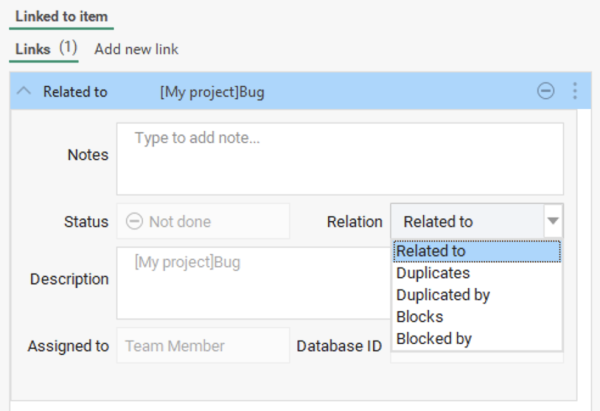
In the Linked to item section, on the Links tab, you can select a linked item to view details, such as Status, Description, Assigned To, and Database ID. It will also display information about the link itself, including how the selected item is related to the linked item, and an optional Note.
Next to each link are three vertical dots, which you can click to access the following options:
- Go to - Opens the link in the main P4 Plan view or browser.
- View details - Opens a pop-up window with more details about the linked item. The details can also be accessed by double-clicking the link. See Editing an item link for more information.
- Remove link - Instantly detaches the link, including the note. This action only removes the link itself and does not affect any of the linked items.
Item links also appear in the Linked to item column. You can select the cell to open a drop-down list showing all links for the selected item, where clicking one will open the linked item or URL.