Action Definition
The Action Definition workspace has the following tabs:
-
Description tab contains basic information about the action.
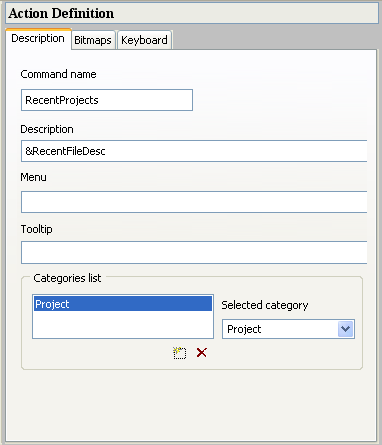
‘Description’ Tab of Action Definition
Command Name: This name is created by the user to identify the action.
Description: The user can enter a description of the action.
Menu: The name of the item appearing in the menu (for example New, Open, Save, and so forth).
Tooltip: The name of the item appearing in the tooltip text (for example “New (Ctrl+N)”).
Categories list: shows the category of the action.
Selected Category: lists the current categories that can be selected (Application, File, Project, and so forth).
The Description, Menu, and Tooltip items can be text, or they can be a message identifier of the form &identifier for text contained in a .dbm file. (For information on the .dbm file type see the Views Foundation User’s Manual.)
-
Bitmaps tab shows characteristics of the bitmap icon associated with the action. This icon appears in the menu, toolbar, and tree lists with the action name.
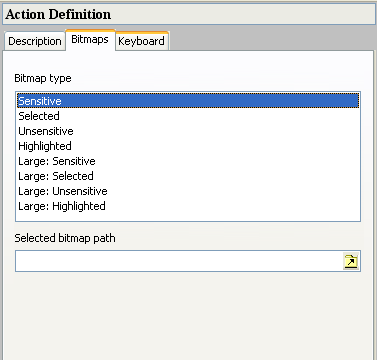
‘Bitmaps’ Tab of Action Definition
Bitmap Type: You can define a set of bitmaps for each different type in the string list. These bitmaps will be used depending on the status of the action.
Selected bitmap path: The path where the icon is found for the selected bitmap type.
-
Keyboard tab shows the keyboard shortcut for the action.
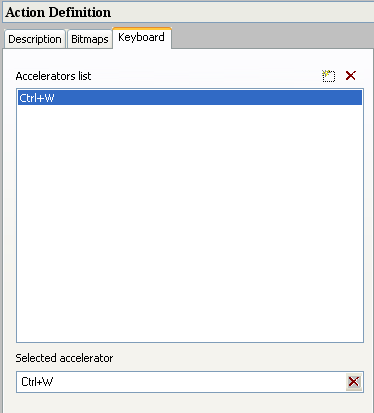
‘Keyboard’ Tab of Action Definition
Accelerators list: To add an accelerator click the Add button  and use the ‘Selected accelerator’ field, for example ‘Ctrl+W’ is added as a default first accelerator.
Selected Accelerator: The current accelerator or keyboard shortcut. To change the shortcut, click in the field, and then type the sequence of the sortcut on your keyboard.


