Secure Communication Module
When building the Secure Communication Module, choose which OpenSSL library to use. SourcePro bundles a pre-built version of OpenSSL, or you can choose to use your own installation.
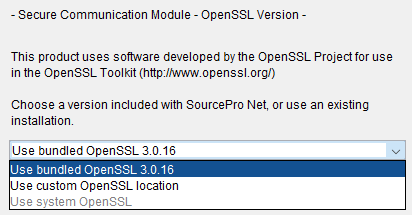
To use a pre-built library bundled with SourcePro, choose “Use bundled...”.
To use your own custom OpenSSL installation, navigate to and choose the Library Location.
To use the OpenSSL installed by your operating system’s package manager, choose “Use system OpenSSL.”
Library Location
If you select to use your own custom installation of OpenSSL, the Library Location screen launches, requiring you to enter the path to your cryptography library.
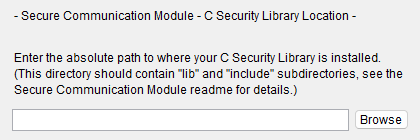
Library Path
When specifying the location of the cryptography library, be sure to provide the path up to, but not including, the lib and include directories.
For example, on a Windows platform, use D:\openssl instead of D:\openssl\include or D:\openssl\lib. On a UNIX platform, use /usr/local/openssl instead of /usr/local/openssl/lib or /usr/local/openssl/include.
Installation Directory
If your OS is Windows-based and your installation directory contains spaces, you must surround the directory with quotes to allow the Visual C++ compiler to properly parse the compile and link commands.
When specifying the C Security Library installation path, enter:
“C:\Program Files\openssl\library”
instead of
C:\Program Files\openssl\library
DOS 8.3 Naming
Windows provides a mechanism for replacing long directory names with their DOS 8.3 equivalent names. The command DIR /X displays a directory listing that includes the DOS 8.3 names for long directory names or directories that contain spaces. For the example above, the DOS 8.3-compatible directory is:
C:\Progra~1\openssl\library
Note that your installation may reduce long file names in a different manner.
DIR /X gives the correct name for your installation.