Capacity planning enables you to examine the work that is currently allocated to the users and user groups in a project. This can help to give you a clear overview of the amount of work individual users or whole groups currently have assigned, which can show where there are issues with conflicts as well as over- and under-allocation.
To access Capacity planning, select the  icon in the toolbar.
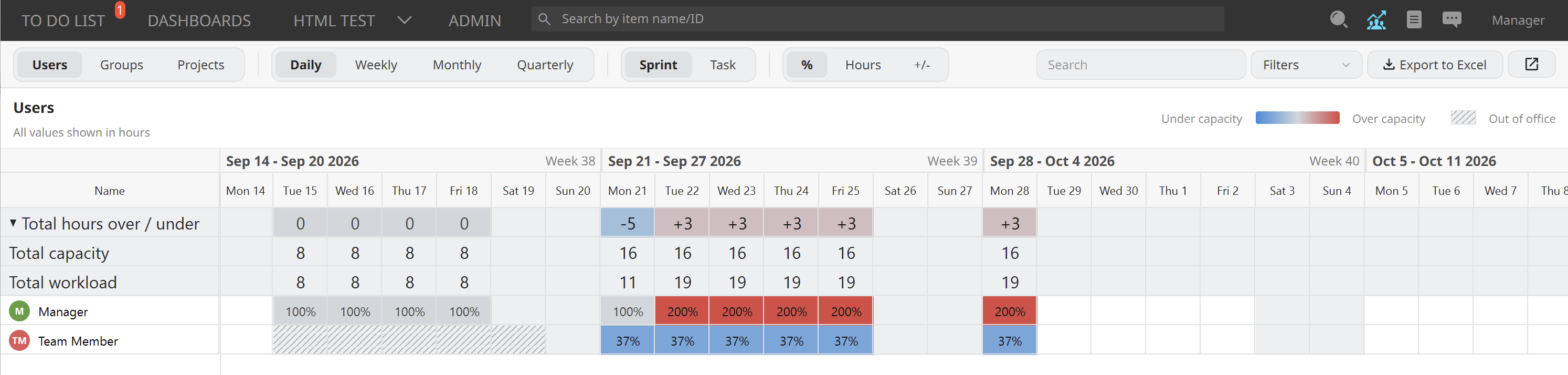
The list shows how much work is allocated to each user, group, or project. The capacity for each item is color-coded, with over-allocated items appearing more red and under-allocated items showing more blue. If a user is out of office, they appear grayed out.
In the toolbar above the list, you will find the following options, which enable you to choose which capacity information to view:
- Users, Groups, or Projects - Choose which type of item to view.
- Daily, Weekly, Monthly, Quarterly - Choose which time frame the list should cover.
- Sprint, Task - Choose whether to view sprints or assigned sprint tasks in the list.
- When viewing sprints, the hours come from each user's sprint allocation. You can also be allocated a certain percent to the sprint, as mentioned in Managing users in Agile projects.
- When viewing tasks, the hours come from work remaining in sprint tasks allocated to the users. In this view, you can also select a cell in the list to change the work remaining on assigned items.
- %, Hours, +/- - Determines how to display each item's current capacity, based on their available percentage, actual number of hours, or how much they are over or under capacity.
You can also use the Search field to only show items that match a search query and the currently selected options. Next to this is the Filter drop-down, which gives you more filtering options.
You can export the capacity planning as an Excel file. The generated file will contain all current and future allocations for all rows currently in the view, matching any filters and options applied. To do this, select Export to Excel.