Pie chart widget using CLI
Pie chart widgets display a pie chart on a Library, IP, IPV, or Saved query. You can choose to display the chart as a standard pie chart or remove the center to make a donut chart.
You can use the Widget Editor for a simpler way to create pie charts, including making code changes in the Code editor. For more information, see Widget Editor.
Pie chart widget configuration
To display a pie chart on an object, you need to set an attribute on that object with a specific value. You can set the title of the chart with the widgetHeader option. See Widgets for more information.
The attribute value should be a JSON string, with the following fields:
- display: pie
-
widgetHeader (optional): If provided, the markdown enabled text is displayed in the widget header. If omitted, the widget header will not be displayed.
- config: (optional) See the Chart configuration section.
- data: Array of dictionaries. Each dictionary will be plotted as a pie slice. Dictionary fields:
- name: Name of the slice
- data: Numeric value
- color: (optional) Specify the color of the plot
Chart configuration
This table lists the configuration options for pie charts. Specify these options in the JSON, as child properties of the “config” object (see examples in code below):
| Property Name | Description |
|---|---|
| theme |
If specified, identifies a theme to use to customize the appearance of the chart. Can be one of:
When a theme is used, the "color" value on the "data" field will be ignored (see above). |
| title | If specified, displays a title for the chart. |
| subtitle | If specified, displays a subtitle for the chart. |
| legendPosition | Legend positions: “top”, “bottom”, “left”, “right” Default: No legend is displayed if “config” object is specified and “legendPosition” is not specified. |
|
showLabels |
Boolean which indicates whether to show or hide slice labels. Default is true. |
|
innerRadiusOffset |
Use this property to make a donut chart. The value needs to be set to 1 or greater to produce a donut chart. Default value is 0, which displays a pie chart. See Donut chart configuration below for details. |
Pie chart widget example - Command line
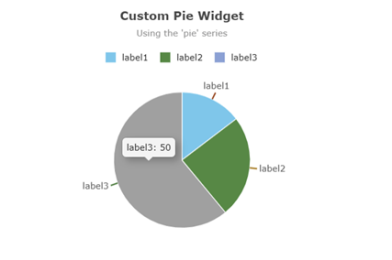
pi ip attribute set drinks.cosmo@2.TRUNK Pie_Series_Chart '{ "display": "pie", "config": { "title": "Custom Pie Widget", "subtitle": "Using the ‘pie’ series", "legendPosition": "top" }, "data": [{ "name": "label1", "data": 12 }, { "name": "label2", "data": 20,"color": "darkgreen" }, { "name": "label3", "data": 50 }]}'
Pie chart widget example - Formatted JSON
{
   "display": "pie",
   "config": {
       "title": "Custom Pie Widget",
       "subtitle": "Using the ‘pie’ series",
       "legendPosition": "top"
   },
   "data": [
       {
           "name": "label1",
           "data": 12
       },
       {
           "name": "label2",
           "data": 20,
           "color": "darkgreen"
       },
       {
           "name": "label3",
           "data": 50
       }
   ]
}
IPLM Web output
Donut chart configuration
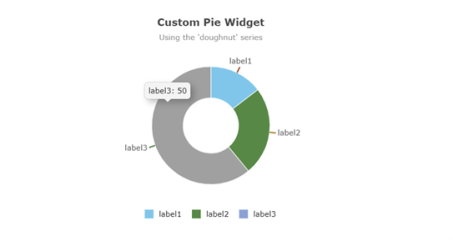
The donut series allows you to display data in a ring. Set the 'innerRadiusOffset' property to a positive number to indicate how many pixels the offset of the inner radius of the chart should be. To make the donut hole larger, use a larger positive number. For example, 10 would make a small hole and a wide ring of data, while 50 would create a larger hole and a thinner ring of data.
Pie chart widget example, donut series - Command line
pi ip attribute set drinks.cosmo@2.TRUNK Donut_Series_Chart '{ "display": "pie", "config": { "title": "Custom Pie Widget", "subtitle": "Using the ‘donut’ series", "legendPosition": "bottom", "innerRadiusOffset": 50 }, "data": [{ "name": "label1", "data": 12 }, { "name": "label2", "data": 20,"color": "darkgreen" }, { "name": "label3", "data": 50 }]}'
Pie chart widget example, donut series - Formatted JSON
{
    "display": "pie",
    "config": {
        "title": "Custom Pie Widget",
        "subtitle": "Using the ‘donut’ series",
        "showLabels": true,
        "legendPosition": "bottom",
        "innerRadiusOffset": 50
    },
    "data": [
        {
            "name": "label1",
            "data": 12
        },
        {
            "name": "label2",
            "data": 20,
            "color": "darkgreen"
        },
        {
            "name": "label3",
            "data": 50
        }
    ]
}
IPLM Web output