Iframe widget using CLI
An iframe widget provides the ability to embed any HTML-based document on a Library, IP, IPV, or Saved query.
You can use the Widget Editor for a simpler way to create widgets, including making code changes in the Code editor. For more information, see Widget Editor.
Creating an iframe widget in the CLI
To display an iframe widget on an object, you need to set an attribute on that object with a specific value.
The name of the attribute will be the title of the embedded document.
Attribute value is a JSON-formatted string, containing the following parameters
- display: iframe
-
widgetHeader (optional): If provided, the markdown enabled text is displayed in the widget header. If omitted, the widget header will not be displayed.
- height: height of iframe (in pixels). Note that the width is automatically set and can not be changed.
- data: URL for the embedded web page.
it is also possible to embed a Microsoft Office 365 document. Steps for embedding an Office 365 Excel spreadsheet:
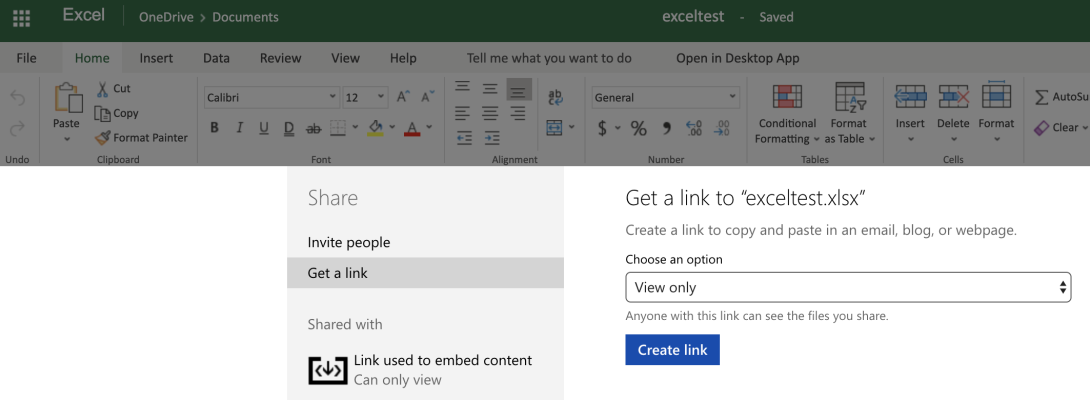
- Open an Office 365 document using Microsoft OneDrive service and click Share. This displays the document sharing menu.
- Click on Create Link and select Link used to embed content. Use this link as the data parameter for Iframe widget
Iframe Widget example single line
pi ip attribute set drinks.cosmo@2.TRUNK excel '{"display": "iframe", "height": 346,"data": "https://onedrive.live.com/embed?resid=C2F8563312F9E57E%21105&authkey=%21ANFsmiDg3UGgRg8&em=2&waccluster=US5"}'
Iframe Widget example
{
    "display": "iframe",
    "height": 346,
    "data": "https://onedrive.live.com/embed?resid=C2F8563312F9E57E%21105&authkey=%21ANFsmiDg3UGgRg8&em=2&waccluster=US5"}
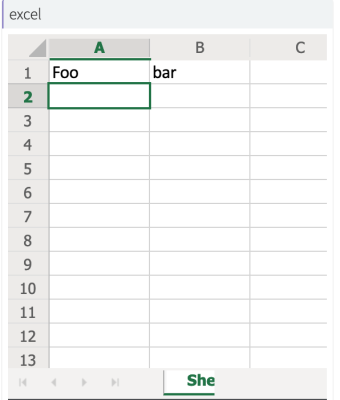
IPLM Weboutput
The embedded spreadsheet will appear on "drinks.cosmo" IP details page