Navigate P4V
This section helps you get familiar with P4V terminology and layout and walks you through basic tasks such as updating status information, modifying views, and accessing administration tools.
Terminology
P4V menus and forms use a general approach to versioning terminology and actions, to ensure that users with a variety of backgrounds can best understand what to do. If you have experience with P4Win or the P4 command line, note the following differences in terminology in P4V.
| P4 Server term | P4V term |
|---|---|
|
Client |
Workspace |
|
Sync |
Get revision |
|
Open for edit |
Check out |
|
Open for add/delete |
Mark for add/delete |
Layout
P4V displays one main window with three panes. The left pane is also called the Tree pane. The right pane is where you do most of your work in P4V. The bottom pane displays log and dashboard information.
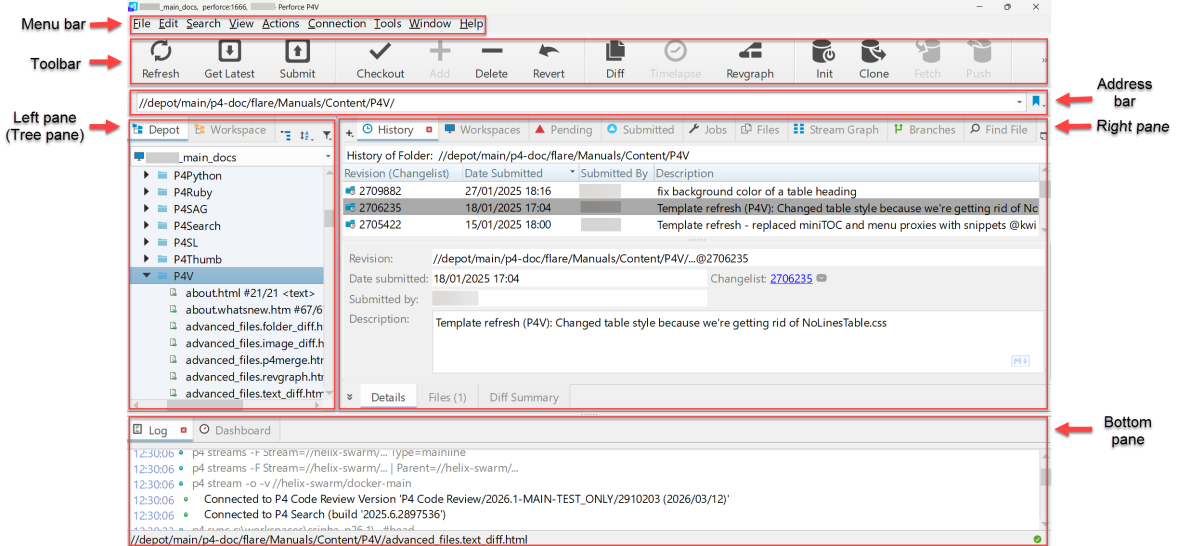
Menu bar
Provides access to all available options.
Toolbar
Provides quick access to a subset of actions and tools available from the menu bar. You can drag the toolbar and dock it on the left, bottom, or right side of the window. To learn more, see Toolbar.
Address bar
Lets you navigate to specific folders and files in the depot and in your workspace. You can copy from and paste into the address bar. You can drag the address bar and dock it at the bottom of the window.
To navigate to any of the ten most-recent locations, select from the drop-down list:

Left pane (tree pane)
Includes the following tabs:
- Depot Tree: Shows all of the files in the depot. To view the contents of a folder in the right-hand pane, click on that folder, and select View > Files in Folder.
- Workspace Tree: Shows the files on your computer, including files that are not in the depot.
Right pane
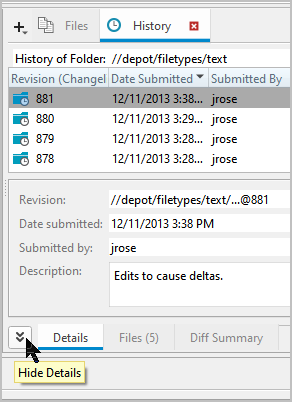
Contains tabs for working with Files, History, Pending Changelists, Submitted Changelists, Branch Mappings, Labels, Workspaces, Jobs, Streams, Stream Graph, and Remote Mappings. To display a tab, click the corresponding button on the toolbar or choose it from the View menu. At the bottom of the right pane, the Details tab displays details about the current selected object.
|
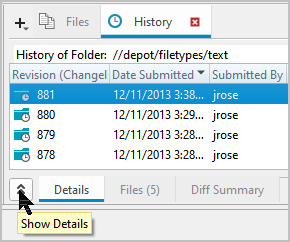
To show or hide details, click the Details tab or the button next to it. |
Bottom pane
The bottom pane if for the Log, Dashboard, and Activity Monitor.
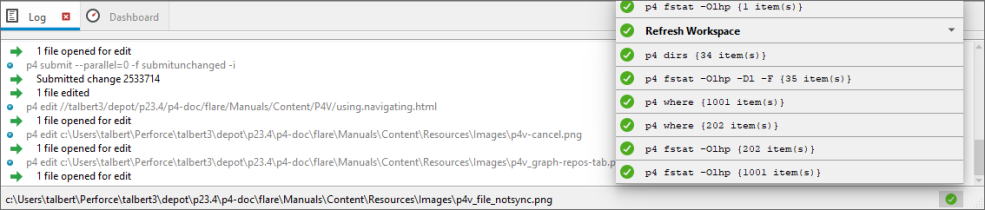
Log tab
Displays the commands issued by P4V. To display this tab, choose View > Log.
Right‑click anywhere in the Log pane to open the context menu. From this menu, you can:
-
Select an individual log entry or choose Select All to highlight the entire log.
-
Use Copy or Copy with Timestamp to copy the selected log entries, with or without timestamp information.
-
Clear the log section.
Dashboard tab
Displays details about the status of your workspace and provides quick links for common tasks. To display this tab, choose View > Dashboard. See Update your workspace with the Dashboard tab.
Activity monitor
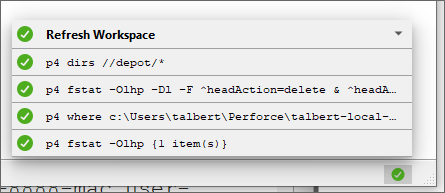
The Activity Monitor gives you real time visibility into the commands that P4V runs. It groups the low level commands that are triggered by a single user action (for example, refresh, sync, or submit) to give you insight into what P4V is doing and quickly spot long-running commands or commands that resulted in an error. Click  button in the lower-right corner to see the detailed view.
For example, the Refresh Workspace image shows the commands associated with an action, such as Refresh.
-
Cancel all commands: Use the Cancel button on the toolbar to stop all currently running commands.
-
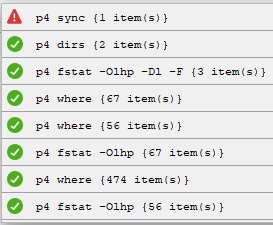
Cancel a command group: When you hover over a command group entry in the Activity Monitor, an
 icon appears inside the group’s progress circle. Clicking it cancels the entire group and all commands within it. Once cancellation begins, the progress icon switches to a canceled state
  while P4V terminates all associated commands.
 You cannot cancel individual commands from a command group.
-
Cancel an individual command: Hover over a single command in the list and click
icon that appears adjacent to it to cancel that specific command.
Display a context menu
Right-click to display the context menu for an object.
Action menu for a pending or submitted changelist
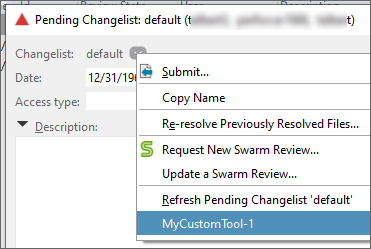
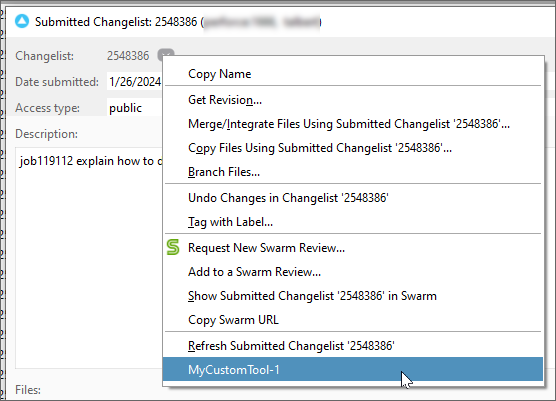
The Pending tab and the Submitted tab display an action menu when you open a changelist and click the  widget.
| Pending Changelist | Submitted Changelist |
|---|---|
|
|
This gives you convenient access to common actions and can include custom tools. See Add custom tools.
You might use this special menu when you have searched for a changelist number. See Search by number.
Update status information
P4V
indicates file information and status using a set of icons and badges. To obtain updated status
information and refresh the display,
P4V
periodically queries P4 Server. To force a refresh operation, click  .
.
Modify views
You can modify the way that information is presented in P4V’s panes and tabs. At the top of these panes and tabs, you can see one or more of the following buttons:
-
 Bookmarks
Bookmarks act like shortcuts to locations in the tree. Set a bookmark by right-clicking on a directory and selecting Bookmark. You can then use this dropdown link to go to that location.
For more information, see Bookmark files and folders.
-
 Collapse all folders
Use this button to collapse folders in the Depot or Workspace trees. Your selected file or folder in the Worksapce tree is retained even when you switch between the Depot and Workspace views.
-
 Sort order
Use this drop-down button to sort the order of the list that you are viewing. The sort options are shown when you click the button.
-
 Filter
This drop-down button allows you to filter your view in the following ways:
- Show or hide different types of files, such as deleted files and/or local files.
- Search for files and specs by various criteria and save those filters for reuse.
- In the Tree pane, "re-anchor" your tree to the bookmarks that you have created. If you select a bookmark from this list, that bookmark location becomes the top of your tree view.
For more information about filters, see Search and filter.
-
 Tear Off
This button allows you to "tear off" the current view. This is useful for comparing two different forms side-by-side. Once you have torn off a view, you can close the tear-off by simply closing that window.
-
 File list view
On the Files in Folder tab and the History tab (when viewing file history), use this icon to view files listed by file name or as thumbnails.