Comment tasks
Comment tasks provide a lightweight workflow for tracking review feedback. Flagging a comment as a task indicates that an issue has been identified and should be addressed before the review is approved.
Any comment on a code review can be flagged as a task, except for changelist comments and job comments.
On this page:
Task states
Comment tasks can be in one of the following states:
| State | Symbol | Description |
|---|---|---|
|
Open |
|
The issue has been identified and needs to be addressed. |
|
Addressed |
|
The issue has been addressed and is ready for verification. |
|
Verified |
|
The fix has been verified. |
Create a task
To flag a comment as a task, either:
-
Select Flag as Task when posting a comment.
-
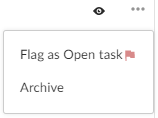
Open Comment actions for an existing comment and select Flag as Open task.
If you do not have permission to archive comments, you also do not have permission to flag comments as tasks. Anonymous users can view task states but cannot create or manage tasks.
Update task status
As work progresses, tasks can be updated to reflect their current status.
Mark a task as addressed
To mark a task as addressed:
-
Click Open Task - This is a red flag icon
 .
. -
Select
 Task addressed.
This option is typically used by the review author after making the required changes to indicate that the issue has been fixed.
Remove a task
To remove a task:
-
Click Open Task.
-
Select Remove task.
The comment remains and is no longer tracked as a task.
Verify a task
When a task has been addressed, a green check mark is displayed.
To verify that the issue has been resolved:
-
Click Task addressed - This is a green tick icon
. -
In the drop-down, select
 Verify task.
This option is typically used by the user who reported the issue or another reviewer.
Reopen a task
If additional work is required after a task has been addressed or verified, the task can be reopened.
Reopen an addressed task
-
Click Task addressed.
-
In the drop-down, select
Reopen task.
Reopen a verified task
A verified task is indicated by a Blue double-check mark.
-
Click Task verified - This is a blue double-check mark icon
. -
In the drop-down, select
Reopen task.
Use this option if the issue requires more work or if the task was verified by mistake.
Classic view only: Verify and archive a task
When a task has been addressed, you can both verify the task and archive the comment at the same time.
-
Click Task addressed.
-
Select Verify and Archive.
Archived tasks are not included in review task counts, regardless of whether they are open, addressed, or verified.
View and manage task details
A summary of task activity is displayed in the Information panel on the review page.
Archived tasks are not included in task summaries or in the Tasks dialog.
The Information panel displays:
-
- Number of open tasks.
-
 - Number of addressed tasks.
 -
- Number of verified tasks.
Click Show Task details in the Information panel to display all tasks associated with the review.
To display the full comment text for a task, click the ellipsis (...) next to the task.
You can share a direct link to a task comment or reply. To learn more, see Share comments.
Filter tasks
Within the Tasks dialog, you can filter tasks by:
-
Reporter (the user who created the task)
-
Task state
Use the task-state buttons to filter the displayed tasks. For example, click the Open tasks icon to display just the open tasks.
Change task status from the Tasks dialog
To update a task from the Tasks dialog:
-
Locate the task.
-
Open the task state dropdown.
-
Select the new task state.
Approve reviews with open tasks
Open tasks provide a visual indication that an issue has been identified and should be addressed before a review is approved.
If P4 Code Review is configured to prevent approval of reviews with open tasks, the Approve and Approve and Commit options are unavailable while open tasks exist. To learn more, see Disable approve for reviews with open tasks.
To approve or approve and commit a review when open tasks exist:
-
Address the task.
-
Change the task state to Task addressed, or remove the task designation if it is no longer applicable.
If approval is allowed while open tasks exist, selecting Approve or Approve and Commit displays a warning in the Update Review dialog. The warning is advisory only.
Archived open tasks do not trigger approval warnings.