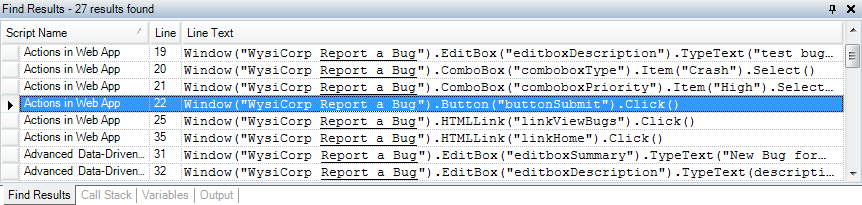
You can search for text in multiple open scripts or all scripts in a workspace.
Note: To replace text in multiple scripts or the workspace, see Replacing text in multiple scripts.
1. Choose Edit > Find in Workspace.
The Find and Replace in Workspace dialog box opens.
2. Enter the text to search for in the Find what field. You can enter a text string or use a regular expression for a more flexible search.
3. Select an option from the Look in list. You can search all scripts in the workspace or all open scripts in the Scripts pane.
You can also search the current script, which only finds text in the script displayed in the Scripts pane.
4. Select any Find Options.
5. Click Find All.
The number of results found in the workspace is displayed in Find Results pane. Each result shows the script name, line number, and text with the text you searched for underlined.
6. Double-click a result to view the text in the script.
    |

|