Using list windows
Perforce ALM items are displayed in
See List window types for information about the available lists.
On this page:
Opening list windows
To open a list window, select the item type you want to work with in the View menu. For example, to open the Requirements list window, choose View > Requirements.
You can also open multiple list windows of the same type. For example, you may want to compare two Issues lists using different filters. To open another list window, choose View > New List.
If multiple windows are open and you want to switch to a different window, select the window to display in the Window menu.
Navigating list windows
Following are the key components in list windows. Some of these are only available in the Issues, Requirements, Requirement Documents, Test Cases, and Manual Test Runs list windows.
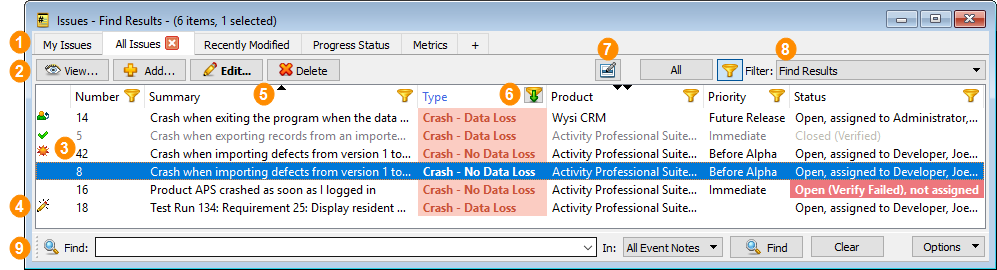
| # | Area | Use to: |
|---|---|---|

|
Tabs | Easily switch between multiple instances of lists that display different information. Click a tab to display it. You can also rename tabs, save tabs to open again later, and remove tabs you no longer use. See Using list window tabs. |

|
Action buttons | Add a new item to the project, or view, edit, or delete a selected item. |

|
Items |
|

|
Indicators | Quickly identify new, changed, closed, and your assigned items. See List window indicators. |

|
Sort arrows | Sort items based on column values. Click a column heading to sort items based on the column values. An up arrow indicates ascending order and a down arrow indicates descending order. You can also sort on a secondary value. See Changing list window columns and fonts. |

|
Column filter | Filter lists based on values in columns. When you select a filter value, the list updates to display only items that contain the selected value. See Filtering list window columns. |

|
Inline editing button | Edit item fields inline in list windows without opening the item. See Editing items inline in list windows |

|
Filter list | Apply filters to narrow the list to only items that meet specific criteria. See Applying filters. |

|
Quick Find toolbar | Quickly search for items in the list window. See Quickly finding items in list windows |
Finding items in lists
To find items in lists, you can:
- Use type ahead searching. Matching text is highlighted in the list window as you type. See Using type ahead searching.
- Use the Quick Find toolbar to search text fields. See Quickly finding items in list windows.
- Search based on text or number, or perform a more advanced search. See Searching for items.
- Apply a filter to display only items that match specific criteria. See Applying filters.
- Go directly to an item by number. See Going to an item by number.
Performing actions on items
- To open an item, double-click it.
- To edit, view, or delete an item, select it and click an action button in the list window or toolbar, or choose an action from a menu. For example, to add a workflow event to an item, select the event in the Workflow menu. You can perform actions on multiple selected items. You can also right-click items to open a shortcut menu of available actions.
Customizing lists
You can customize lists to display exactly the information you need in your preferred layout. See Customizing list windows.