Interface basics
Take some time to get familiar with the interface before you start working in Perforce ALM.
The Dashboards window opens when you log in. Use dashboards to view important project information and metrics. See Using dashboards.
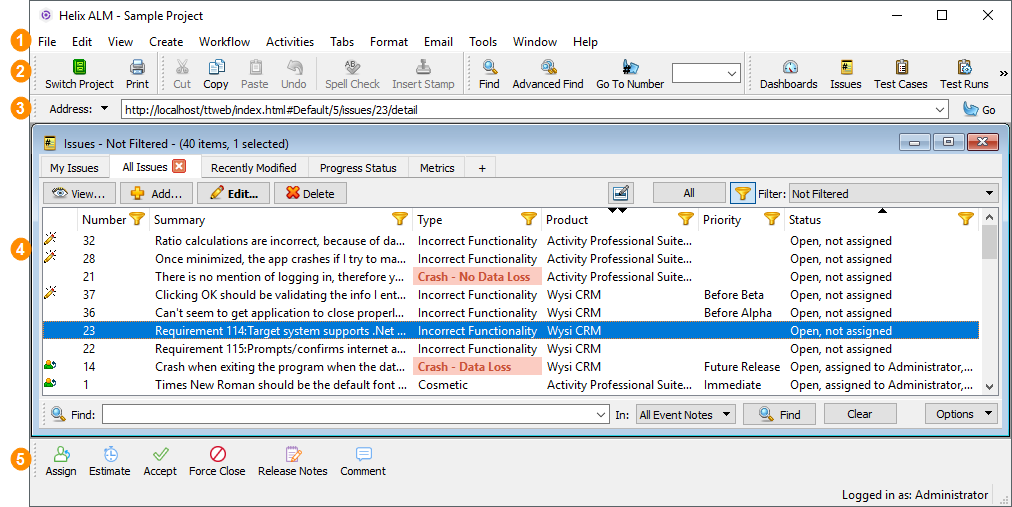
| # | Use to: |
|---|---|

|
Perform actions from menus. See Menus. The available actions change depending on the window or item type you are working with. If an action is not available, it may not be valid or you may not have security permissions to perform it. |

|
Perform actions from toolbars. Toolbars include many of the same actions as menus. You can customize toolbars to include actions you frequently perform. See Customizing toolbars. |

|
Access items using a URL. The Address bar always displays the URL for the open list window or item. See Using the Address bar. |

|
View a list of items in the project and work with them. To open a list, choose the item type you want to work with in the View menu. For example, to work with issues, choose View > Issues. See Using list windows. |

|
Add a workflow event to indicate the work you performed on an item and move it through its lifecycle. The available events depend on the item type and status. The same events are available in the Workflow menu. See Adding workflow events to items. |
Menus
Following are the ALM menus and available actions. If an action is not available, it may not be valid or you may not have security permissions to perform it.
| Menu | Use to: |
|---|---|
| File | Connect to a different server or switch projects, print items, export and import items, log out and close ALM, and more. |
| Edit | Search for items, perform basic editing tasks (e.g., copy and paste, undo and redo, select all), perform actions on selected items (e.g., edit, view, delete), spell check, and insert images, tables, links, and stamps in text fields. |
| View | View dashboards, open list windows, customize toolbars, change the user interface mode, and view information about the project and logged in users. You can also work with saved requirement document views when the Specification Document window is open. See Using requirement document views. |
| Create | Add items to the project, such as issues, test cases, requirements, users, and reports. |
| Workflow | Add workflow events to items. See Adding workflow events to items. |
| Activities | Change item numbering, add items to folders, update multiple field values, work with related items, and open items in Microsoft Excel. |
| Tabs | Add, rename, save, and close list window tabs, and open and manage saved tabs. See Using list window tabs. |
| Format | Work with text formatting, images, and tables in fields. See Working with text fields. |
| Email ALM users and other recipients. See Emailing from Perforce ALM. | |
| Tools | Configure the project and perform other administrative tasks, configure source control integration, change your password, and configure local and user options to customize how you use ALM. |
| Window | Rearrange the window layout, navigate through multiple open windows, and close windows. |
| Help | View help and other support resources. |