Manual test case management best practices
The following information provides best practices for test case management activities for manual testing in Perforce ALM. These best practices are guidelines. Your testing process and business rules should dictate whether or not you follow a practice.
On this page:
Test components
Before you begin managing tests in ALM, it is important to understand the differences between test cases and test runs and how they are organized.
Think back to the manual process you used before ALM. You may have created a checklist of items to test. When a new version required testing, you printed the checklist and wrote the test results on it. The items you used to create and perform the test are all represented in ALM: the electronic version of the checklist is a test suite, each line in the electronic checklist is a test case, the printed checklist is a test run set, and each item in the printed checklist is a test run.
Test cases versus test runs
Test cases are the core test component in ALM. Test cases contain information about a test, including the description, scope, conditions, detailed steps, expected results, scripts, and other data.
Test runs are instances of test cases that are generated at a milestone in a release, such as when development provides a build. Test runs are assigned to testers to perform the test and then the test results are entered in the test run. A test run contains all information from the related test case and the results of a specific instance of the test. A single test case can have one or more related test runs, which are performed against different builds or configurations.
Keep the following in mind:
- Test cases are reused for future testing efforts. Test runs are only used once to enter the results of a specific test instance.
- Test cases generally remain static unless they need to be modified because of an application change or incorrect information. If this happens, a new test run is usually generated to record the test results.
Test suites
A test suite is a collection or series of related tests. You may want to group tests based on testing phase, purpose, functional area, or other criteria. Using test suites helps you more easily reuse test cases, keep tests organized, and run tests in the correct order if needed.
In ALM, test suites are types of folders used exclusively for test case management.
- Test case suites can only contain test cases or other test case suite folders. A single test case may be part of one or more test suites.
- Test run suites can only contain test runs or other test run suite folders.
Test run sets
A
Preparing for testing
Identify test suites
As an application evolves, the number of test cases increases. Develop a list of test suites to group related test cases and keep them organized.
To identify a test suite, consider the groups of tests that will be run during the release. If possible, the same suite names should be used for each major product release. At a minimum, use a suite for all regression tests and a suite for all new product feature tests. Following are examples of test suites that can be used to group test cases in a Waterfall development environment.
- New Features Suites—Include all new test cases written for new features introduced in the product version organized by feature. If you are testing the first version of a product, all test cases should be in an appropriate new feature suite.
- Full Regression Suite—Includes all test cases used to test previous product versions.
- Beta Regression Suite—Contains a subset of test cases from the Full Regression Suite. These tests help ensure that application changes do not break existing functionality between each build.
- Release Regression Suite—Contains a smaller subset of test cases from the Full Regression Suite. These tests are only performed on the release candidate build.
Create test case suite folders
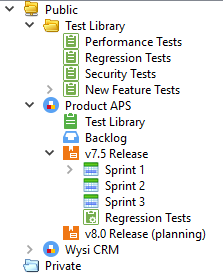
After you identify test suites, you can create test case suite folders in ALM for each suite. Review your business rules and testing process to determine how to best structure the test suites.
See Setting up manual test suites for recommendations for setting up test suites for optimal use.
Configure test run sets to group related test runs
Test run sets are designed to group test runs generated for a testing phase. Test runs can be added to test run sets when they are generated.
While test run sets are similar to folders, the test run set is displayed in the main area of the Edit Test Run and View Test Run
When deciding on the test run sets to create, consider how you want to view information in test run reports to monitor progress. Think about the information you will need at the end of each phase to determine if you are ready to move on to the next phase. Refer to the testing schedule, which may be documented in the test plan, and create a test run set for each milestone. Then create any additional sets that are needed.
Identify test variants
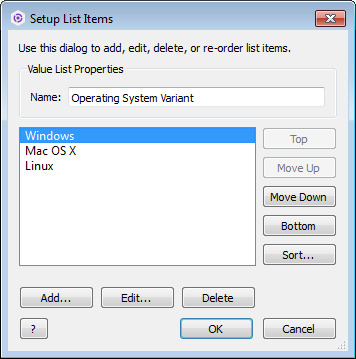
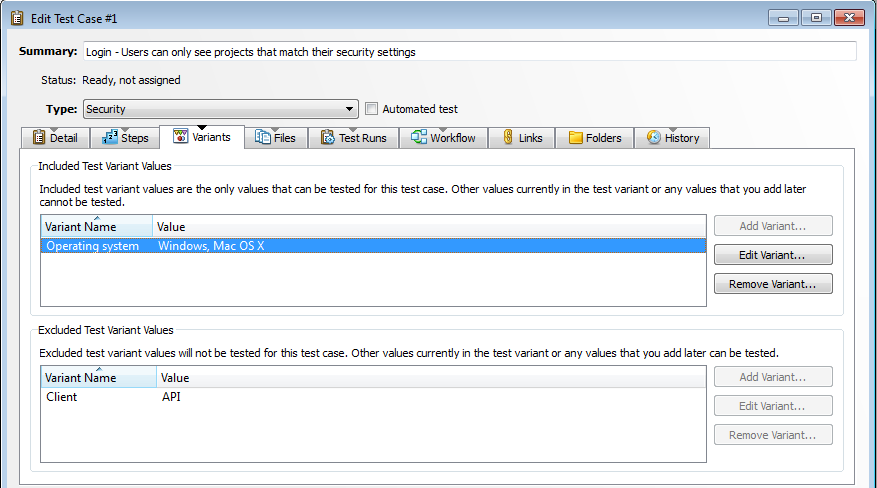
Test variants, which are attributes of the tested application used to generate test runs, allow you to create multiple test runs from a single test case to support multiple configurations. For example, if you are testing a cross-platform application, you can create a test variant named Operating System and include each platform as a test variant value. A test run is created for each unique combination of test variant values that are selected when test runs are generated.
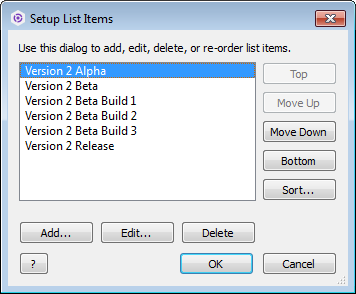
The following examples show the Setup List Items dialog box, which is used to configure test variants and a test case with test variants used and not used when generating test runs.
Companies often find that it takes too long and is too expensive to test every combination of every variable in an application. Consider using all-pairs testing to achieve an acceptable level of quality without testing every possible combination.
Configure test run compliance
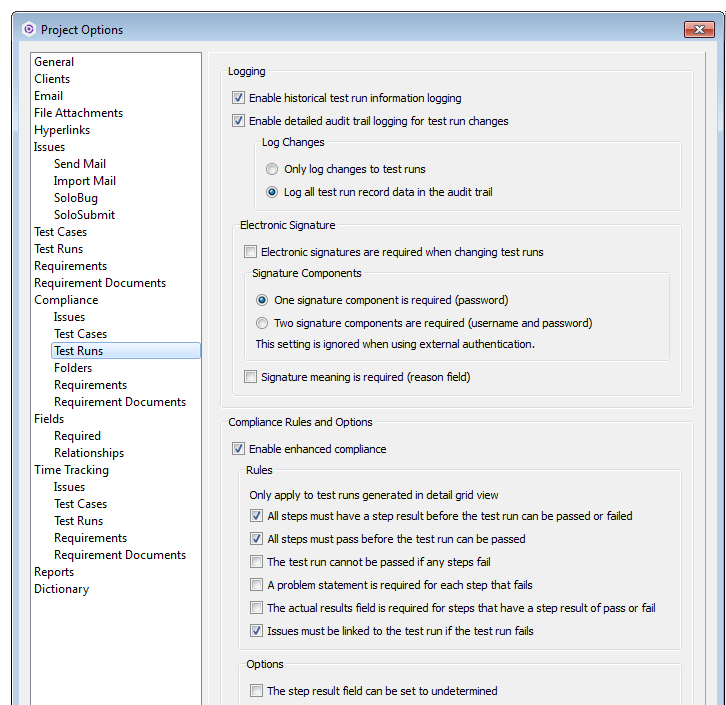
Enable test run enhanced compliance options if your tests need to meet compliance requirements or you need to enforce rules that ensure your testing process is followed. Enhanced compliance also gives you greater control over the information captured in test run results, making it clear what needs to be documented and the rules for passing and failing tests. You can enforce any of the following rules or combine multiple rules for stricter compliance:
- All steps must have a result before the test run is passed or failed. Testers must indicate if each step passed or failed before they can enter a pass or fail workflow event to indicate the overall test run result.
- All steps must pass before the test run can be passed. Testers cannot enter a pass event to indicate the overall test run result unless all steps pass.
- The test run cannot be passed if any steps fail. Testers cannot enter a pass workflow event to indicate the overall result if any steps fail.
- A problem statement is required for each step that fails. Problem statements indicate that an issue occurred during the test and are used when creating issues from test runs. Testers must enter a problem statement if they indicate that a step failed before a test run is saved.
- The actual results field is required for steps that have a step result of pass or fail. Documenting actual results of each test run step may be required for future audits. Testers must enter information about the actual result of performing each step, regardless of its result, before a test run is saved.
- An issue must be linked to the test run if the test run fails. If you also use ALM for issue management, testers must create an issue from each failed test run to report problems that caused the failures and move them into the issues workflow for resolution. This helps improve traceability, making it easy to see the relationship between failed test runs and issues.
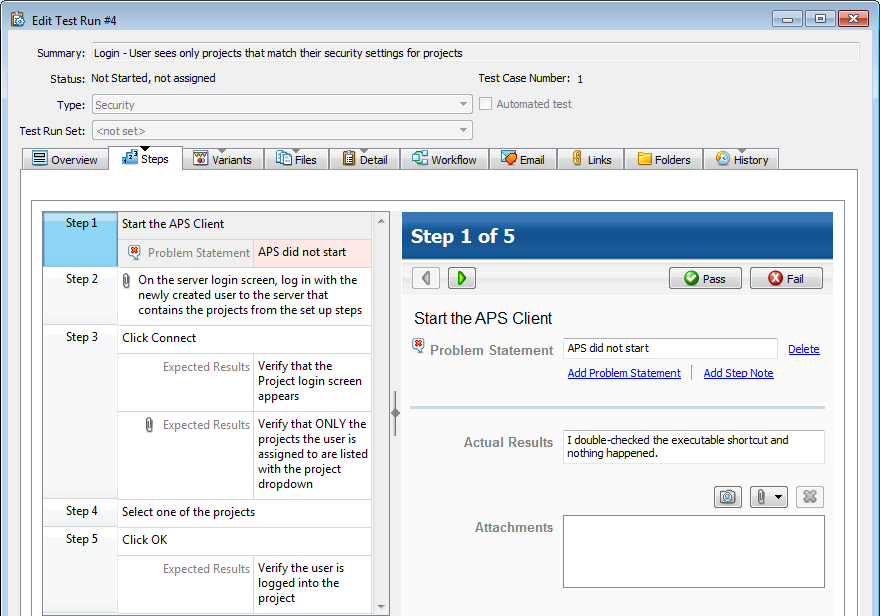
If enhanced compliance is enabled, all test runs are automatically generated in detail grid view, which guides testers through each step of the test run and lets testers capture additional information that is not available in the other test run views. For example, testers can enter results (pass, fail, or undetermined) for each step in a test run and capture actual results for each step.
Creating test cases
Develop test cases for new features in parallel with product development
Write new feature test cases at the same time as the developers are implementing the features. This helps prepare the quality assurance team to begin testing as soon as the development group provides the first Alpha build.
If you also use ALM Requirements Management, generate test cases from requirements or user stories. This can help testers validate that documented requirements are implemented correctly. ALM can capture the relationship between requirements and test cases generated from them, which can help you ensure that requirements have appropriate test coverage and analyze the impact of requirement changes on test cases.
After a test case is created, it should be reviewed by a quality assurance team member, revised if changes are required, and then marked as ready so test runs can be generated for it. Also, make sure new test cases are added to the appropriate test case suite.
Develop modular test cases
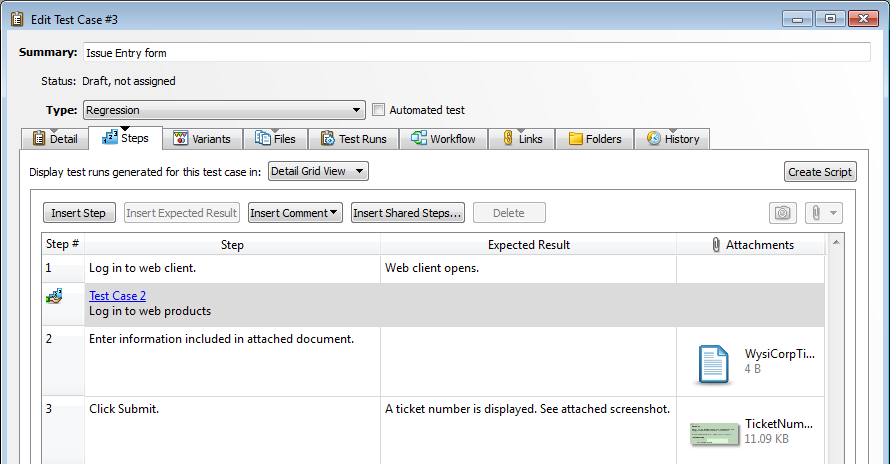
If you have sets of steps that are commonly repeated in test cases, develop modular test cases and share them with other test cases. For example, if multiple tests require logging in to an application, create one test case that includes the login steps and then share the test case in other test cases that also require the login steps. When test runs are generated from test cases, the steps from the shared test case are included.
Using modular test cases:
- Improves test case maintainability. If steps change, you only have to update one test case and the changes are automatically included in other test cases that share the steps. Test cases that share steps are linked, which helps you quickly determine tests that are affected by changes.
- Reduces time required to develop more complex test cases.
- Helps you create more complete, detailed tests that any tester can perform regardless of experience and product knowledge.
Order test cases in the test case suite
The order that tests are performed may be important. For example, running tests in a specific order is more efficient or you may have tests that are destructive in some way. Order the tests in each test case suite folder to make sure they are in the correct order. This helps testers understand the order they should perform test runs generated from the test case suite folder.
You can generate a test run suite to duplicate the folder structure of a test case suite and generate test runs from the test cases in it. Test runs are added to the test run suites in the same order as the test cases in the test case suites.
 Generating and organizing test runs
Generate test runs when a new product build is available
Generate test runs when test cases are complete and the product is ready for testing. This typically occurs when the development team provides a new build.
It is best to generate test runs when each testing phase begins. This helps you more easily track the test cases that test runs have not been created for and evaluate how many test runs still need to be performed so you can determine the progress of the overall release. It is easiest to generate test runs from a test case suite.
You can generate a test run suite from a test case suite. When you generate a test run suite:
- The folder structure of the source test case suite is automatically duplicated in a folder you select.
- Test runs are generated from test cases in the test case suite.
- The generated test runs are added to the new test run suite folders. The order that test runs are displayed in the suite are based first on any test variants selected when generating the suite and then by the order set in the test case suite.
You can assign all the test runs when they are generated for a testing phase or assign them periodically throughout the release. Assigning test runs when each testing phase begins can help testers better manage their workload because they have a clear indication of the amount of testing they need to complete. It also allows the person assigning work to compare the number of test runs assigned to each tester and make adjustments as needed. Assigning test runs periodically throughout the release provides the flexibility to assign tasks as resources become available if you do not know how long it will take to perform tests or how many testers are available.
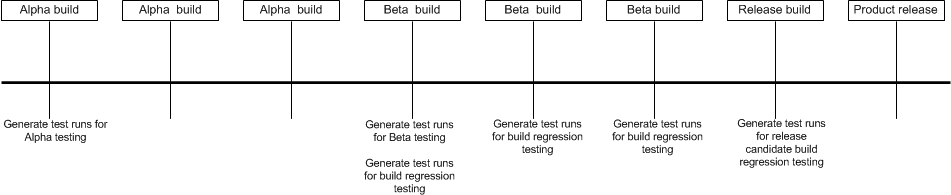
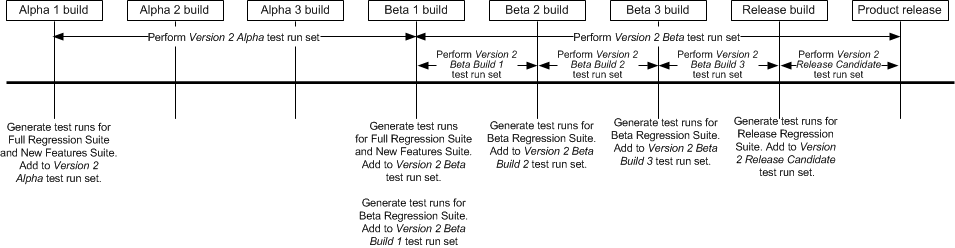
The following chart shows an example of when to generate test runs during a release.
Add test runs to test run sets at generation time
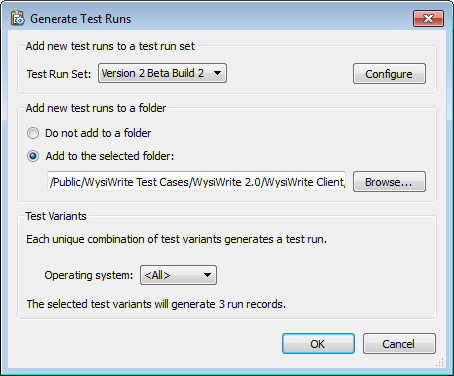
Add test runs to a test run set when they are generated. This ensures that test runs are properly categorized so they are included in filters and reports with the related test runs. The test run sets should generally be configured before test runs are generated. However, if an additional build requires a new test run set, you can configure it when you generate test runs.
In addition to using test run sets, add test runs to test run suite folders to organize them. The following screenshot shows the Generate Test Runs dialog box, which is used to generate and organize new test runs.
Rerunning failed tests
When a test run fails, it moves to the Failed workflow state. Assuming your company’s business rules state that releasing a product with failed test runs is unacceptable, you need to rerun a failed test after the development team fixes the defect that caused the test to fail.
In this situation, regenerate the failed test run instead of reopening it and modifying the results. It is important to keep the failed test run for historical purposes to show that the test initially failed. The new test run will provide verification that the test eventually passed before the product was released.
The following screenshot shows the Regenerate Test Runs dialog box, which is used to set options for regenerated test runs.
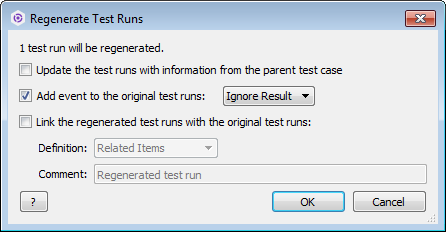
Make sure you move the original, failed test runs to a state that differentiates them from test runs that have not been regenerated. This allows you to maintain an accurate history of test run failures and easily locate failed tests that have not been retested. The default test runs workflow includes the ‘Ignore Result’ event and ‘Closed (Ignored)’ state, which are designed for this purpose. You may need to add the state and event if your workflow does not include them.
Evaluating testing progress
Measuring the progress of your testing effort is critical for determining if testing is on schedule and how much effort is required to complete a testing phase.
Use live charts to monitor testing progress
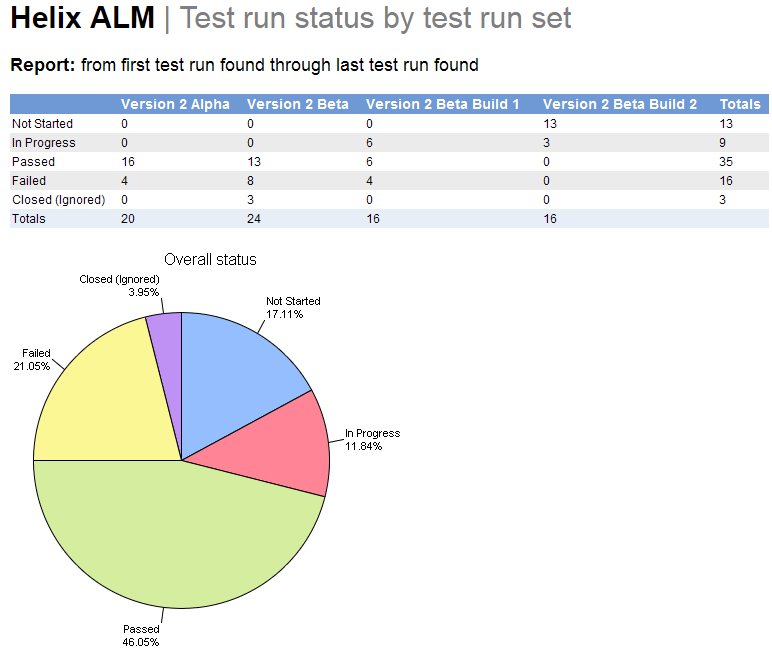
Use live charts to continuously monitor testing progress, such as the number of test cases created or the number of tests that are passing and failing during the day. Create live charts based on your test suites or test run sets to focus the data on a specific set of tests. You can create several type of live charts, including column, bar, line, pie, and scatter charts.
Generate reports based on test run sets
Use
The following report includes the test run results for each test run set. This report can help you determine how many test runs in each test run set are Passed, Failed, or Unclear. It includes the percentage of passed test runs and defects created for test runs in each test run set.
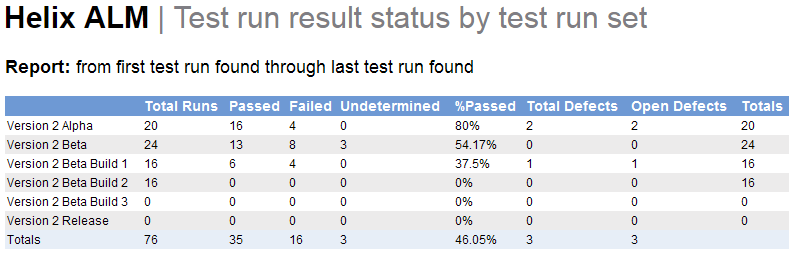
Over time, the number of test run sets will increase. Use filters when you generate reports to limit the test run sets based on the information you want to evaluate.
When to generate reports
Although you will periodically generate and evaluate reports to determine the progress of testing, it is important to assess how much testing remains as you near the end of a testing phase. For example, as you approach the end of the Alpha testing phase, generate a distribution report of test run status based on the Alpha test run set to see how much testing remains. When you are halfway through the Beta testing phase, generate the report to determine how many test runs in the Beta test run set are complete. This can indicate if testing is behind, on, or ahead of schedule. Before the product release, review failed test runs and inform development of any roadblocks that could delay the product release.
Exclude ‘Closed (Ignored)’ test runs from reports
If you want to report on the latest test run results in a test run set, create a filter that excludes test runs in the ‘Closed (Ignored)’ workflow state. If you do not exclude this state, the report may not display the desired information because the same test case will be included multiple times if it was run more than once.
Preparing for the next release
Move new feature test cases to the regression suite
After a product is released and before you start testing the next version, move the new feature test cases to the regression test case suite. This helps you build a comprehensive regression suite of tests to use for testing future product releases.
Analyze reports to determine how testing went
After the release, generate and analyze test run reports to see how well testing went. Use this information to improve future testing efforts.
- Compare the test run Estimated Run Time to the Actual Run Time. This can help you determine if the estimates were accurate and help with planning.
- Evaluate the number of test runs in the ‘Closed (Ignored)’ state. This can help you determine the number of tests that passed the first time they were run. A high number of regenerated test runs may indicate that the development team should review their unit testing and code review processes to ensure higher quality on the first pass.
Example
The following example shows when to generate test runs, how to group them in test run sets, and when the test runs in each test run set should be performed within a typical release in a Waterfall development environment. The example uses the following test suites:
- New Features Suite—Includes all new test cases written for new features introduced in the product version. These tests are performed once during the entire Alpha testing phase and again during the entire Beta testing phase.
- Full Regression Suite—Includes all test cases used to test previous product versions. These tests are performed once during the entire Alpha testing phase and again during the entire Beta testing phase.
- Beta Regression Suite—Contains a subset of test cases from the Full Regression Suite. These tests are performed on each build during the Beta testing phase.
- Release Regression Suite—Contains a smaller subset of test cases from the Full Regression Suite. These tests are only performed on the release candidate build.
Alpha 1 build
When the Alpha 1 build is ready for testing, generate test runs for the test cases in the Full Regression Suite and New Features Suite. Add these test runs to a test run set named Version 2 Alpha. Testers should perform these test runs throughout the entire Alpha testing phase, regardless of the Alpha build they are performed on.
Alpha 2 build
When the Alpha 2 build is ready for testing, do not generate new test runs. Testers should continue to perform test runs in the Version 2 Alpha test run set.
Alpha 3 build
When the Alpha 3 build is ready for testing, do not generate new test runs. Testers should continue to perform test runs in the Version 2 Alpha test run set.
To determine how close you are to completing tests before continuing on to the Beta testing phase, generate and evaluate a distribution report based on the status of the Version 2 Alpha test run set.
Beta 1 build
When the Beta 1 build is ready for testing, generate test runs for the test cases in the Full Regression Suite and New Features Suite. Add these test runs to a test run set named Version 2 Beta. Testers should perform these tests throughout the entire Beta testing phase, regardless of the Beta build they are performed on.
Also generate test runs for the test cases in the Beta Regression Suite. Add these test runs to a test run set named Version 2 Beta Build 1. These test runs should be completed before the Beta 1 build is released for customer testing. To determine when the build is ready to be released, generate and evaluate reports based on the Version 2 Beta Build 1 test run set.
Beta 2 build
When the Beta 2 build is ready for testing, generate test runs again for the test cases in the Beta Regression Suite. Add the test runs to a test run set named Version 2 Beta Build 2. These test runs should be completed before the Beta 2 build is released for customer testing. Testers should also continue to perform test runs in the Version 2 Beta test run set.
Use reports to evaluate progress on the regression and new features tests in the Version 2 Beta test run set. Determine if the number of test runs completed is on track with the duration passed in the schedule.
To determine when the build is ready to be released, generate and evaluate reports based on the Version 2 Beta Build 2 test run set.
Beta 3 build
When the Beta 3 build is ready for testing, generate test runs again for the test cases in the Beta Regression Suite. Add the test runs to a test run set named Version 2 Beta Build 3. These test runs should be completed before the Beta 3 build is released for customer testing. Testers should also continue to perform test runs in the Version 2 Beta test run set.
To determine when the build is ready to be released, generate and evaluate reports based on the Version 2 Beta Build 3 test run set.
Release build
When the release build is ready for testing, generate the test runs for the test cases in the Release Regression Suite. Add the test runs to a test run set named Version 2 Release Candidate. Testers will perform these test runs on the Release build only. These test runs should be complete before the product is released. Testers should also complete the test runs in the Version 2 Beta test run set.
To determine when testing is complete and the build is ready to be released, generate and evaluate reports based on the Version 2 Release Candidate and Version 2 Beta test run sets.