Versic tutorial - Basic checkin
Set up a workspace with one of the tutorial IP's loaded into it. For this tutorial, lets take the mdx_tutorial.analog_top IP. From within the workspace, load up Cadence Virtuoso from the command line:
virtuoso
If Versic is correctly configured and loaded, the library manager will look similar to below:
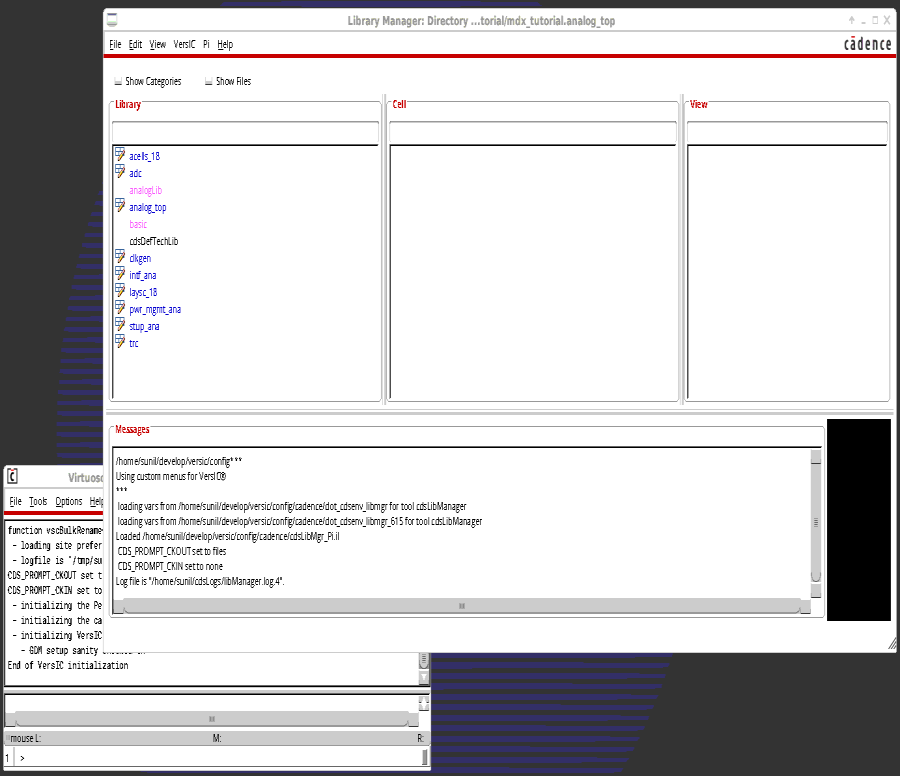
The library colors indicate what the state of the libraries are, i.e. managed, unmanaged, etc.
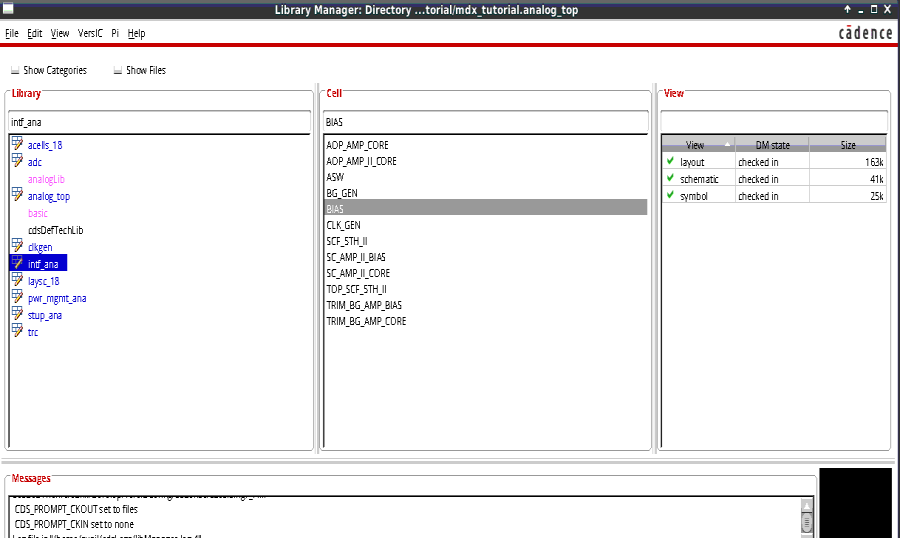
Let us choose one of the cells BIAS, under the managed library intf_ana. The user can see that the views all have a green check mark next to them, indicating the DM state.
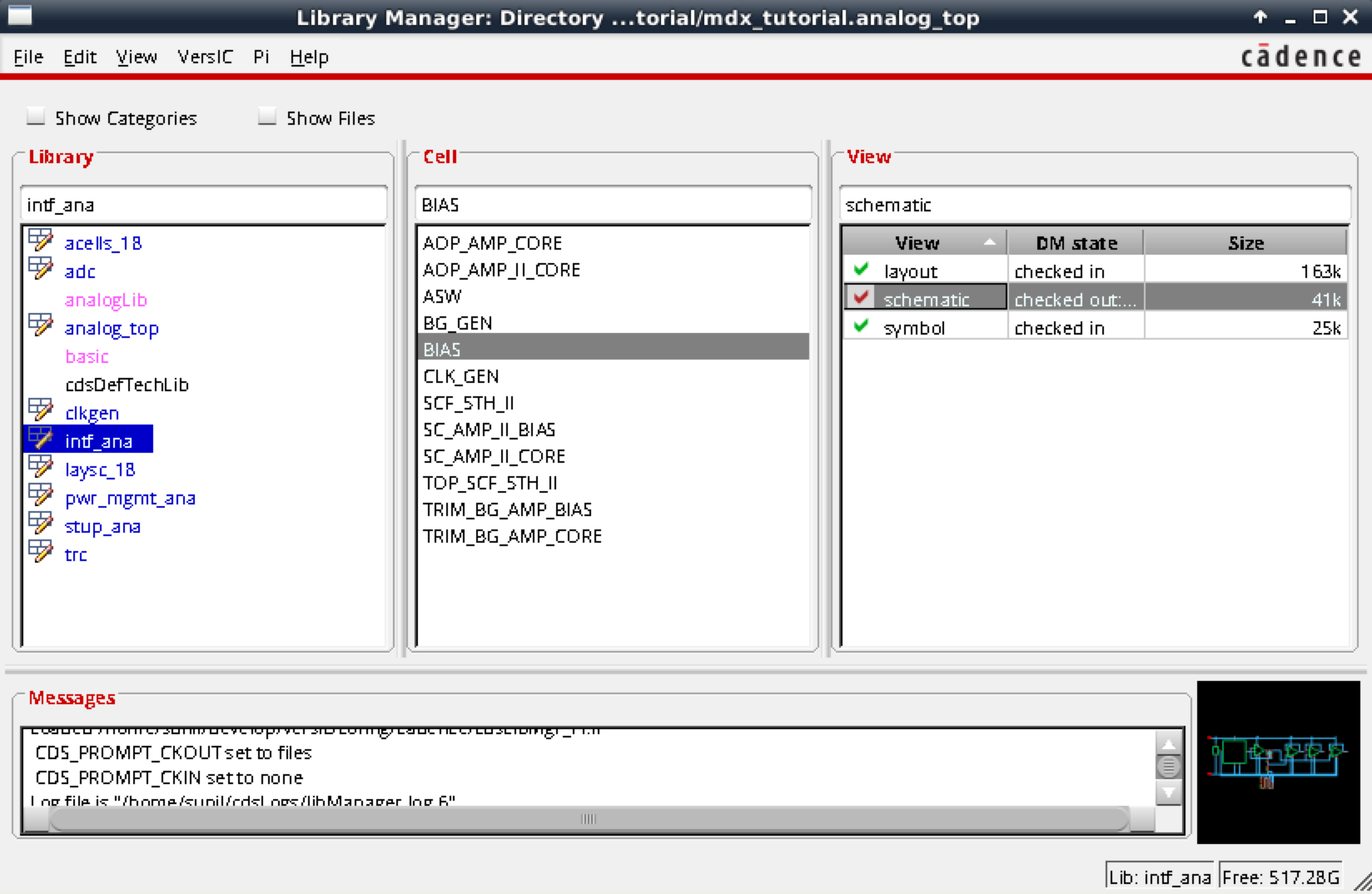
Double click the schematic view to open it up. Once the schematic is opened up for editing, the green check mark seen against the schematic turns red. The DM state also gets changed to a checked out state.
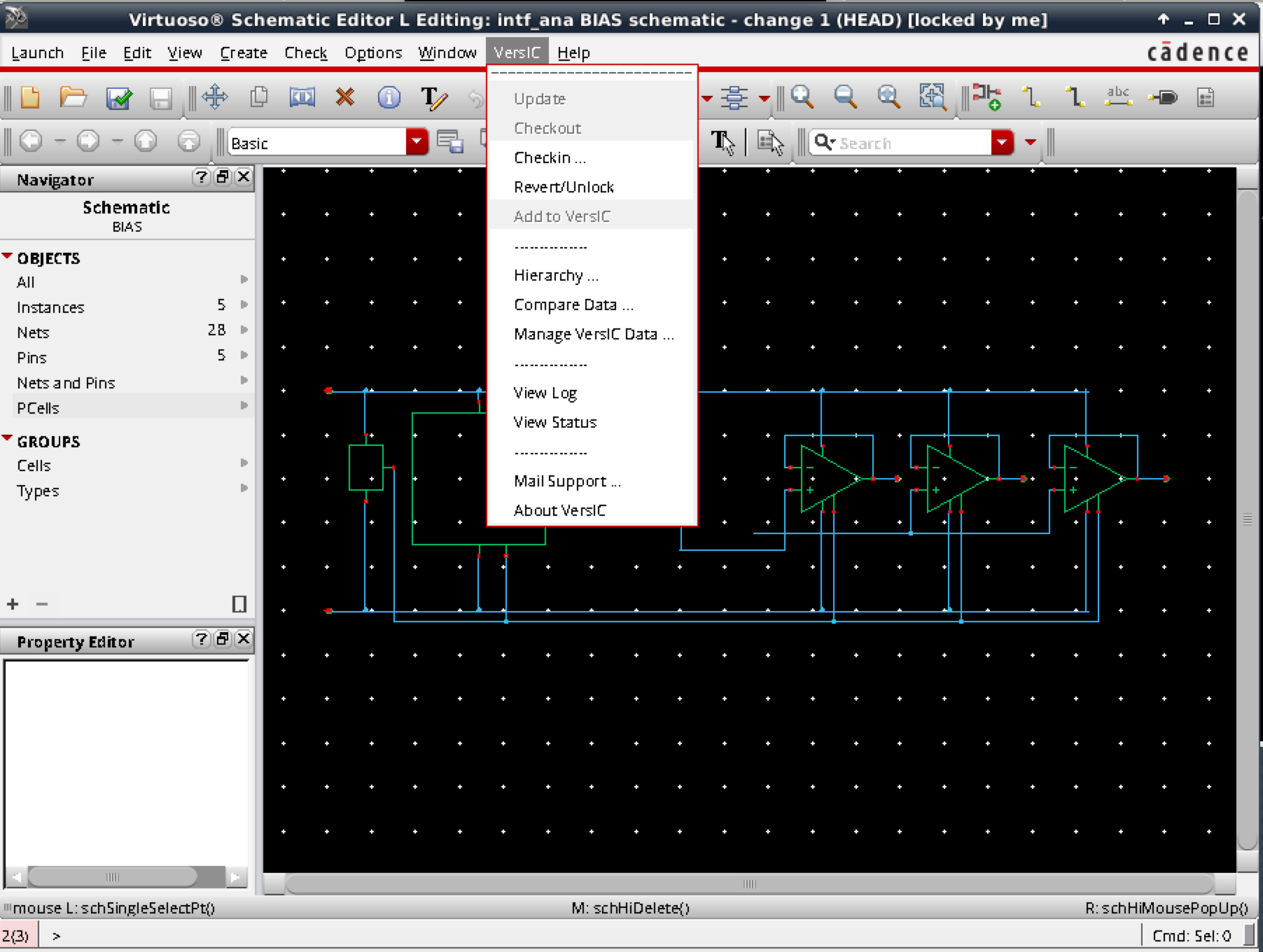
Make any changes to the schematic and save it. Next the user will have to checkin the changes to the version control system using the drop down Versic Menu. Note that once the current user is editing the design, other users cannot make changes to the design till its been checked back in. In the image below, the schematic editor shows that the schematic has been "locked" by the current user, and also shows which version of the schematic is being edited.
The Versic checkin data dialog box that comes up will have to be filled up with a status and a message before clicking Ok. See Functional Operations for more information about the Versic Checkin Data.
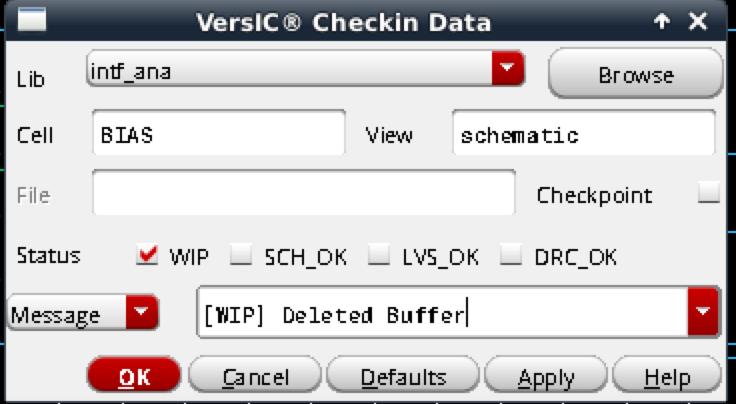
The changes to the schematic have been saved and checked in to the version control database. Verify that the red check mark next to the schematic in the library manager window has changed back to green. This ensures that other users can now checkout this version of the schematic and make edits to it if they choose.