Creating and Attaching the Panels Pop-up Menu
Create and attach the pop-up menu for the Panels menu item like you did for the File menu item. The pop-up menu will have three items, each item being the name of one of the windows. Enter these names in the Label field of the IlvPopupMenu inspector:
Employee
Employee Manager
Dept Maximum Salary
In the Callback field of the IlvPopupMenu inspector, enter the @ShowPanel callback for each menu item, using these panel names:
(Employee)
(Empmgr)
(Dpmaxsal)
Example: @ShowPanel(Employee)
When the pop-up menu is finished, it should look like this:
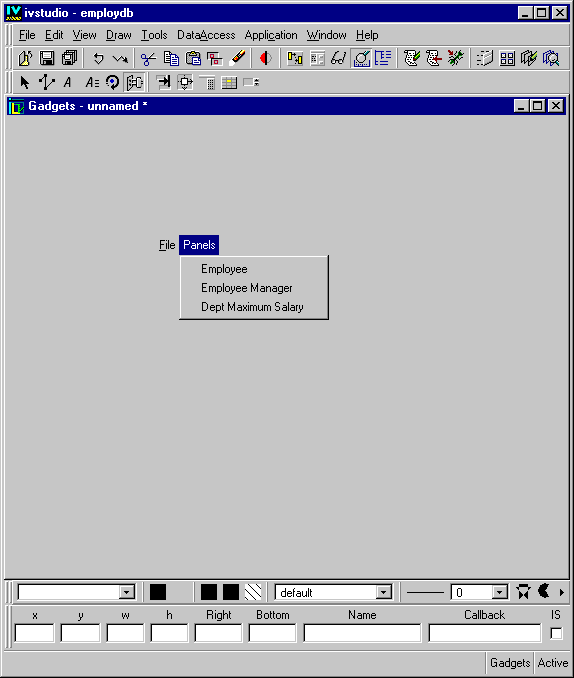
You can test that the pop-up menus appear by clicking the Active button and then selecting the menu bar items. To test the pop-up menu items themselves, you need to test the application (because of the use of certain predefined callbacks). See the section Testing the Application .
Additional Information About Adding Items to a Pop-Up Menu
You can use the buttons on the Items notebook page of the IlvPopupMenu inspector to insert or remove items from a pop-up menu gadget. Note that your changes will not take effect in the pop-up menu gadget in the Main window until you press the Apply button.
|
|
Insert You create a new item (labeled item) in the pop-up menu list each time you press the Insert button. Items are created in the list before a selected item, or at the bottom if no item is selected. If you make a mistake, you can select an item and click the Remove button to delete it. |
|
|
Add Use this button to create a new item after the selected item in your list. |
|
|
Popup menu Use this button to add another level of menus under the selected item in the pop-up menu list. A new pop-up menu item (labeled Popup menu) with a new item (labeled Item) under it are added to the tree structure. |
|
|
Separator This button allows you to insert a separator line between pop-up menu items. |
|
|
Remove Use this button to remove a selected item from the pop-up menu tree gadget. |
|
|
Clean This button allows you to remove all the items in the pop-up menu list. The Popup menu item at the top of the tree gadget is the only one that remains after you press the Clean button. |


