Connecting a Table Gadget to the EMP_DS Data Source
To connect a table gadget to the EMP_DS data source, do the following:
Drag a table gadget from the Data Access palette to the Main window.

Double-click the table gadget.
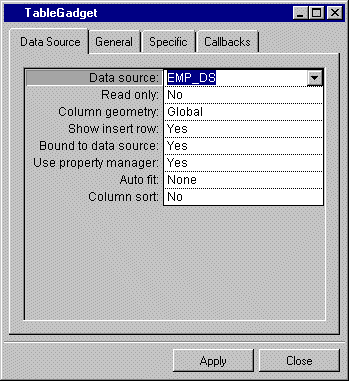
The Table Gadget inspector appears.
Use the combo box to enter EMP_DS in the Data source field of the Table Gadget inspector. Click Apply.
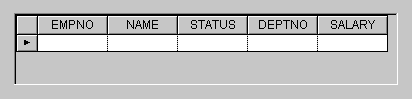
The column headers in the table gadget in the Main window change to match those of the EMP_DS data source table. Adjust the size of the table gadget so you can see all of the columns in the table. Your table gadget should now look like this:
In the Main window, click the Active button  in the Editing Mode toolbar at the top.
You can now edit the table gadget.
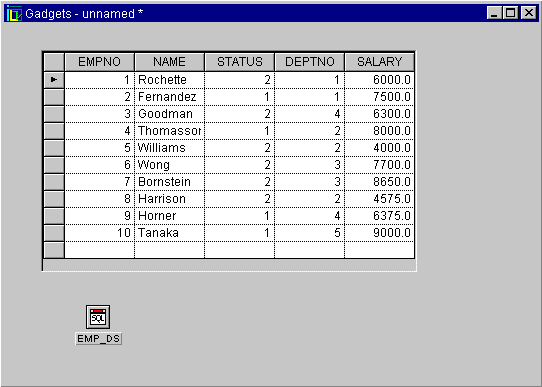
Fill in the table gadget cells as shown in the following figure. The data is automatically entered in the database. See Additional Information about Editing Tables.
Leave the table gadget as it is, as you will be using it in the next section.