Alarm states
Describes the characteristics of graphical representations of telecom object alarm conditions. Also explains how to define an alarm state with the API and in XML.
Describes the characteristics of graphical representations of telecom object alarm conditions.
Describes the different approaches to set alarm counters.
Explains how to set alarm states using the API.
Provides a pointer on how to load alarm states in XML.
Graphical representation of alarm conditions
The network component provides a graphical representation for the alarm state of managed objects. New raw alarms are represented by a round rectangle alarm balloon; new impact alarms are represented by an impact alarm cloud. In addition, a secondary alarm state representation is provided for cases when an object has both impact and raw alarms.
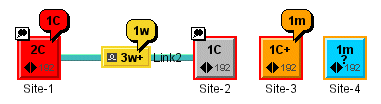
Representation of alarm states in a network
Graphical cues for alarm states
The main graphical cues for alarms are:
-
A color associated with the object base element (the alarm coding color scheme is illustrated in Raw alarm color coding scheme).
-
An alarm count summary displayed on the object base element (the contents of the summary is explained below).
-
A colored alarm balloon displaying also an alarm count summary.
-
A colored outline displayed around the object base element.
-
A secondary state icon for the secondary alarm state (see Primary and secondary states.)
Alarm state details
Alarms can be either new or acknowledged. The term outstanding alarms includes both new and acknowledged alarms.
The graphical representation of a telecom object alarm condition shows the number and highest severity of new alarms and the number and highest severity of outstanding alarms in the following manner:
-
The color of the base element and the color of the alarm balloon are those associated with the most severe new alarm (see Raw alarm color coding scheme).
-
The color of the outline around the base element is the one associated with the most severe outstanding alarm.
-
The alarm count summary in the base element displays the number of outstanding alarms.
-
The alarm count in the alarm balloon displays the number of new alarms.
Alarm count summary
An alarm count summary displays the number and highest severity of new or outstanding alarms. It is composed of:
-
A number indicating the amount of most severe new or outstanding alarms.
-
One or more letters indicating the highest severity of new or outstanding alarms (see Raw alarm color coding scheme).
-
An optional icon to represent the highest severity of new or outstanding alarms.
-
A plus sign indicating that there are also less severe new or outstanding alarms.
Primary and secondary alarm states
A telecom object can have raw and impact alarms at the same time, which introduces the concepts of primary and secondary alarm states. The primary alarm state has a more detailed representation than the secondary alarm state. By default, the primary alarm state is the raw alarm state.
The primary alarm state is identified by the following:
-
The color of the base element and the color of the alarm balloon, which correspond to the most severe new alarm.
-
The shape of the alarm balloon.
-
The color of the outline of the base element, which corresponds to the most severe outstanding alarm.
-
The alarm count summary in the base element displaying the number of outstanding alarms.
-
The alarm count in the alarm balloon displaying the number of new alarms.
The secondary alarm state is identified by the following:
-
The secondary alarm state icon.
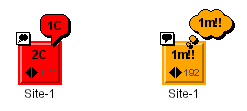
LEFT: primary alarm state for raw alarms. RIGHT: primary alarm state for impact alarms
Alarm severity coding
JViews TGO provides two types of alarms: raw and impact alarms.
Raw alarms have a range of six severity levels, including the Cleared severity. These levels and their associated color and short text are shown in Raw alarm color coding scheme.
|
Severity |
Color |
Text |
|
Critical |
Red |
C |
|
Major |
Red |
M |
|
Minor |
Orange |
m |
|
Warning |
Yellow |
w |
|
Unknown |
Grey |
u |
|
Cleared |
Not represented |
Not represented |
The Cleared severity is never represented in alarm states.
Impact alarmshave a range of ten severity levels, including the Cleared severity. These levels and their associated color, short text and icon are shown in Impact alarm color coding scheme.
|
Severity |
Color |
Text |
Icon |
|
Critical High |
Red |
!! |
|
|
Critical Low |
Red |
! |
|
|
Major High |
Red |
!! |
|
|
Major Low |
Red |
! |
|
|
Minor High |
Orange |
!! |
|
|
Minor Low |
Orange |
! |
|
|
Warning High |
Yellow |
!! |
|
|
Warning Low |
Yellow |
! |
|
|
Unknown |
Grey |
! |
|
|
Cleared |
Not represented |
Not represented |
Not represented |


The Cleared severity is never represented in alarm states.
You can extend the default severity levels of raw and impact alarms. You can add new severity levels and associate them with a color and label. Functions for extending severity levels, as well as examples, are provided in Customizing alarm severities.
Alarm state graphical representations provides some alarm state examples and their associated visual representations.
|
Alarm State Values |
Visual in Network and Equipment |
Visual in Table and Tree |
Comment |
|
New Critical |
|
|
The resource has one new critical alarm. |
|
Outstanding Critical |
|
|
The resource has one new critical alarm, plus less severe new alarms, and one acknowledged critical alarm. |
|
New Major |
|
|
The resource has one new major alarm, plus less severe new alarms. |
|
New Minor |
|
|
The resource has one new minor alarm. |
|
Acknowledged Minor |
|
|
The resource has two acknowledged minor alarms, plus acknowledged less severe alarms. |
|
Outstanding Warning |
|
|
The resource has three new warning alarms, plus two acknowledged warning alarms. |
|
New Unknown |
|
|
The resource has a new unknown alarm. |
|
New Critical High Impact |
|
|
The resource has a new critical high impact alarm; the primary alarm state is for impact alarms. |
|
Impact Alarms |
|
|
The resource has some impact alarms; the primary alarm state is for raw alarms. |
|
New Minor Low Impact and Raw Alarms |
|
|
The resource has a new minor low impact alarm and some raw alarms; the primary alarm state is for impact alarms. |
|
Loss of Connectivity |
|
|
The alarm collection process has been shut down or alarm counts are not reliable. |
|
Not Reporting |
|
|
Alarm reporting has been suspended because the resource was purposely taken offline, for example for repairs. |


Setting the alarm counters
JViews TGO offers two approaches to setting the alarm counters:
It is possible to combine the two computation models, having JViews TGO compute the alarm counters for some managed objects and the back end for the other managed objects.
The back end computes the alarm state counters
To set the counters:
-
Remove from the data source all alarms related to the managed object.
-
Set the computedFromAlarmList property of the alarm state to false.
-
Retrieve the counters from the back end and set the values in the alarm state.
To update the counter values according to changes in the back end:
-
Subscribe to the notification of alarm counter changes by the back end.
-
Update the alarm counter in the alarm state according to the back-end notifications.
JViews TGO computes alarm state counters
JViews TGO can compute alarm state counters for a given managed object based on the list of alarms for this object.
To set the counters:
-
Use an IltDefaultDataSource for the data source.
-
Set the computedFromAlarmList property of the alarm state to true.
-
Retrieve the list of alarms for the managed object and create the corresponding IltAlarm objects. In the IltAlarm objects, set the managedObjectInstance attribute value to the object identifier of the managed object.
-
Add the IltAlarm objects in the same data source as the IltObject corresponding to the managed object.
To update the alarm state according to changes in the back end:
-
Subscribe to the notification of alarms and alarm list changes for the object.
-
Add, remove or update the IltAlarm business objects according to the changes.
The handlingAlarmReferences property of IltDefaultDataSource controls whether the alarm state consolidation occurs or not in a given data source. By default the consolidation is active.
Combining alarm counter computation models
You can have JViews TGO compute the alarm counters for some managed objects, and the back end compute the counters for the other managed objects. You can also switch from one computation model to the other for a given managed object.
The concurrent use of the two models on the same managed object would result in inconsistent and inaccurate counters. Use IltAlarm.State.setComputedFromAlarmList to switch between the two modes. When the alarm counters are computed from the associated list of alarms, attempts to change the alarm counters directly with the alarm state APIs would trigger an IllegalStateException. Instead, update the associated IltAlarm objects.
How to switch from alarm counters computed by the back end to alarm counters computed by JViews TGO
-
Unsubscribe to the notification of alarm counter changes by the back end.
-
Disable the automatic alarm counter computation of the alarm state using the method IltAlarm.State.setComputedFromAlarmList. This will reset the counters to zero.
-
Retrieve the list of alarms for the managed object and create the corresponding IltAlarm objects. In the IltAlarm, set the ManagedObjectInstanceAttribute value to the object identifier of the managed object.
-
Add the IltAlarm objects in the same data source as the IltObject corresponding to the managed object.
-
Subscribe to alarm list change notifications by the back end.
-
Add, remove or update IltAlarm objects according to the back-end notifications.
How to switch from alarm counters computed by JViews TGO to alarm counters computed by the back end
-
Unsubscribe to the notification of alarm list changes by the back end.
-
Remove from the data source all the alarms related to the managed object.
-
Enable the automatic alarm counter computation of the alarm state using the method IltAlarm.State.setComputedFromAlarmList. This will reset the counters to zero
-
Retrieve the counters from the back end and set the values in the alarm state.
-
Subscribe to the notification of alarm counter changes by the back end.
-
Update the alarm counters in the alarm state according to the back-end notifications.
Defining alarm states with the API
Alarms carried by telecom objects are described in the same way as states. Alarms are held by one of the IltObjectState object attributes and are modeled using an instance of the class IltAlarm.State, which is a subclass of IltState. The alarm state object includes the following information:
-
For each alarm severity:
-
The number of new alarms of this severity
-
The number of acknowledged alarms of this severity
-
-
Boolean indicators for special conditions:
-
Not Reporting: the equipment has ceased reporting alarms.
-
Loss of Connectivity: the connection with the equipment has been lost, thus making the recorded number of alarms unreliable.
-
The alarm model is the same for most of the existing object state classes. When the alarm information is based on the alarm model, you can retrieve this information by calling the method IltObject.getAlarmState.
How to set alarm counters
The API for managing alarms is directly available from the IltObject class.
The following code line retrieves the object state corresponding to the alarms for an object named paris.
IltAlarm.State alarms = paris.getAlarmState();
The following code line shows how to set the count of new alarms to the object.
alarms.setNewAlarmCount(IltAlarm.Severity.Critical, 2);
To set the count of acknowledged alarms, use the following code:
alarms.setAcknowledgedAlarmCount(IltAlarm.Severity.Critical, 2);
Alarms can be set either directly, as shown above, or incrementally, as in the following code where a new critical alarm is added to the same network element.
How to set alarms incrementally
alarms.addNewAlarm(IltAlarm.Severity.Critical);
System.out.println("Critical alarms on Paris: "
+ alarms.getNewAlarmCount(IltAlarm.Severity.Critical));
The printed output is the following:
Critical alarms on Paris: 3 new
How to set special alarm statuses
Special alarm statuses are set and unset using dedicated APIs.
To switch to the loss-of-connectivity mode, use the following:
alarms.setLossOfConnectivity(true);
To switch to the not-reporting mode, use the following:
alarms.setNotReporting(true);
Loading alarm states in XML
For details on how to load alarm states in XML, refer to Alarm states.


