Full-Screen View
SECFullScreenView is a utility compo
This plug-in design makes it simple to add the full-screen capability to existing applications. All you need to do is add an SECFullScreenView member to your main frame class and invoke the SECFullScreenView::SetFSMode() API to trigger the full-screen display. Once this mode is set, SECFullScreenView steps into your application’s activation mechanism and manages it until the user exits full-screen view mode, by pressing the ESCAPE key or clicking the full-screen toolbar.
The full-screen toolbar is a dynamically created toolbar that is instantiated as either an SECCustomToolBar or CToolBar/SECToolBar, depending on the run-time class of the frame. The SECCustomToolBar component provides the same cool-look full-screen user interface that is found in Microsoft VC++ and Microsoft Office. Both the standard bitmap toolbar and text toolbar are supported. The default toolbar offers certain pre-set styles. However, you can change the default styles with the help of an application-defined callback.
Default Full-screen Toolbar
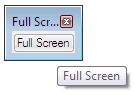
Another feature of SECFullScreenView is the drop-down menu style that allows the temporary display of the application’s main window menu when the cursor is placed over the top portion of the screen like the Windows Taskbar. The default behavior is to hide all docking windows (control bars) except in the case of docking views when in the application is in full-screen mode. However, SECFullScreenView allows you to selectively include control bars you want to display in full-screen mode.
On this page:
The Full-Screen View Class
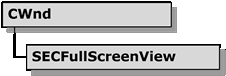
The SECFullScreenView class simply
Objective Toolkit Full-Screen View Class Hierarchy
SECFullScreenView Styles
The SECFullScreenView has a number of styleSetFSMode() method.
|
Style flag |
Description |
|
|
The application’s main window menu is displayed when the cursor hovers over the top section of the screen. Moving the cursor hides the menu. |
|
|
The full-screen toolbar is a text-only toolbar. The label can be set while invoking the full-screen mode. |
|
|
Forcibly hides the Windows task bar when full-screen mode is triggered. Exiting full-screen mode retrieves the task bar. Default is false. |
|
|
SECFullScreenView defaults to using SECCustomToolBar when the Objective Toolkit frame window classes are used. Setting this style creates the toolbar as an SECToolBar. |
Using the SECFullScreenView Class
The following topics descri
To incorporate the SECFullScreenView class into your application
Add an SECFullScreenView member to your CFrameWnd-derived main frame class. From a command handler, call the SetFSMode() function with the required parameters. For example:
// m_FSView is the SECFullScreenView object
m_FSView.SetFSMode();
// The following call triggers the full-screen view with
// drop-down
// menus enabled and a text-only toolbar. The second
// parameter
// specifies the toolbar text.
m_FSView.SetFSMode(SEC_FS_TEXTTOOLBAR|SEC_FS_DROPDOWNMENU,
"Close Full Screen");
// A bitmap toolbar with the IDR_FSBITMAP resource is set
m_FSView.SetFSMode( SEC_FS_DEFAULT, IDR_FSBITMAP );
To set or retrieve the full-screen view mode styles
1. Use the SECFullScreenView::SetFSStyle() and GetFSStyle() methods.
2. SECFullScreenView::GetFSMode() returns a BOOL that specifies whether the full-screen mode is currently set.
To terminate full-screen view mode
Use the CloseFSMode() method to terminate the full-screen display.
To use full-screen view mode with docking windows
Use the SECFSBarState structure and the SetBarStateArray() method to specify the control bars to be displayed during full-screen view mode. The following excerpt from the SCREENVIEW sample demonstrates the usage:
// Setting the second member of SECFSBarState to TRUE indicates
// the control bar is visible only during the full-screen mode.
// The ‘full screen only’ bars will be displayed when the FS mode
// is set and will automatically be hidden when FS mode exits.
SECFSBarState barState[2] =
{
{ &m_wndCloudToolBar, FALSE },
{ &m_wndPalette, TRUE }
};
m_FSView.SetBarStateArray(barState, 2);
m_FSView.SetFSMode(SEC_FS_DROPDOWNMENU);
Note: SECFullScreenView only performs show/hide operations on the respective control bars. It is your responsibility to ensure that the control bars have been created and that they remain in scope throughout the time the application is in full-screen view mode.
To change the default full-screen view toolbar styles
The full-screen view toolbar class is instantiated dynamically based on the application’s frame classes. So changing the default styles involves defining a callback function within your application and specifying this function pointer to the SECFullScreenView object. When the callback is invoked, you can examine the existing styles and change them as required.
Declare the callback.
// Callback definition within your main frame class
static void CALLBACK SetToolBarStyles(UINT& dwStyle, UINT& dwStyleEx);
Define the callback function.
// Callback implementation.
// This example creates the toolbar without the “cool-look”
// double gripper and with a visible border
void CALLBACK CMainFrame::SetToolBarStyles(UINT& dwStyle, UINT& dwStyleEx)
{
dwStyle |= CBRS_BORDER_ANY;
dwStyleEx &= ~CBRS_EX_GRIPPER;
}
Before invoking the full-screen view mode, call the SetFSToolBarStylesCB() method, providing the address of the callback function.
// Specifying the callback to SECFullScreenView
m_FSView.SetFSToolBarStylesCB(SetToolBarStyles);
m_FSView.SetFSMode(SEC_FS_DROPDOWNMENU, "Close Full Screen");
SECFullScreenView Sample
The Objective Toolkit samplescreenview demonstrates usage of this class. This sample does not ship with the product. For information on how to obtain this sample, see Location of Sample Code in the Getting Started part.