This option allows you to generate reports at project level.
Once you select the option, the Report Generation dialog opens so that you can select the required type of report.
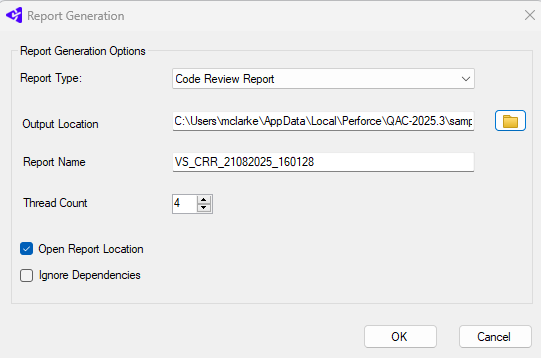
The types available are as follows:
| CRR | The Code Review Report summarizes metrics and messages from files, functions and classes. It can also display some code visualizations, includes, calls, relations and function structure. It provides a broad overview of the code. |
| HMR |
The HIS Metrics Report produces metrics according to the HIS (Hersteller Initiative Software) specifications. |
| MCR |
The MISRA Compliance Report provides information on all rule violations and deviations, together with deviations and rules that have been misapplied, in a format compatible with MISRA Compliance 2020. The following custom optional parameters are available for this report:
|
| MDR | The Metrics Data Report generates an XML file that you can use as a source of metrics data for further examination |
| RCR | The Rule Compliance Report contains data on violations of rules that are specified in a Perforce QAC Project’s Rule Configuration File. |
| SCR |
The Standards Compliance Report is a generic compliance report showing violations and suppressions for a project. It supersedes the old Rule Compliance Report (RCR). The following custom optional parameters are available for this report:
|
| SUR | The Suppressions Report provides information on message diagnostics that have been suppressed during analysis. |
Following generation of the selected report, then, provided that Open Report Location is ticked in the Report Generation dialog, Windows Explorer is opened automatically to allow you to select the report.
In addition, a link to the report’s location is displayed in the Visual Studio Output Panel. for an example.

All report output is generated in the Output Location as set in the Report Generation Options dialogue.
Each report is generated from the generic file results_data.xml, and the associated ’data’ folder (which holds the associated JSON (JavaScript Object Notation) files). The reports are in the format prqa_<VSProjectName><ConfigurationPlatformName><report_name>datestamp><timestamp>.<html/.xml>, and can be copied and shared with other users.