This section describes the functionality that is available directly from the GUI.
To use the GUI for analysis or viewing results, you must have a User license. See Licensing Requirements.
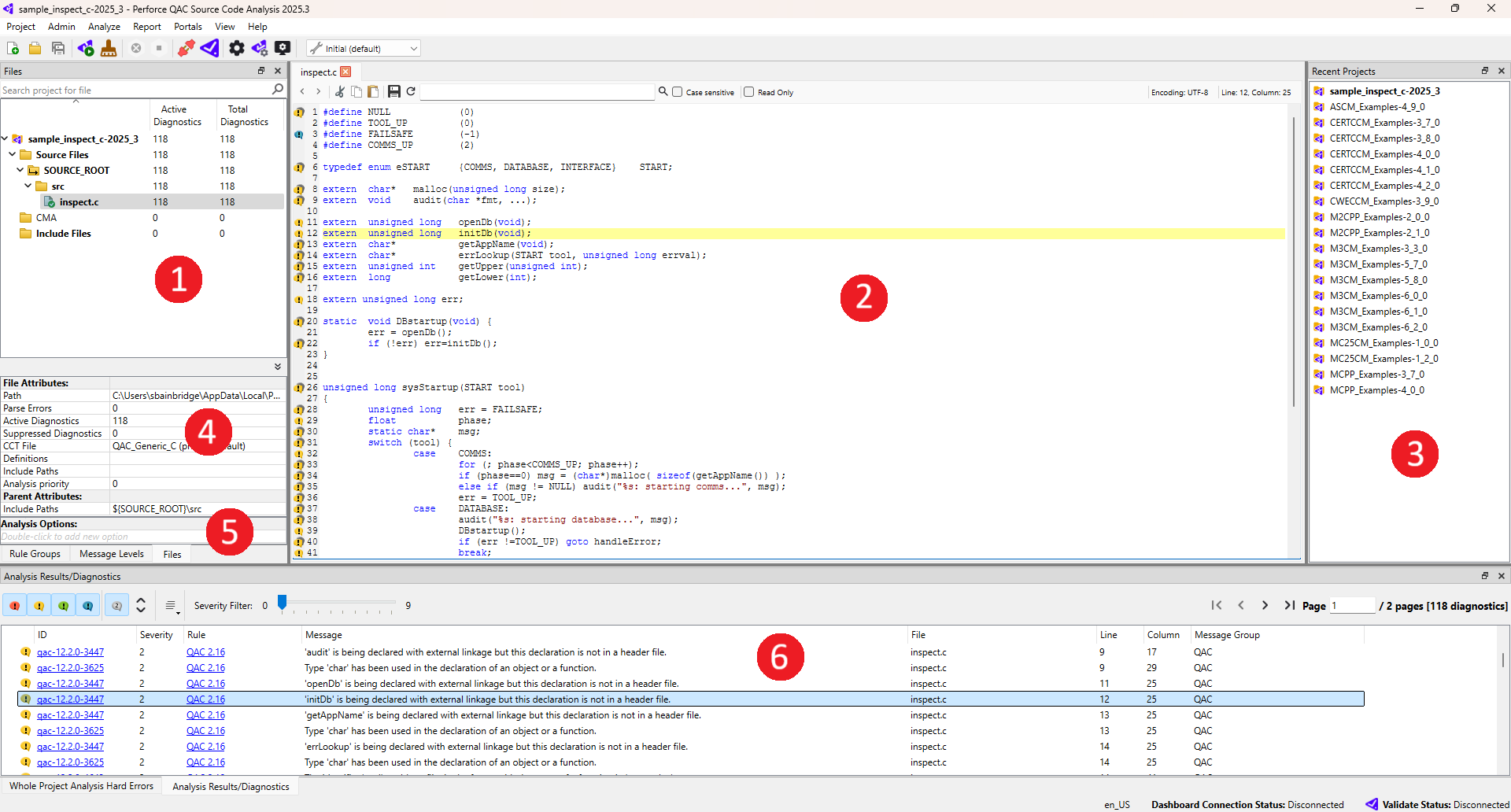
The panels are as follows:
- The Files panel for the active project. You can switch from this panel to either the Rule Groups panel or the Message Levels panel by using the associated tabs. The GUI always opens at the last tab that was selected.
- The Editor that allows you to view the highlighted diagnostics within the source code, and modify the code.
- Recent Projects available to use.
- The File Attributes for the item that is currently selected in the Files panel. These can be hidden using the double arrow button on the top right.
- Analysis Options, which can be configured on a file-by-file basis by appending and modifying rows. Similarly to File Attributes, files can inherit options from their parent folders.
- The Analysis Results/Diagnostics panel showing the filtered results for the file(s) selected in the Files panel.
The editor will also highlight keywords, types, string literals and comments. However, for Rust files, when using lifetime annotations denoted by the syntax
', highlighting will not work as intended and lifetime annotations will also be seen as string literals.The File Attributes are intended to be specific to a particular file - such as Rust files, which do not contain the include and define fields - and the Parent Attributes are intended to be ’global’ to the project, with the File Attributes taking priority. However, you should be aware that the Parent Attributes are ’read only’ and may not appear for certain projects once they have been re-synchronized.