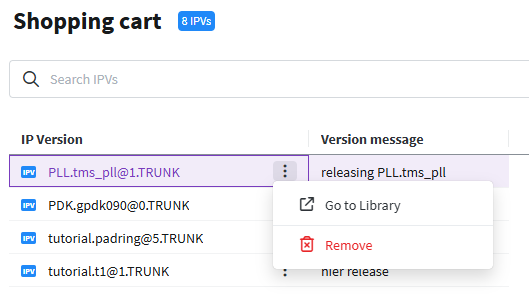
Manage IPVs in Shopping cart
Overview
IPVs can be added to the Shopping cart from multiple areas within the application. You can also remove items from the Shopping cart. This topic covers how to manage the IPVs in the Shopping cart.
Add IPV or IPL in Shopping cart
Instead of navigating away from the Shopping cart to add a different IPV or IPL, you can add it directly from the Shopping cart. This is useful when you need to compare an existing IPV to an alternative.
-
Navigate to the Shopping cart.
-
Click the Actions menu on the IPV you want to add the version of.
-
Click Add different version.
-
Select the Line or Version you want to add to the Shopping cart, then click Add IPV.
Remove IPV from Shopping cart
-
Navigate to the Shopping cart.
-
Click the Actions menu on the IPV you want to remove.
-
Click Remove.